Welcome to KnoBee
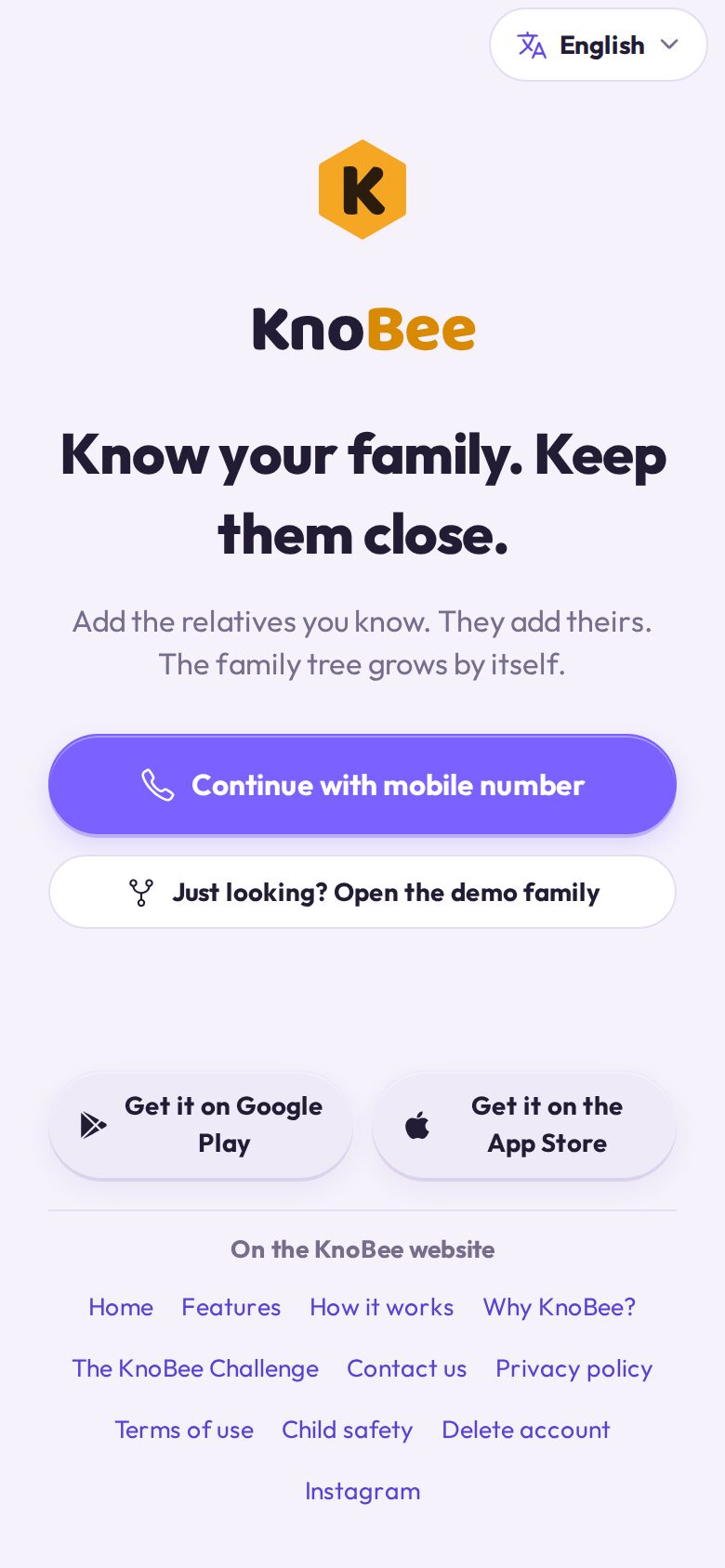
KnoBee is your family's own private space: one family tree that the whole family builds together, with posts, chats, calls and reminders that stay inside the family.
Steps
- Tap Continue with mobile number.
- Type your number and the 6-digit code you receive by SMS.
- If a relative already added you, KnoBee finds you. Tap That is me.
- Otherwise write your name and start your own tree.
Choose your look
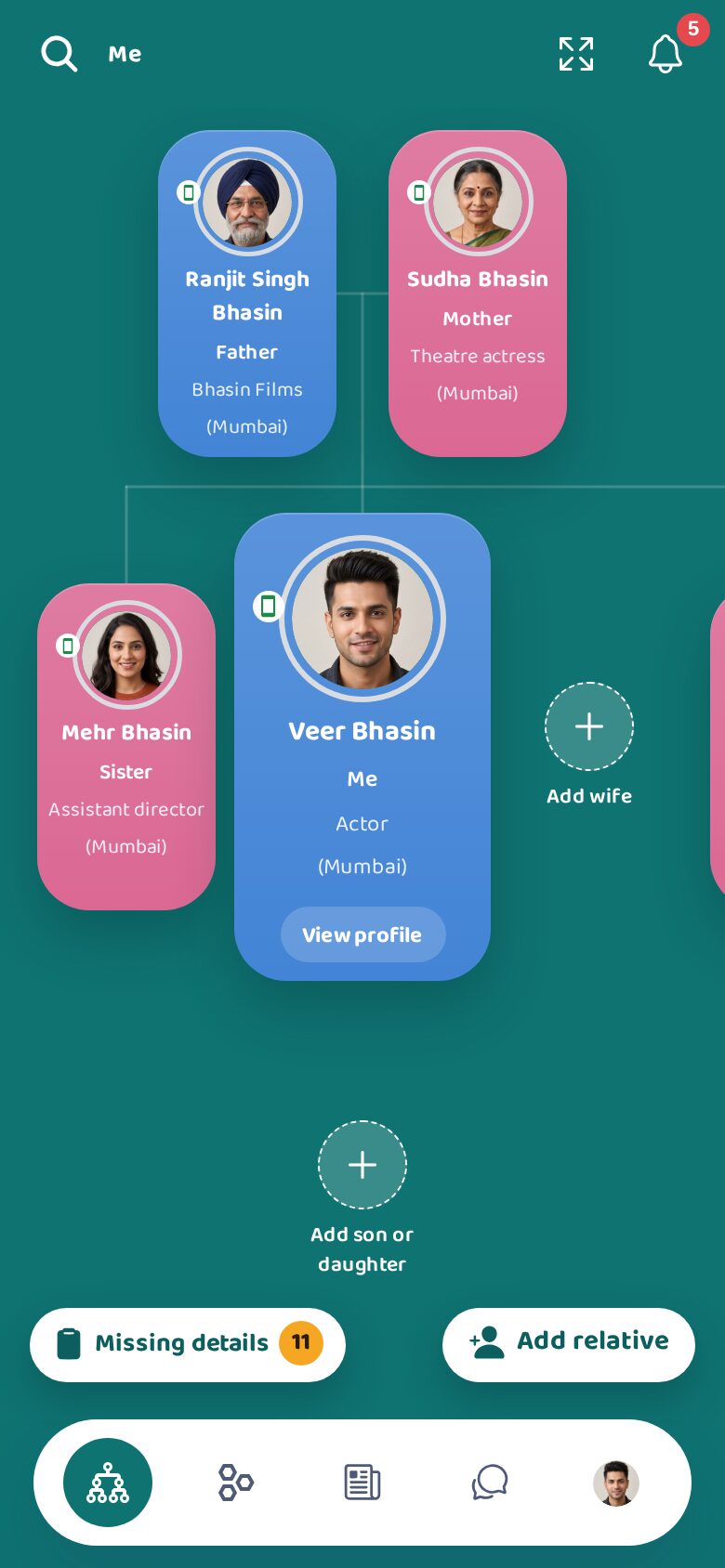
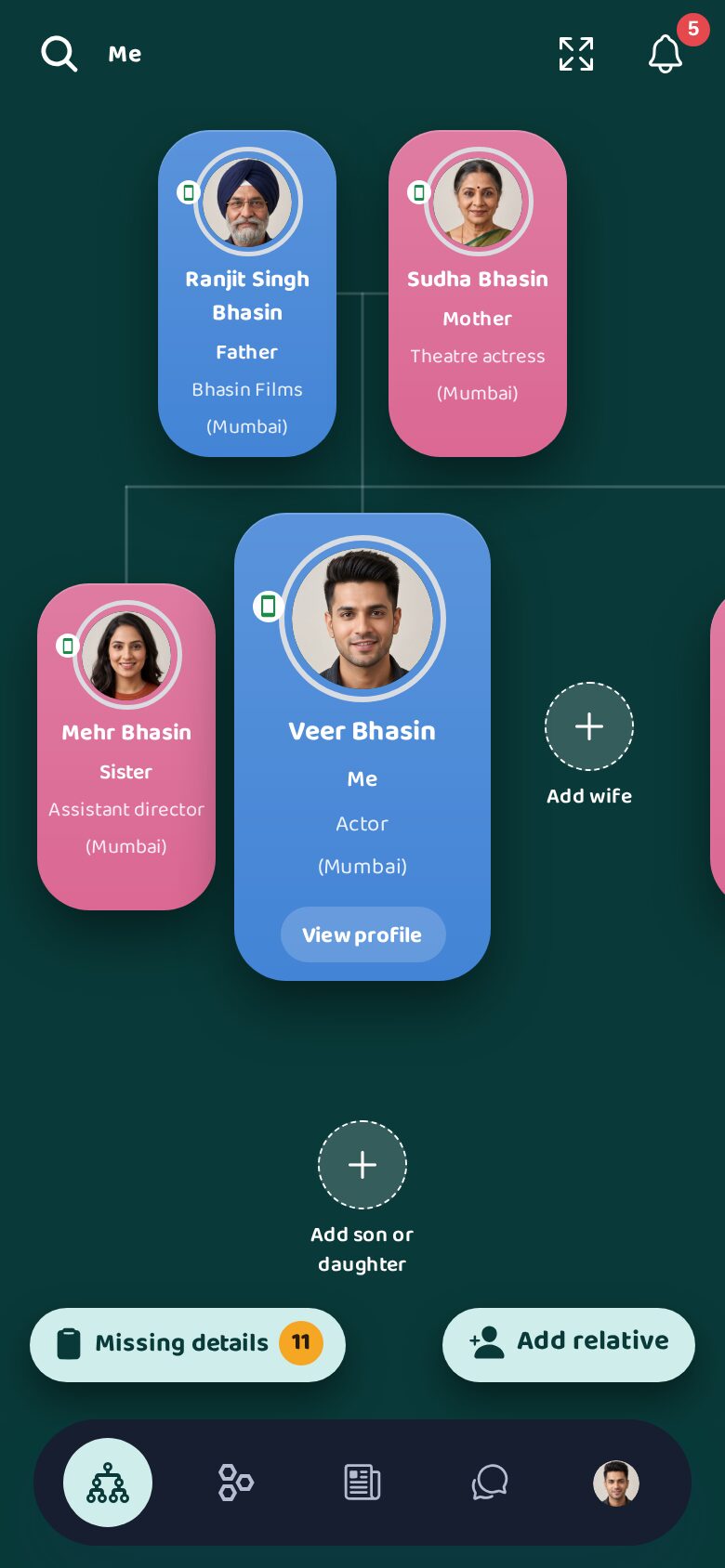
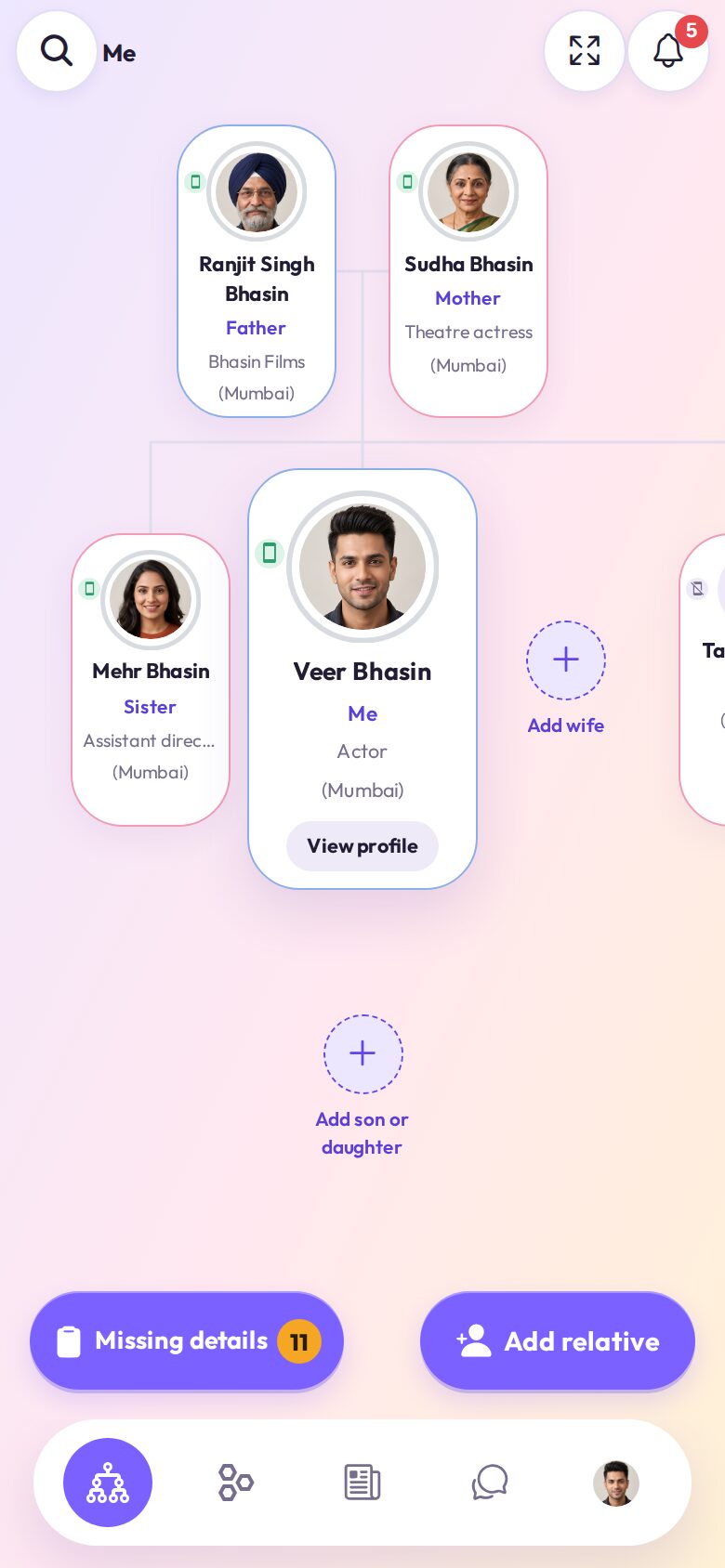
KnoBee can look the way you like. Pick a style (Modern, Sunset or Classic), light or dark colours, and Compact or Large view. Large view makes text, photos and buttons bigger: best for elders. The change shows on every screen at once, on the phone and on knobee.app.
Steps
- Open Me, then Settings.
- Under Style tap Modern, Sunset or Classic.
- Under Theme tap Light, Dark or Same as phone.
- Under View tap Large for bigger letters.
Choose your language
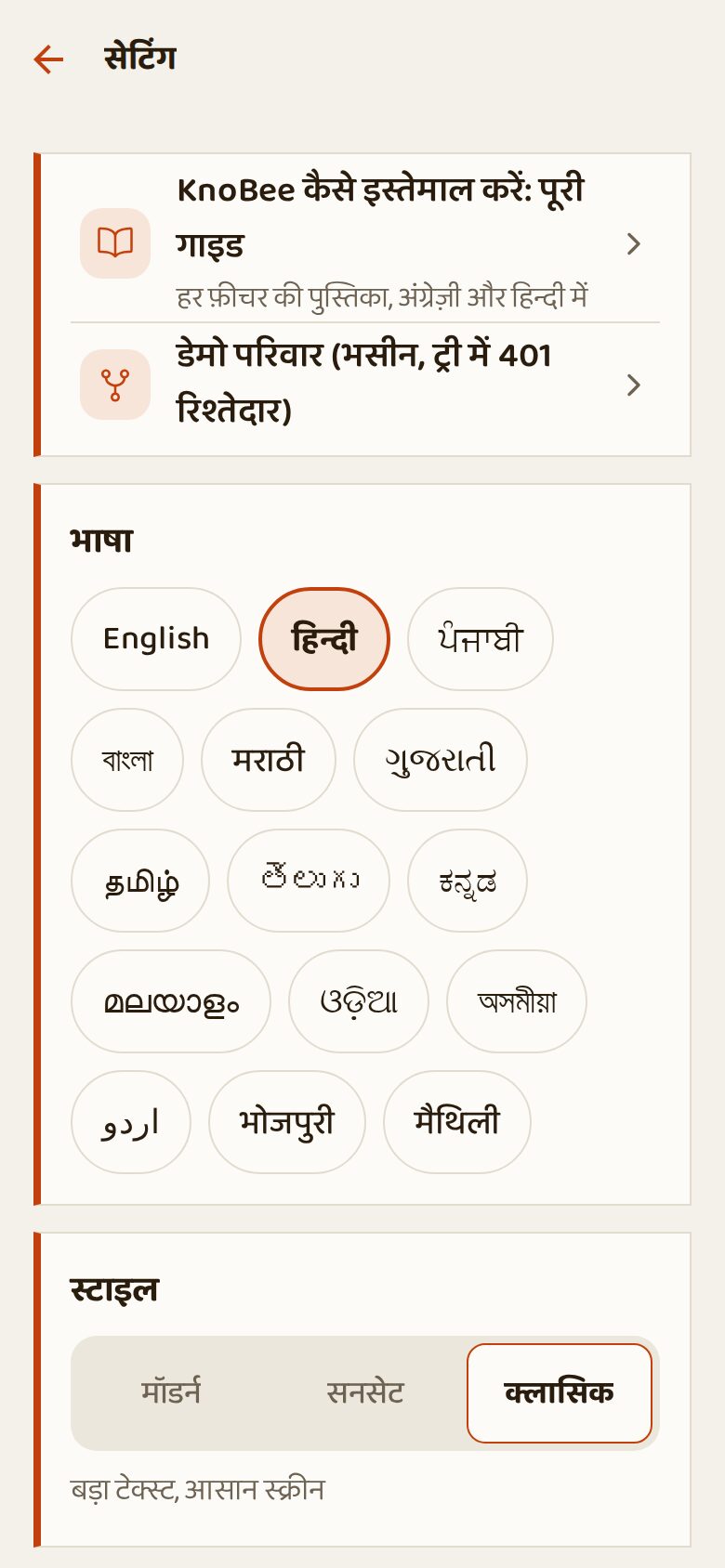
KnoBee speaks 15 languages: English, हिन्दी, ਪੰਜਾਬੀ, বাংলা, मराठी, ગુજરાતી, தமிழ், తెలుగు, ಕನ್ನಡ, മലയാളം, ଓଡ଼ିଆ, অসমীয়া, اردو, भोजपुरी and मैथिली. Every button, message and reminder changes to your language.
Steps
- Open Me, then Settings.
- Under Language tap your language.
- That's it: the whole app changes at once.
The five main buttons
At the bottom of the screen there are always five buttons. Whatever you are doing, tap one of them to come back.
Your family tree
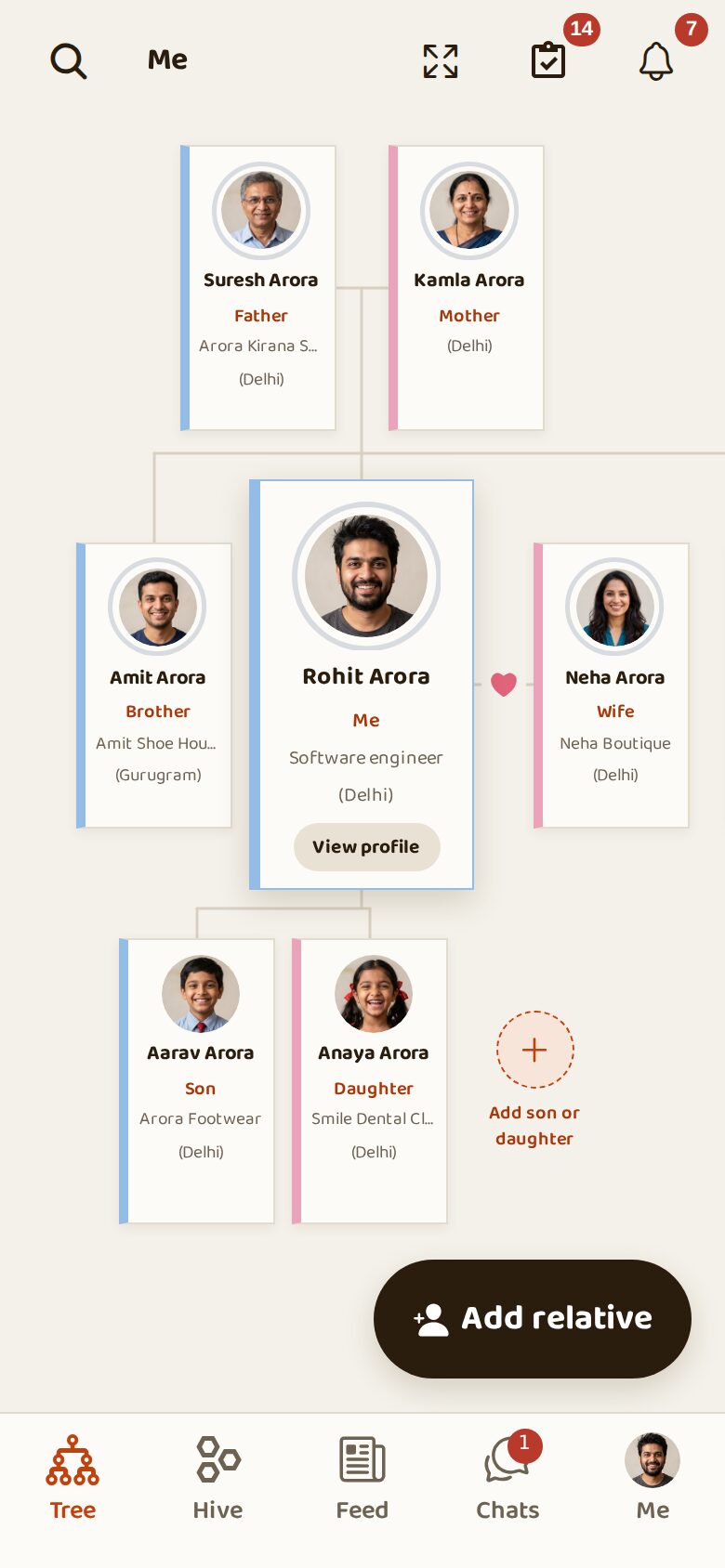
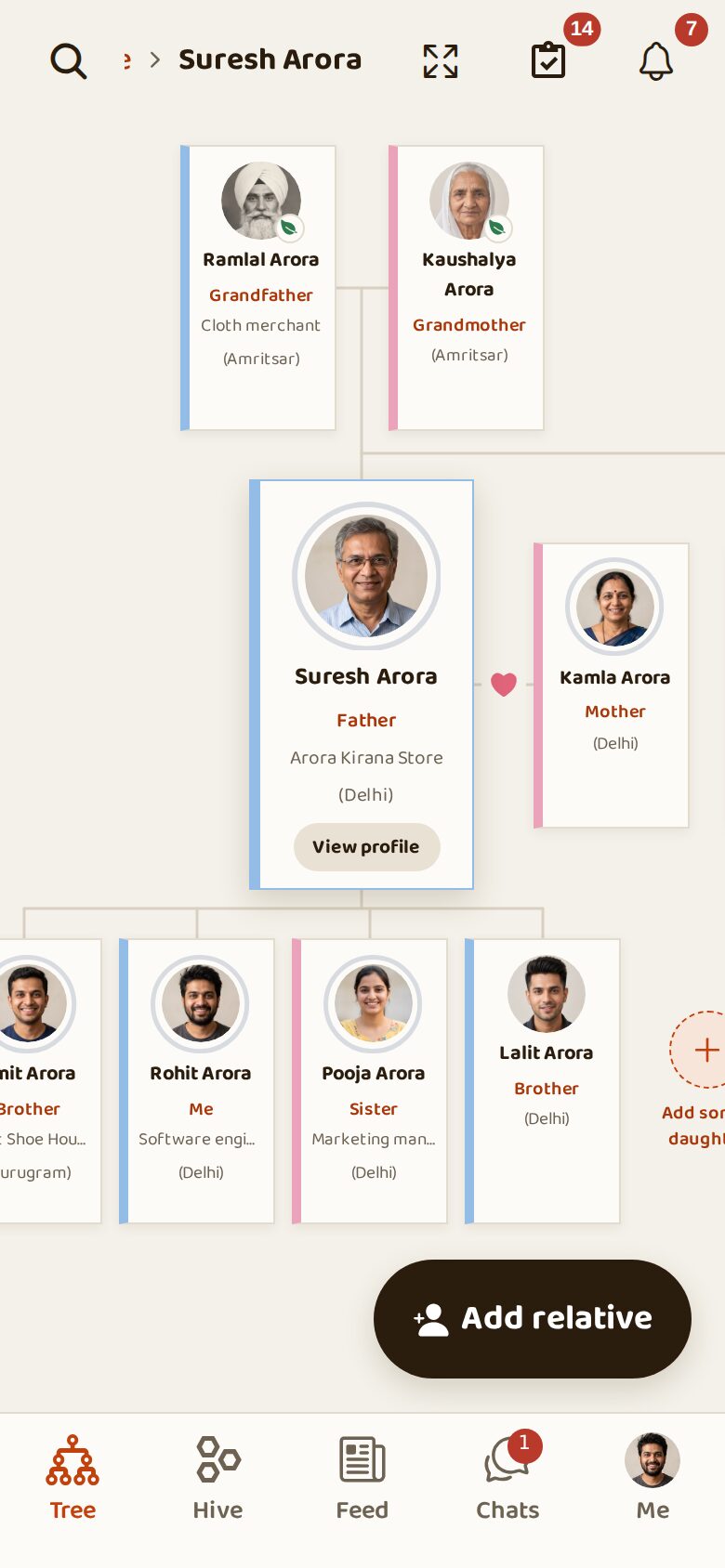
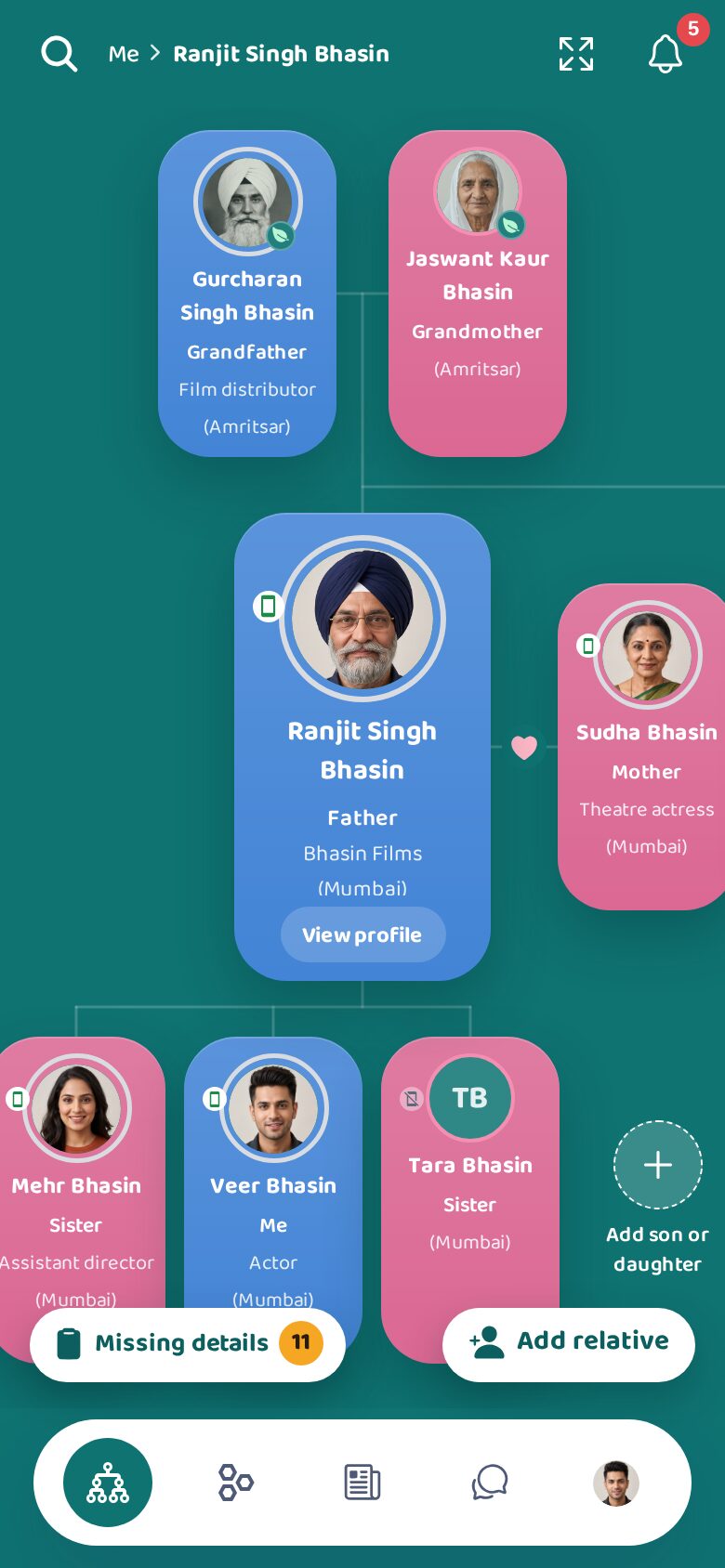
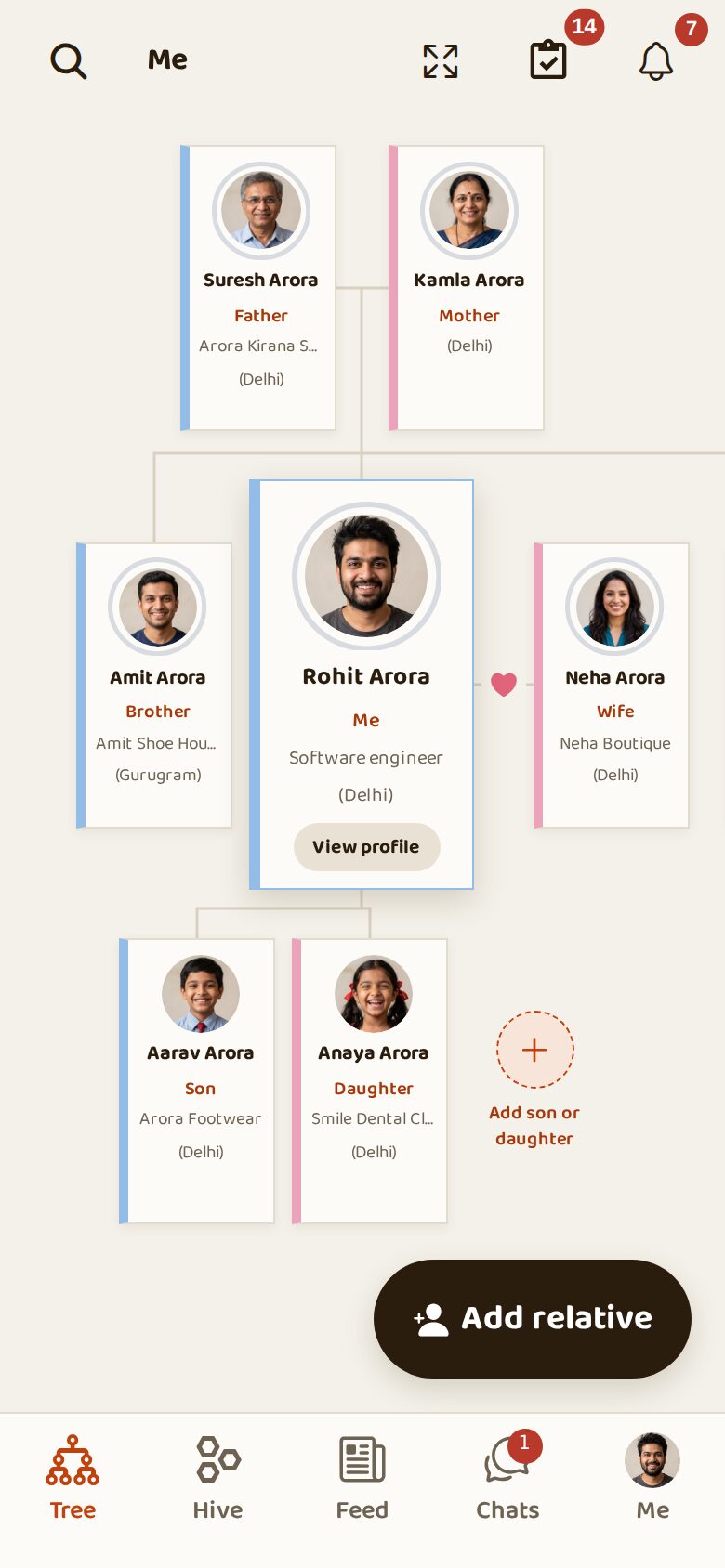
The tree opens with you in the middle: parents above, children below, brothers, sisters and your spouse beside you. Each card shows the relation, work and city. Tap any card to move the tree to that person.
Steps
- Tap a card to centre the tree on that person.
- Tap View profile on the centre card to open their profile.
- Use the search (magnifier, top left) to find anyone by name.
- The expand button (top) shows the whole family at once.
Add a relative
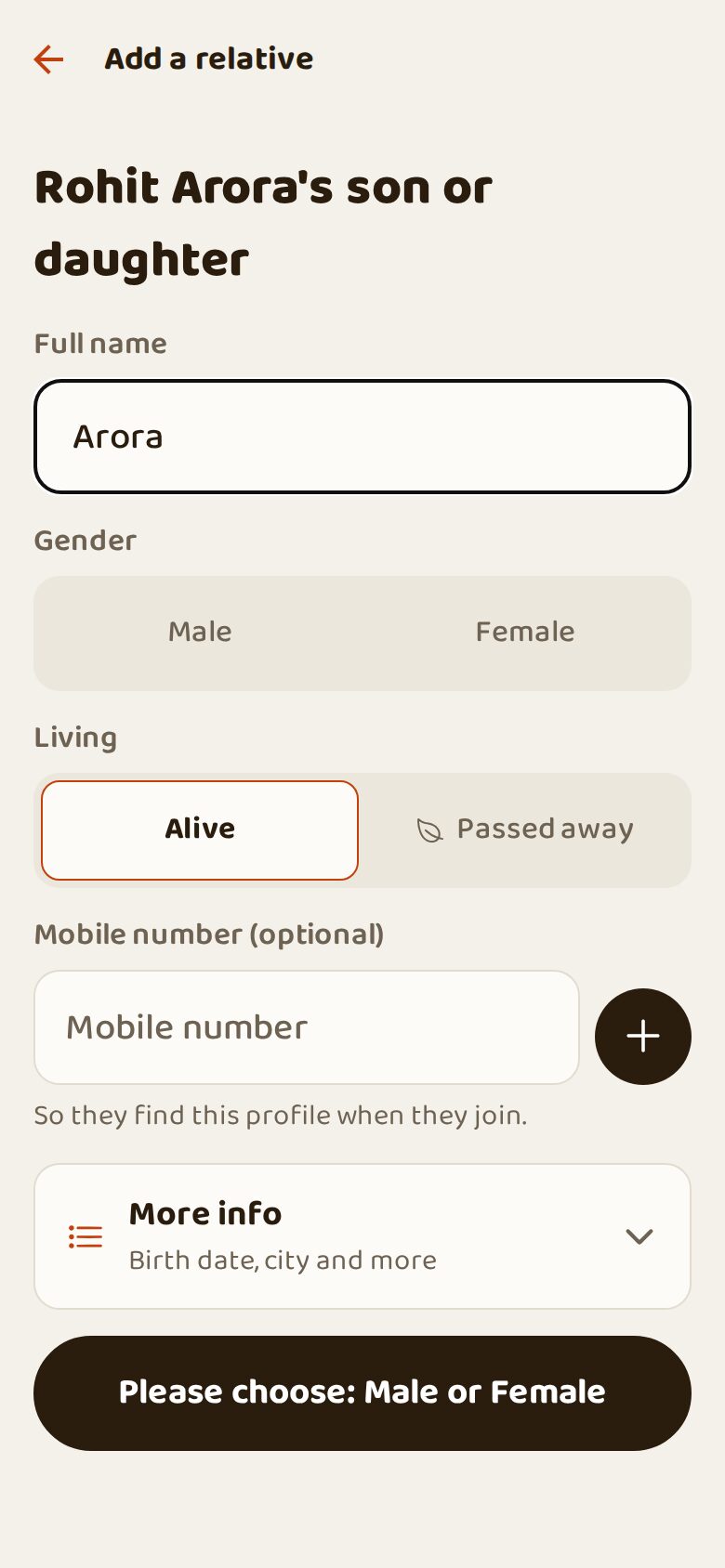
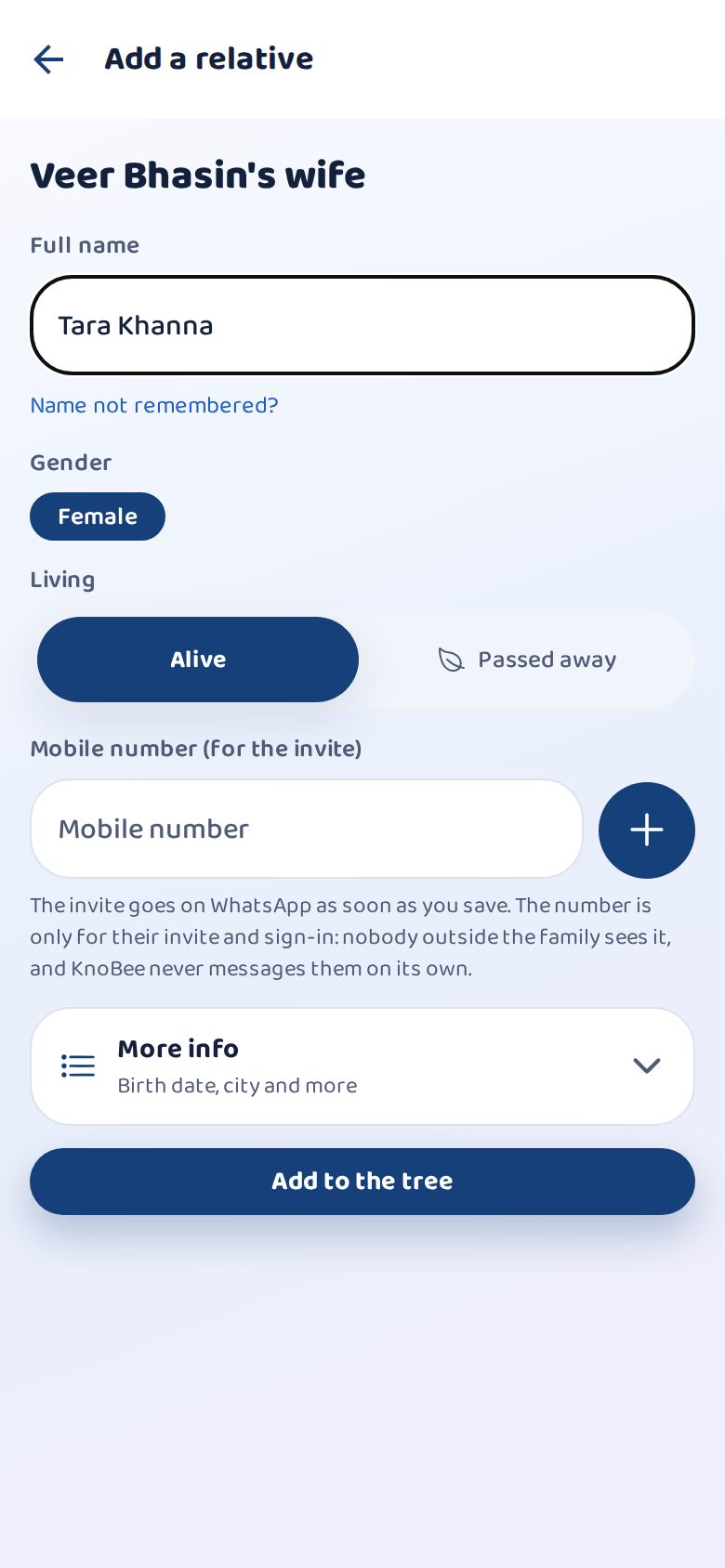
Adding someone takes a few seconds: only the name, male or female, and whether they are alive. A mobile number is optional; with it, they can find themselves when they join. Birth date, city and more are under More info.
Steps
- Tap Add relative and choose the relation (father, mother, brother, sister, spouse, son, daughter).
- Write the full name, e.g. Amit Sharma.
- Choose Male or Female and Alive or Passed away.
- Add a mobile number if you know it (+ adds another).
- Tap Add to the tree.
Passed away, and the Shraddh tithi
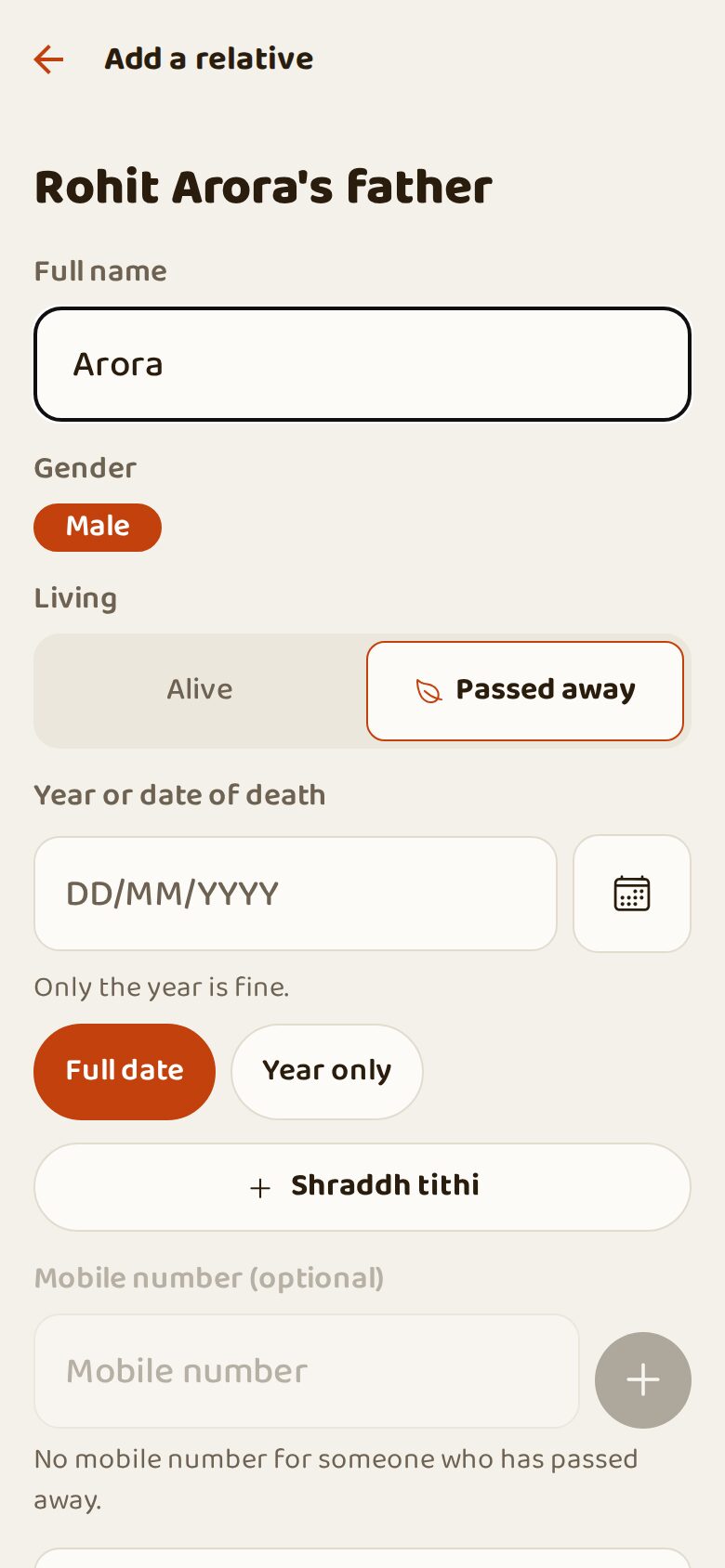
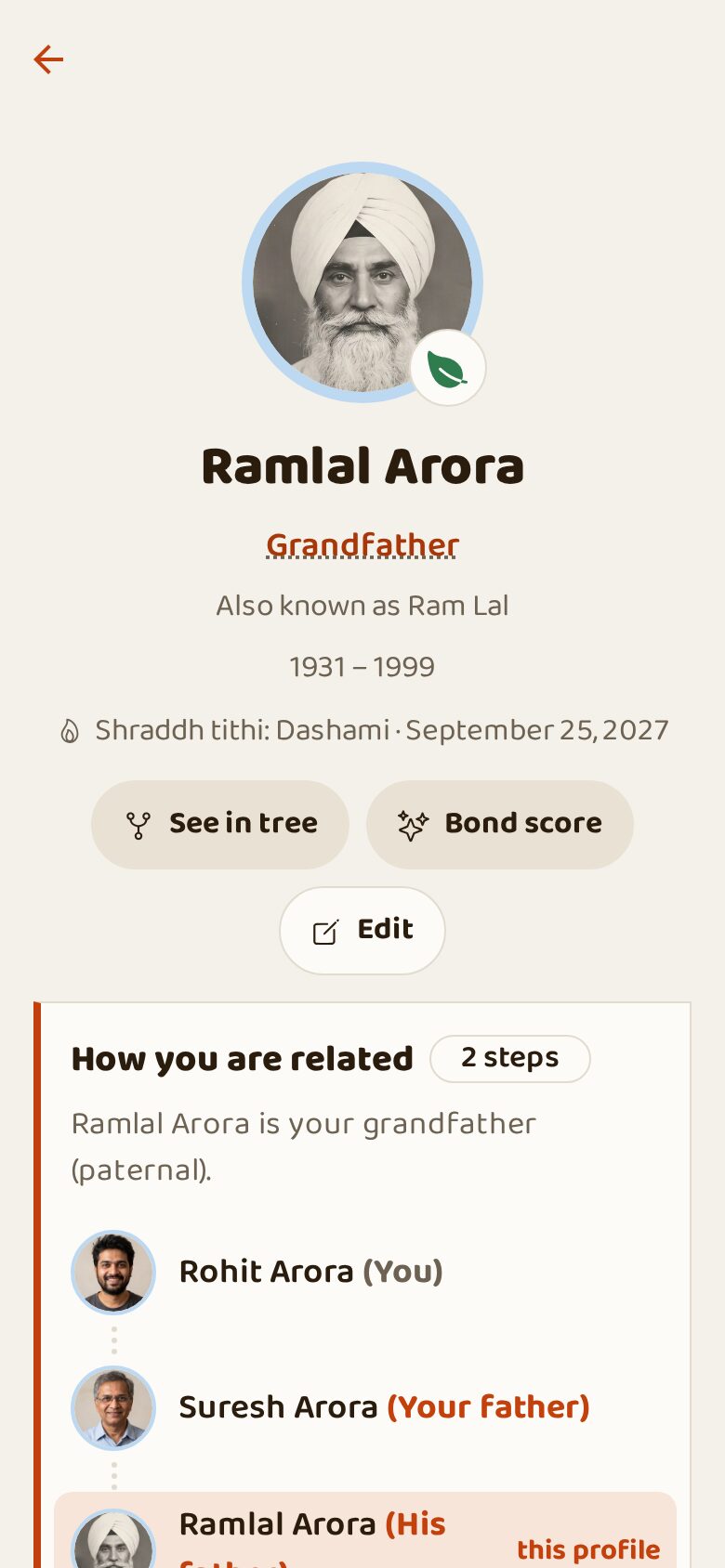
For an elder who has passed away, keep the date of death (a year is enough). Tap Shraddh tithi: KnoBee works out the tithi from the panchang. Add the time of death for an exact answer, or choose one of the 16 tithis yourself. Please confirm it with your pandit.
Steps
- Choose Passed away and write the date of death.
- Tap + Shraddh tithi. The tithi fills in by itself.
- To change it, tap the tithi and pick from the list of 16.
- Every year, blood relations get a reminder 7 days before.
Confirm relations
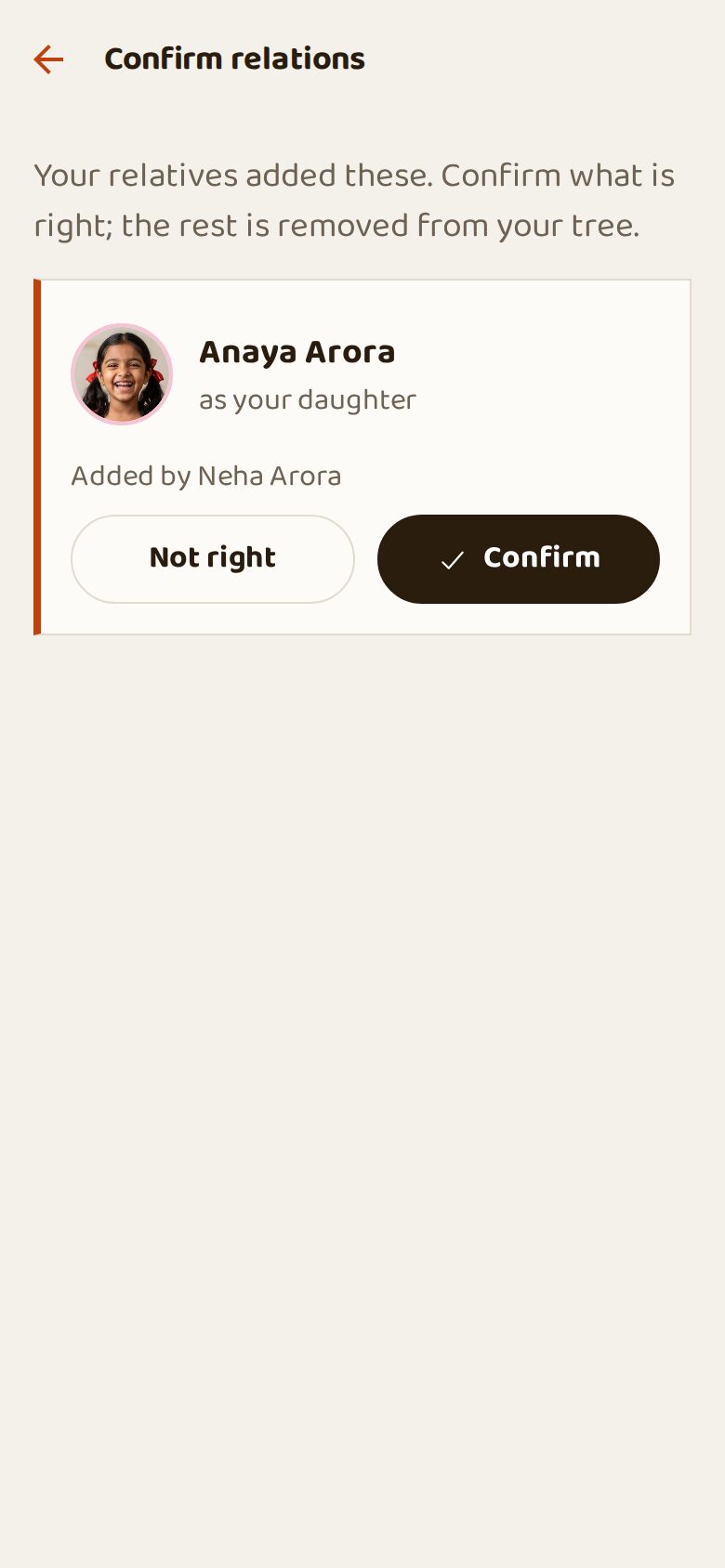
When a relative adds you to someone ("Anaya Arora as your daughter"), you are asked to confirm. Tap Confirm if it is right; Not right removes the link from your tree.
Steps
- Open Me. A red number shows how many wait.
- Tap Confirm relations.
- Tap Confirm or Not right for each.
Same person? Joining two families
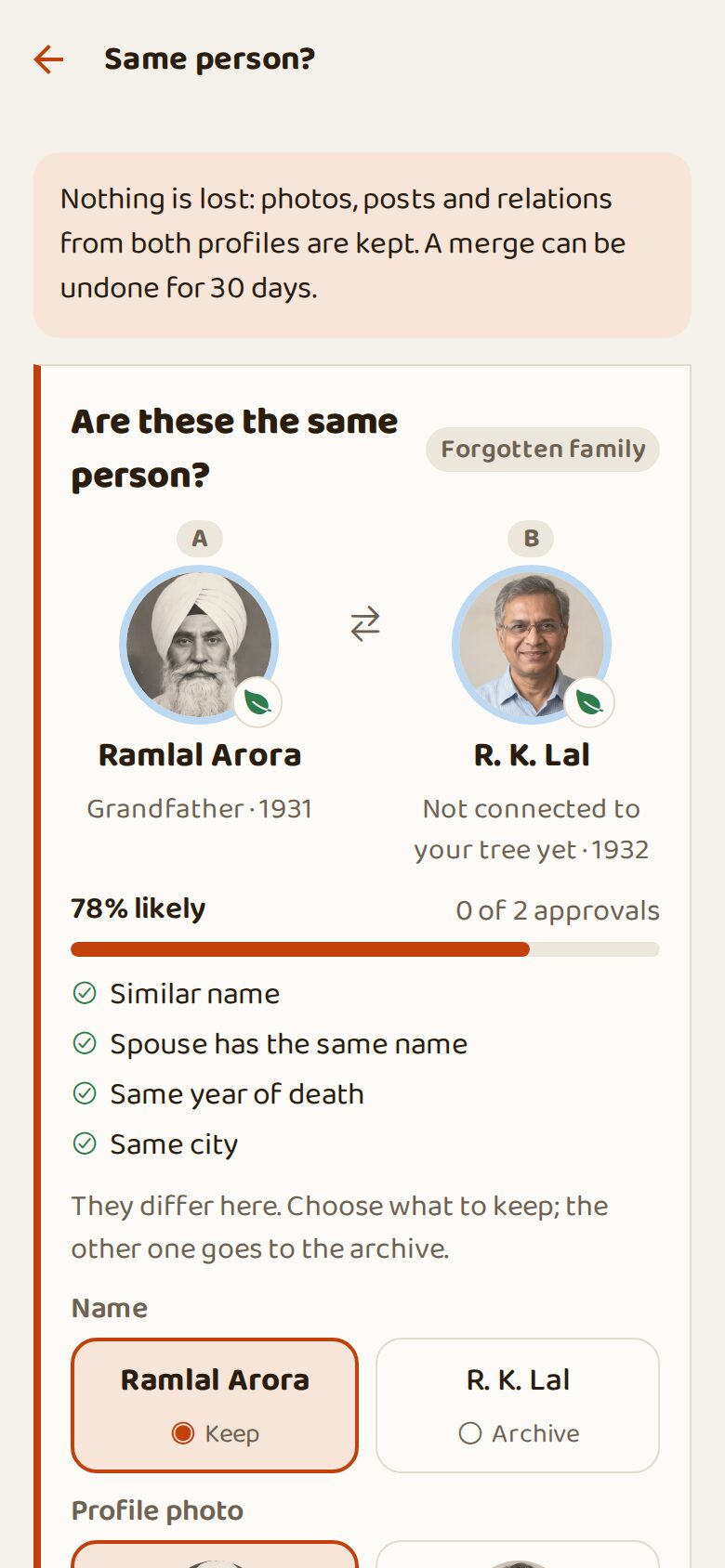
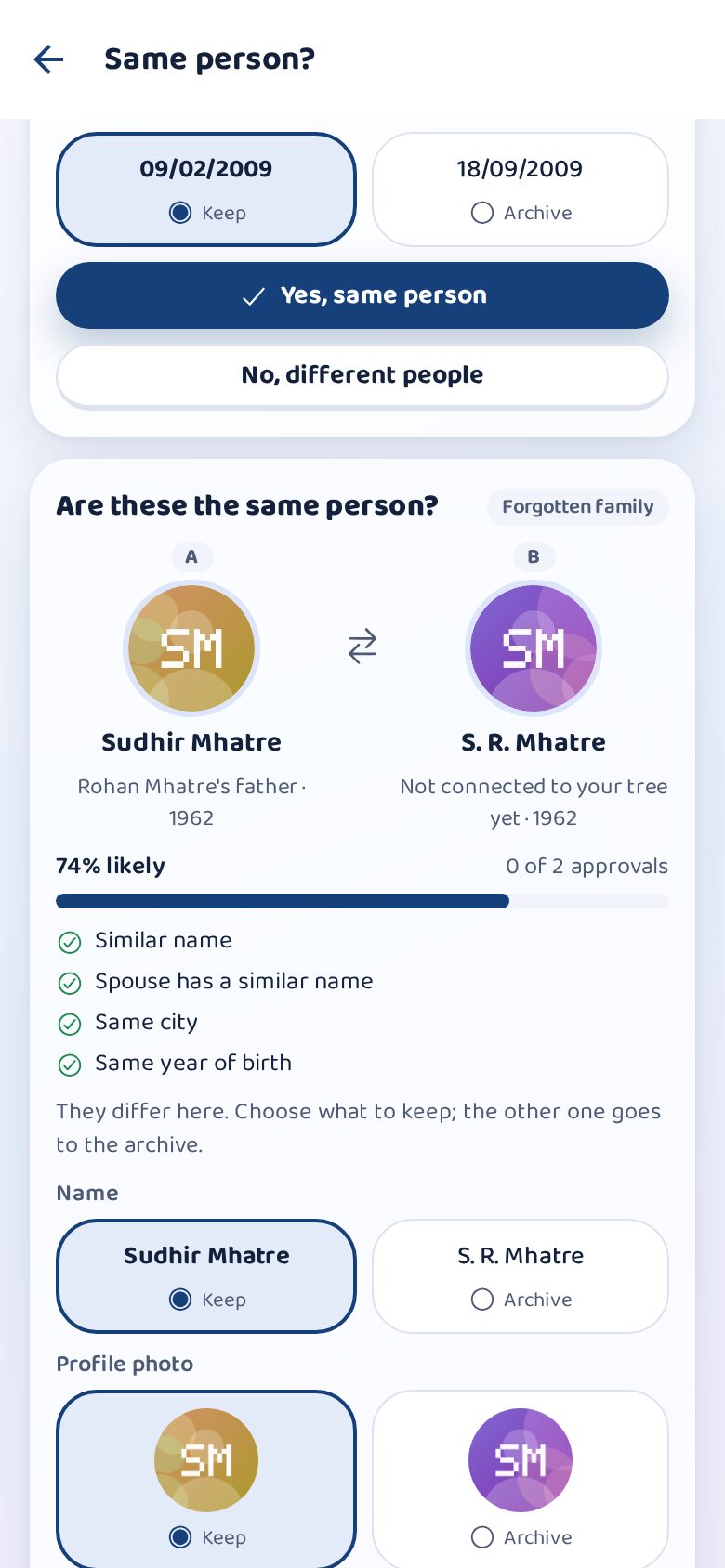
Sometimes two relatives add the same grandfather separately. KnoBee notices (same name, spouse, year) and asks: are these the same person? Choose which details to keep. Nothing is lost, and a merge can be undone for 30 days. This is also how a wedding joins two families' trees.
Steps
- Open Hive and tap Same person?.
- Compare the two cards and tick what to keep.
- Approve. Two approvals from the family complete it.
Added someone by mistake? Delete it
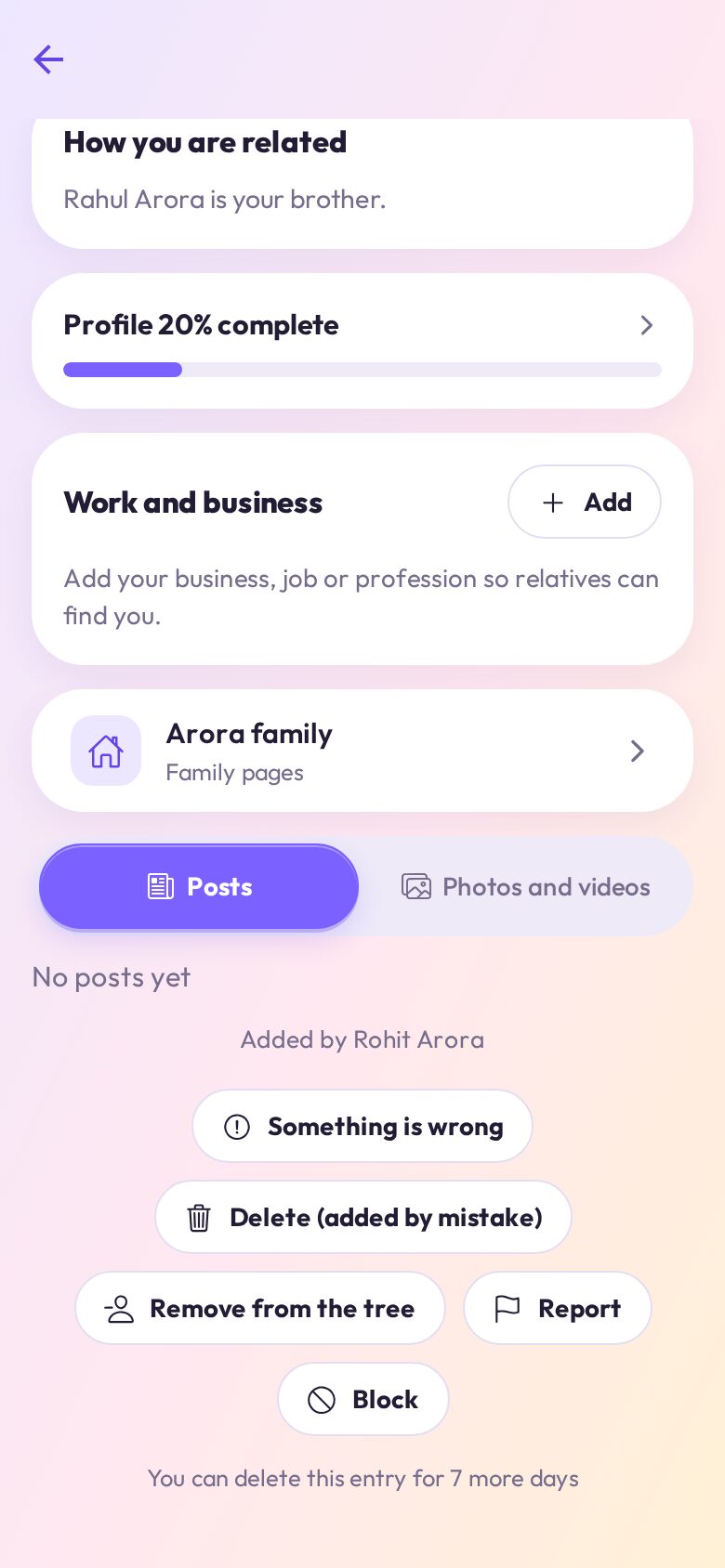
If you added someone by mistake, you can delete that entry yourself within 3 days of adding it, as long as nothing has been added to it since: no wife or husband, no children, and they have no KnoBee account of their own. Only the person who added the entry sees this button. Nobody is told, and the points for adding them are taken back.
Steps
- Open the person you added: tap them in the tree.
- Scroll down and tap Delete (added by mistake), then Delete.
- The line under the buttons shows how many days are left.
Family votes and leaving a wrong family
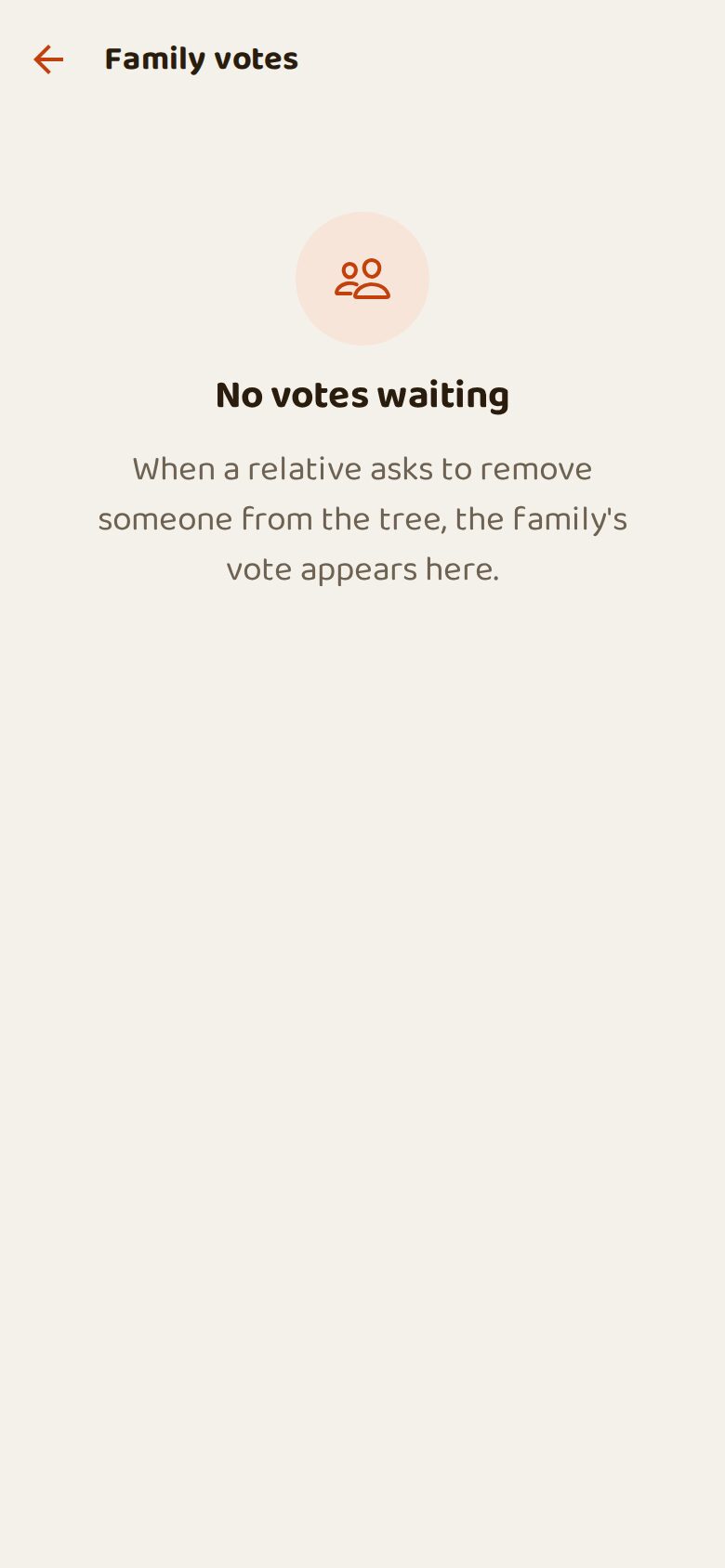
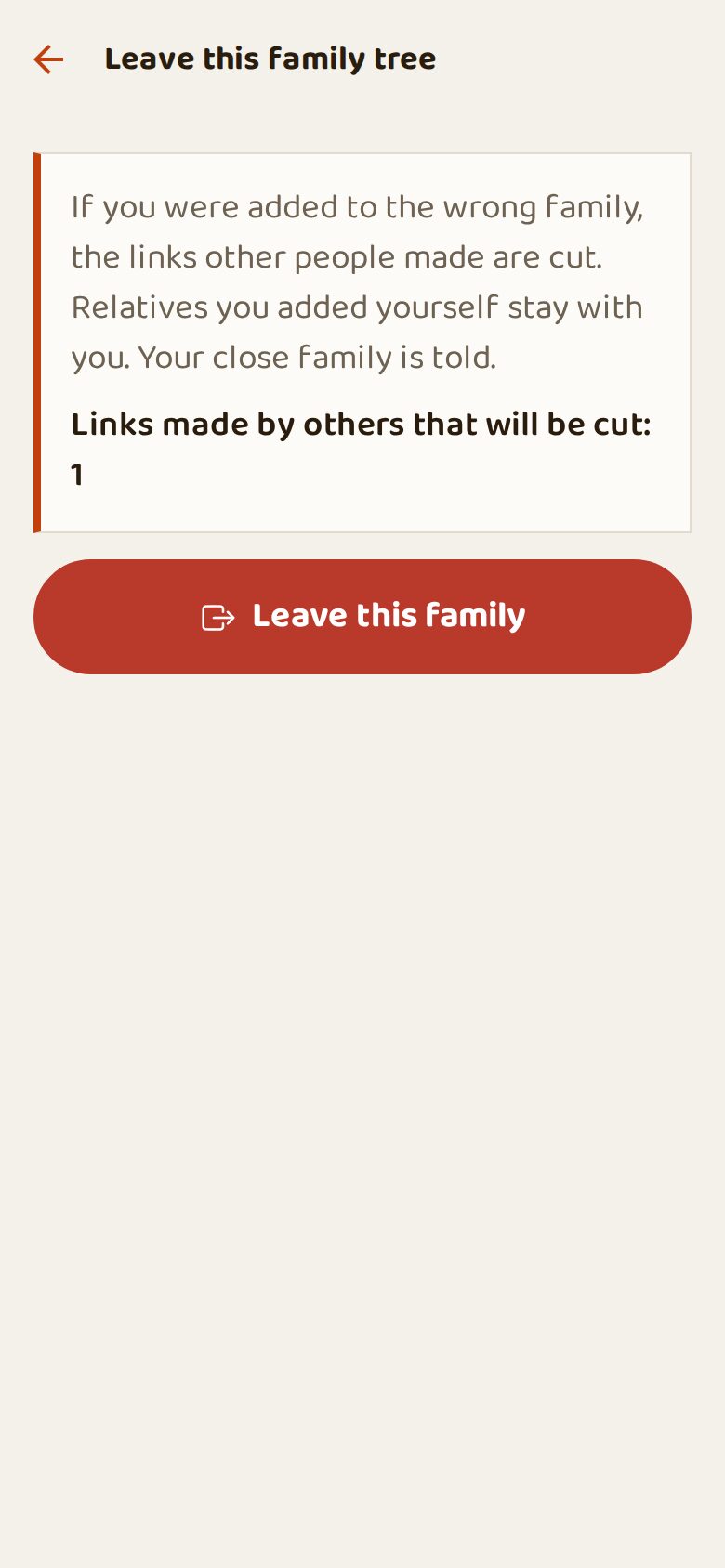
Removing someone from the tree needs a family vote, so nobody can delete relatives alone (only an entry you added by mistake in the last 3 days, see the page before). If someone added you to the wrong family, Leave this family cuts only the links others made; what you added stays.
Steps
- To remove someone: open their profile, tap Remove from the tree.
- Relatives vote in Me → Family votes.
- Wrong family? Settings → This is not my family → Leave this family.
Who is this? Face scan
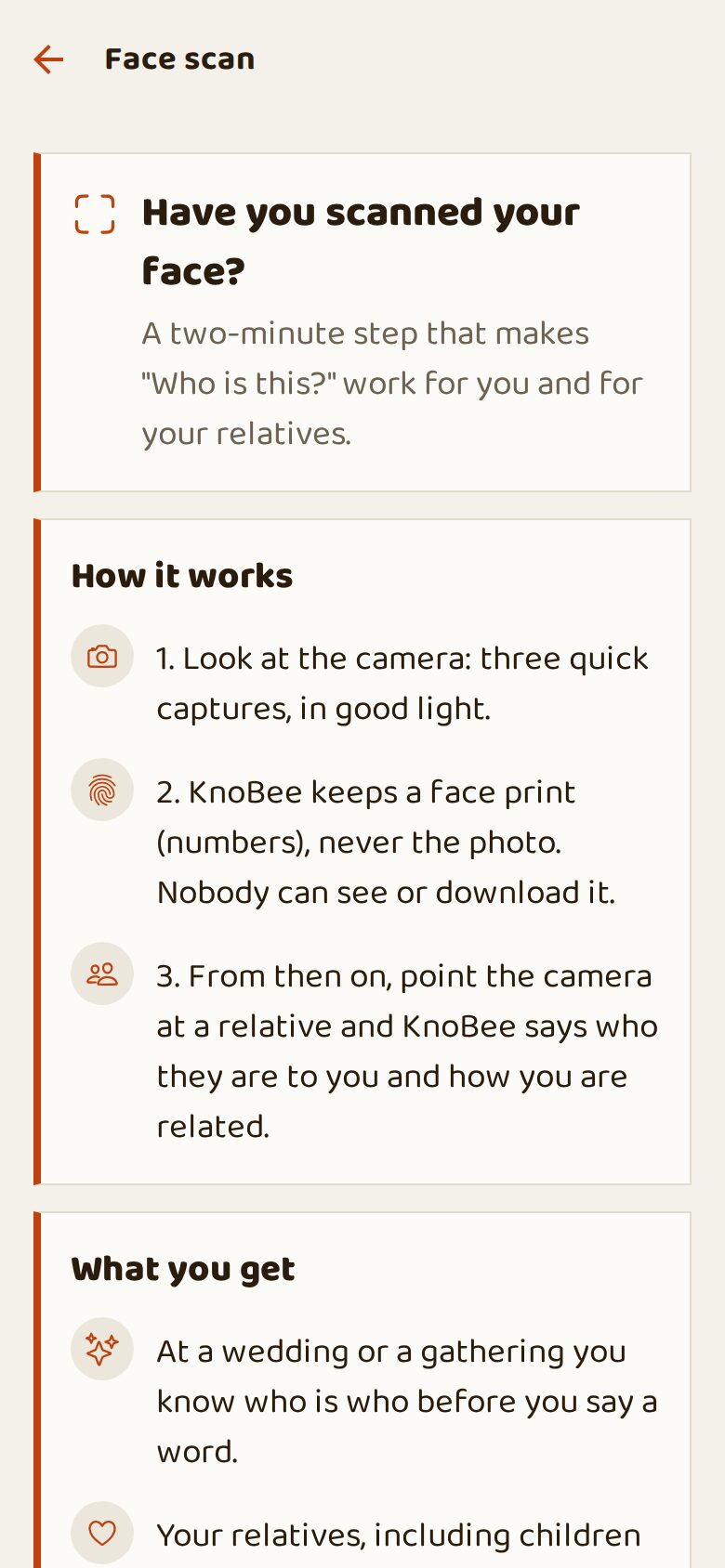
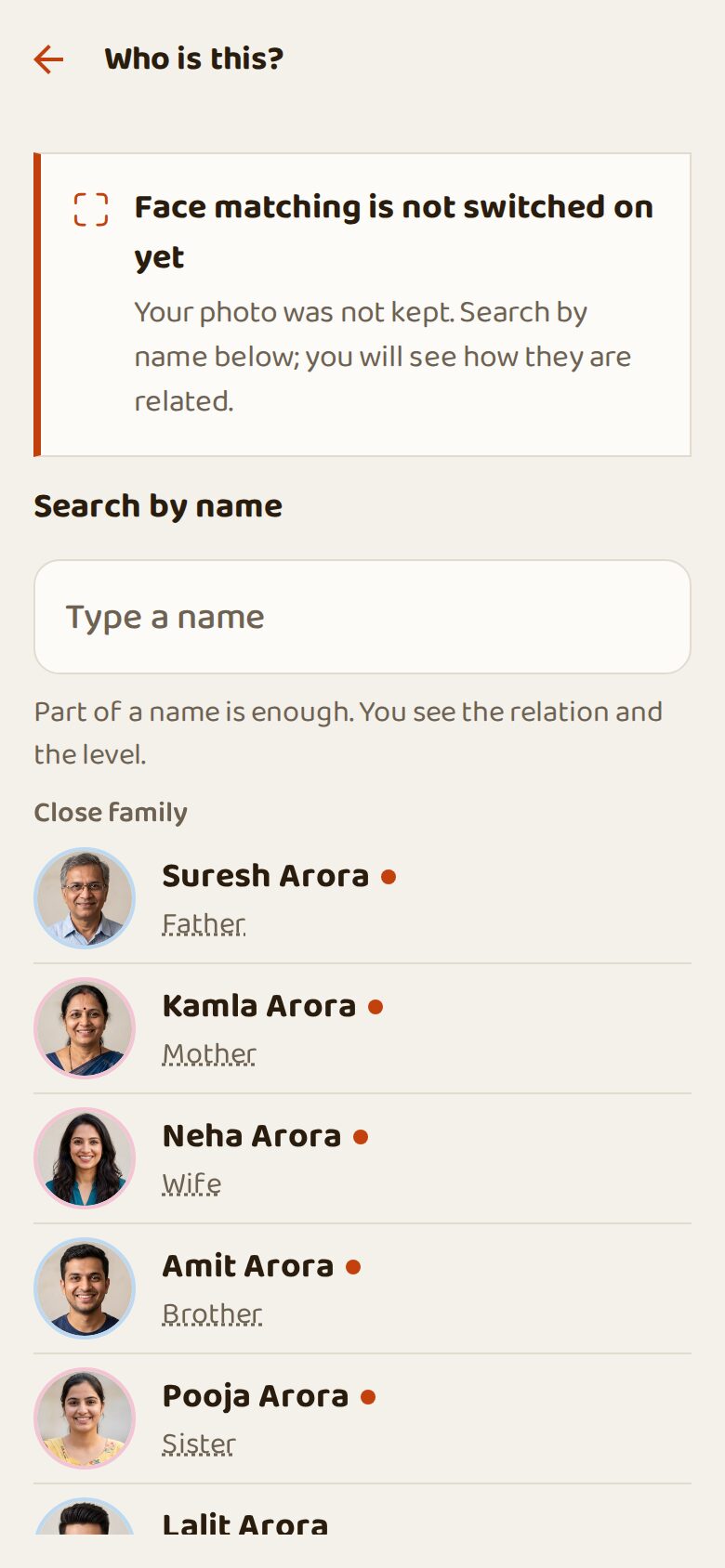
At a wedding you meet someone and don't remember who they are. Point the camera at them: KnoBee tells you their name and how they are related to you. First scan your own face once (three quick captures). Only a face print in numbers is kept, never the photo.
Steps
- Open Hive → Who is this?.
- Scan your own face once: tap How it works and follow.
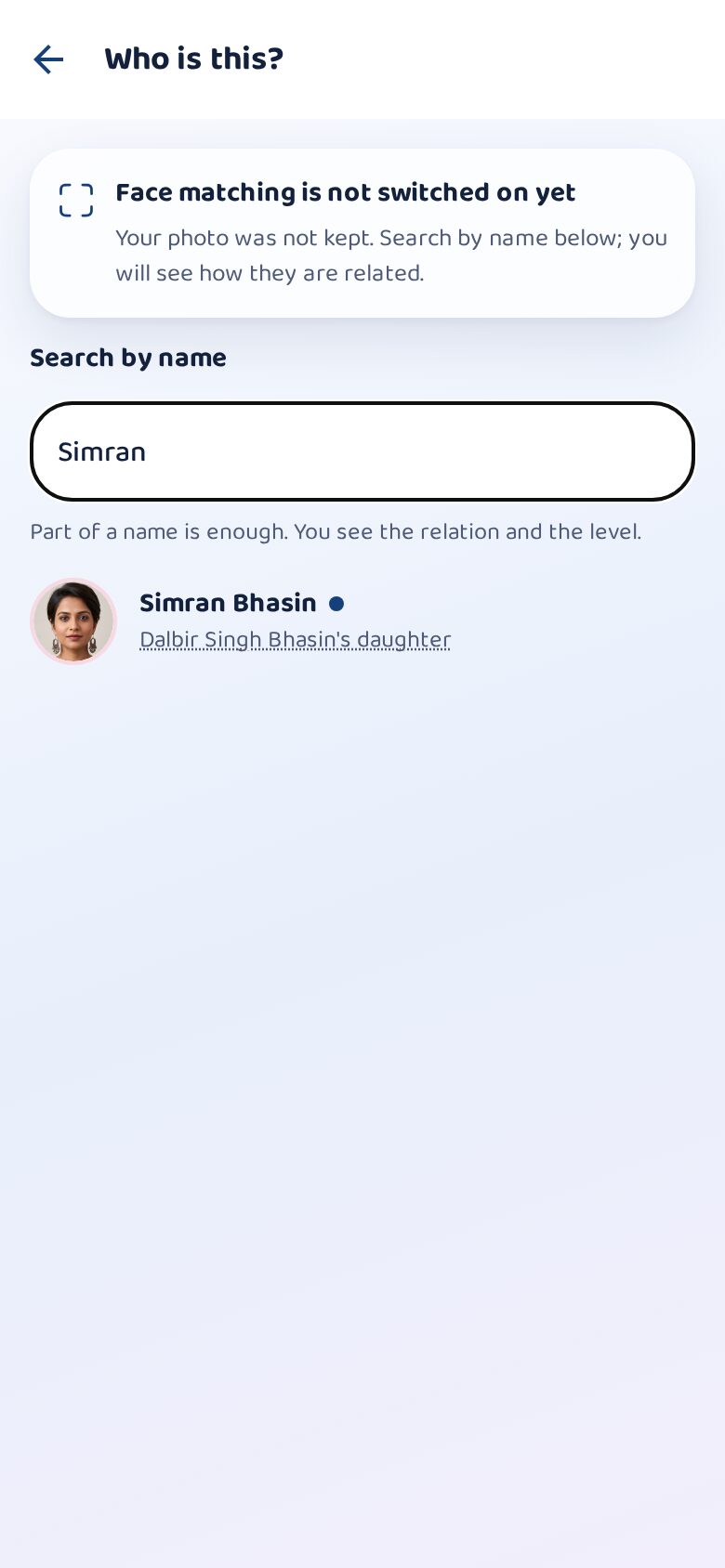
- Then point the camera at a relative, or search by name.
Missing details: what your tree still needs
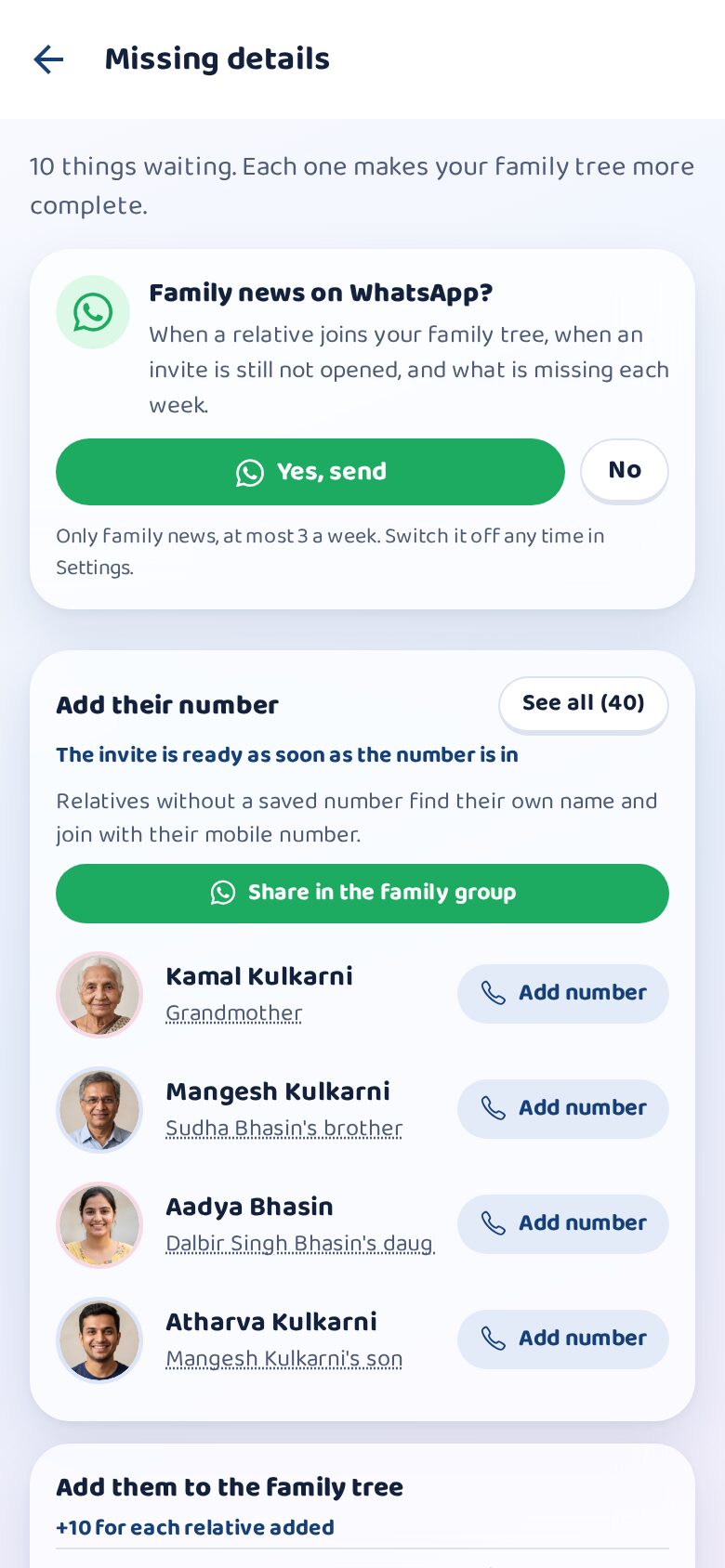
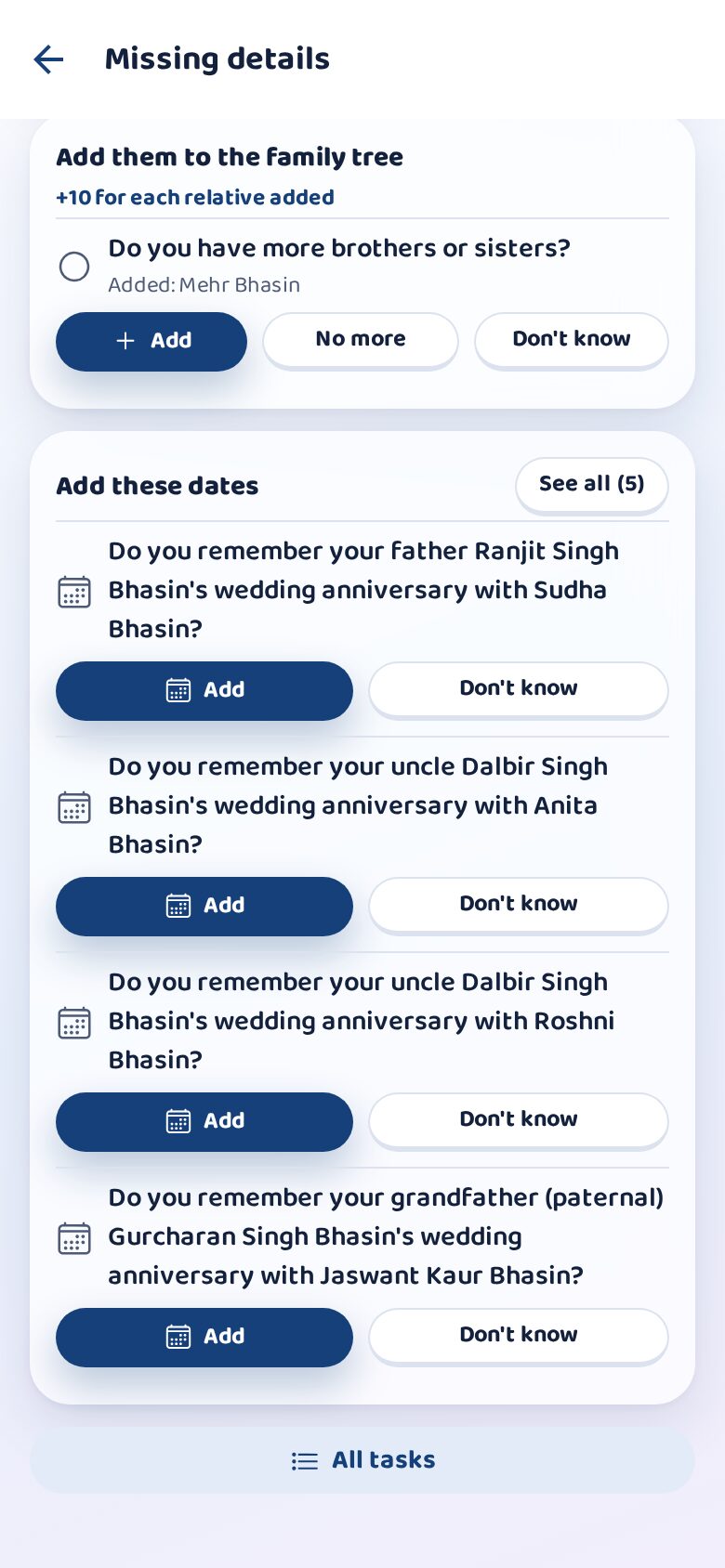
One short page with everything still missing from your family tree, each with its button right there: relatives to invite first, then missing parents, brothers and sisters, numbers and dates. Aim for five invites a week; for someone invited who has not come yet, send a short reminder.
Steps
- Open the Tree and tap Missing details.
- Start at the top: Invite on WhatsApp.
- Fill the rest one by one; each line goes away when it is done.
Related in two ways (दोहरा रिश्ता)
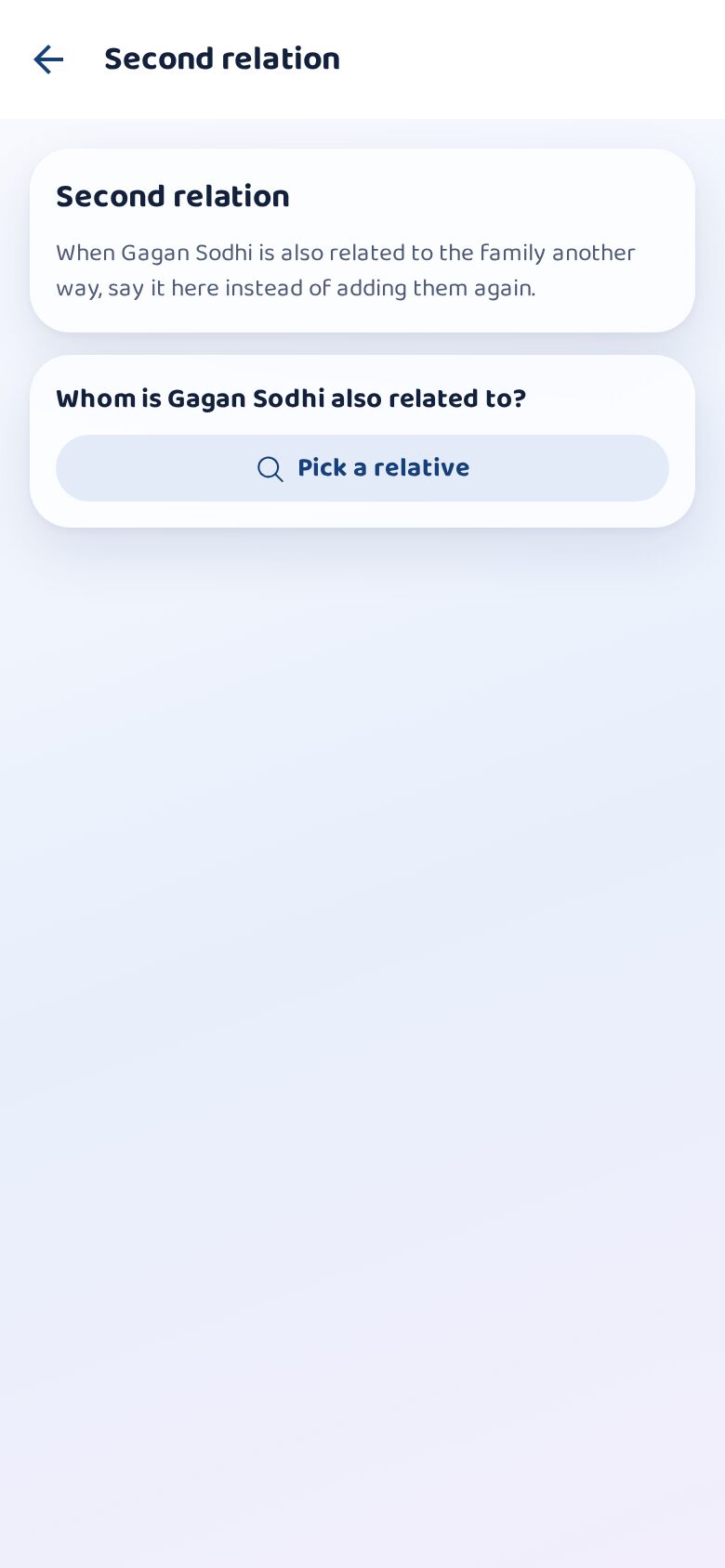
In big families one person can be related to you twice: your chachi's brother may also be your bua's daughter's father-in-law. Add the second relation to the person who is already in the tree; KnoBee keeps one person and shows both relations.
Steps
- Open the person's profile and choose Also related another way.
- Pick the relative they are related through.
- Say how, step by step (her mother, his brother), and save.
A relative's profile
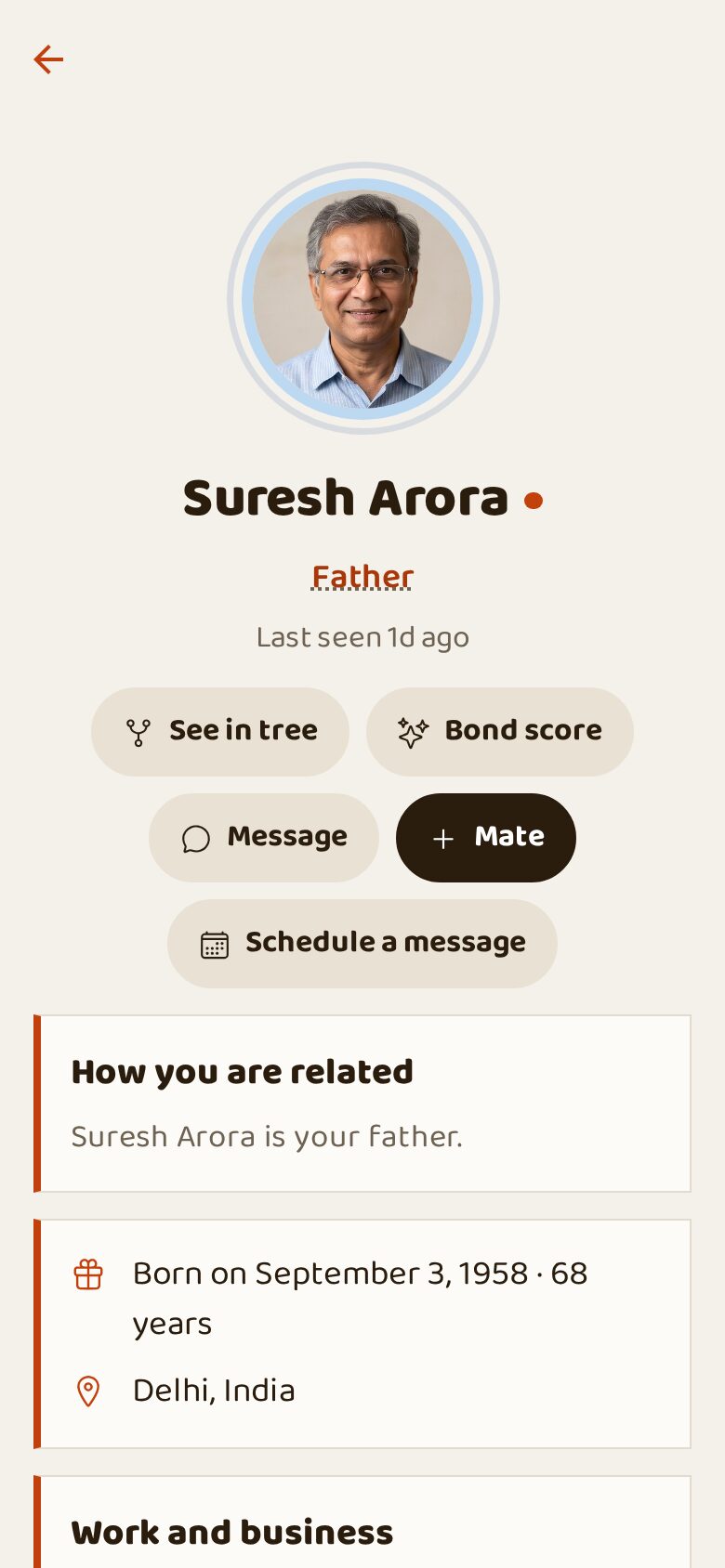
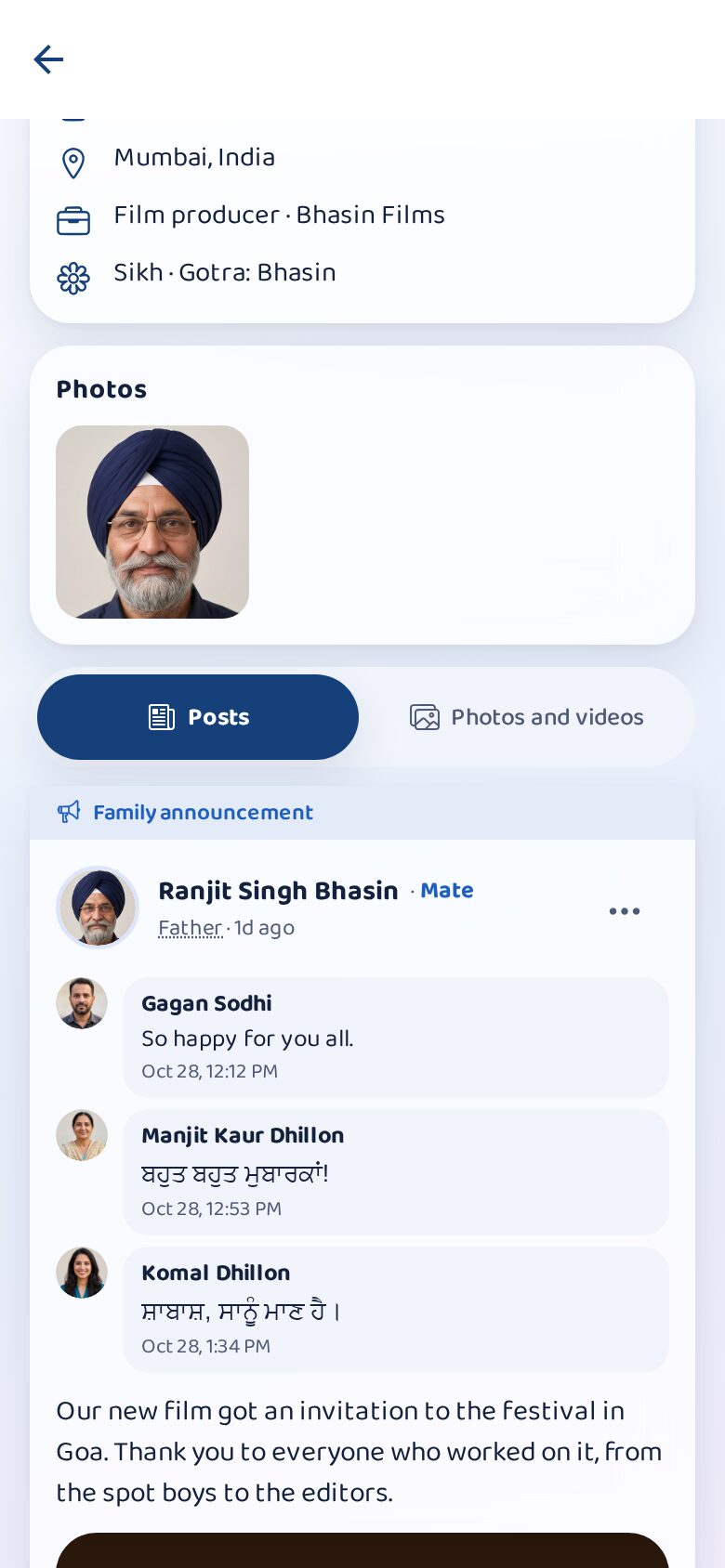
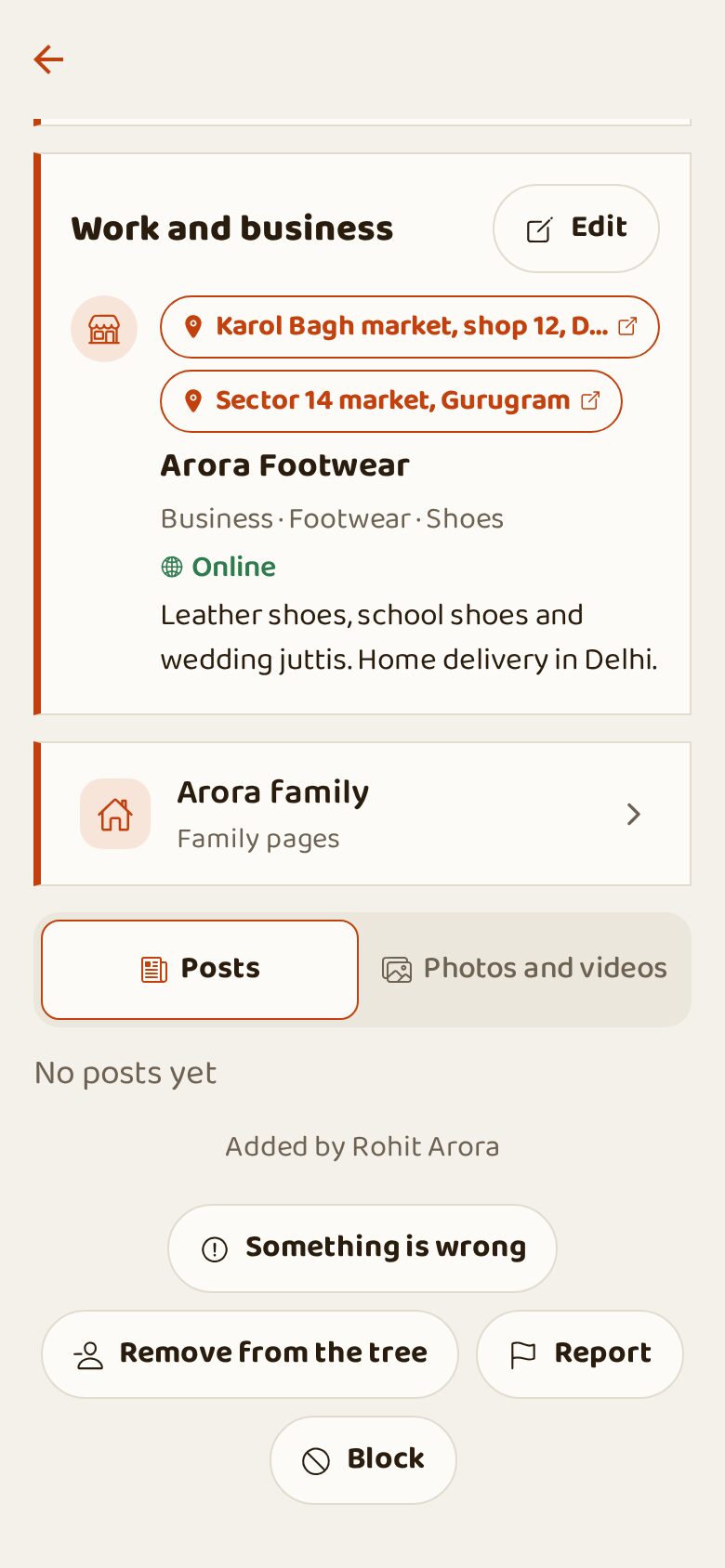
The profile shows how you are related, step by step, plus birthday, city, school, work and business, family pages and their posts. From here you can message them, check your Bond score, become mates or schedule a message for a special day.
Steps
- See in tree: moves the tree to them.
- Message: opens a chat (if they are on KnoBee).
- Something is wrong: suggest a correction to the family.
- Report or Block: if someone misbehaves.
Edit a profile
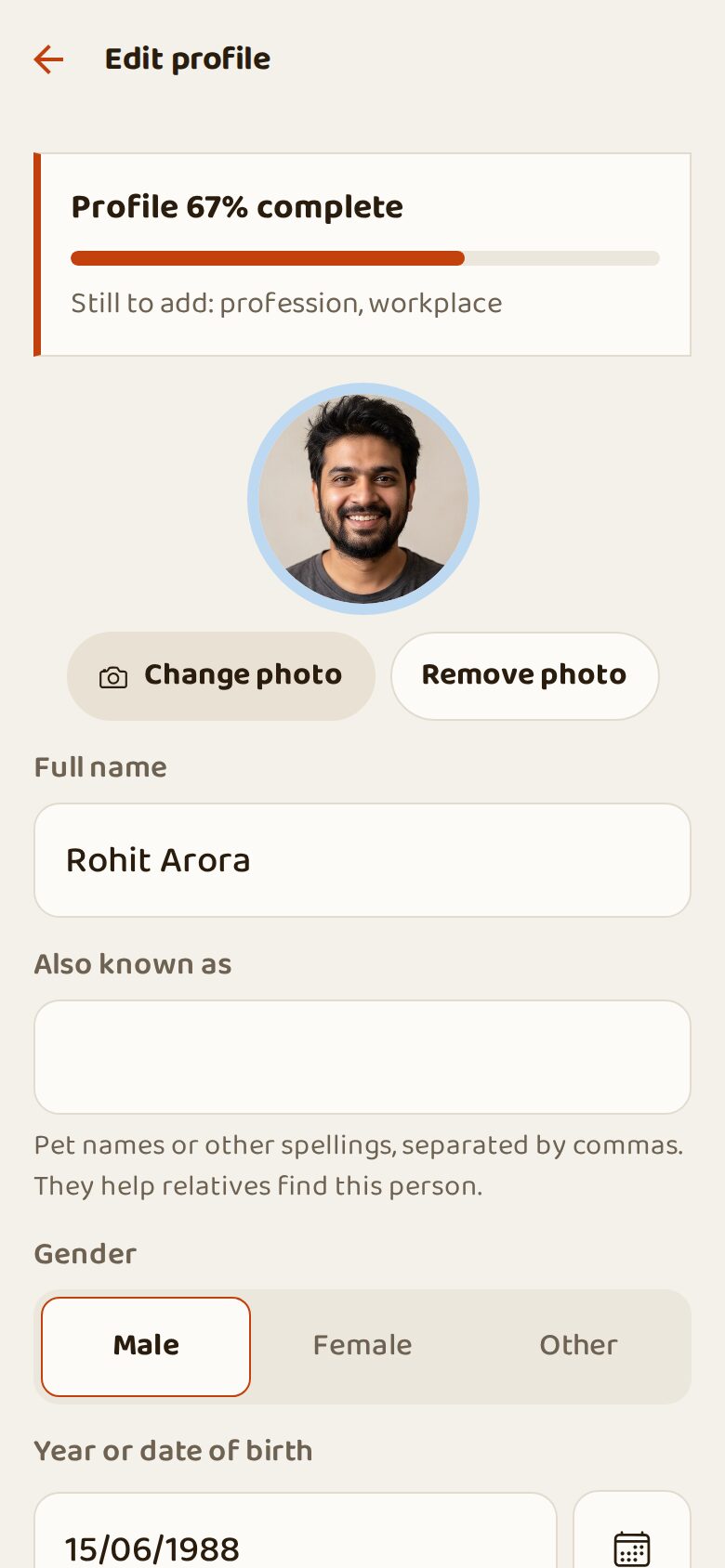
Add a photo, other names (pet names help relatives find you), birth date, city, school, religion, gotra and blood group. The bar on top shows how complete the profile is. You can also edit relatives who are not on KnoBee yet.
Steps
- Open the profile and tap Edit.
- Tap Change photo to add a photo.
- Fill what you know and tap Save at the bottom.
Work and business
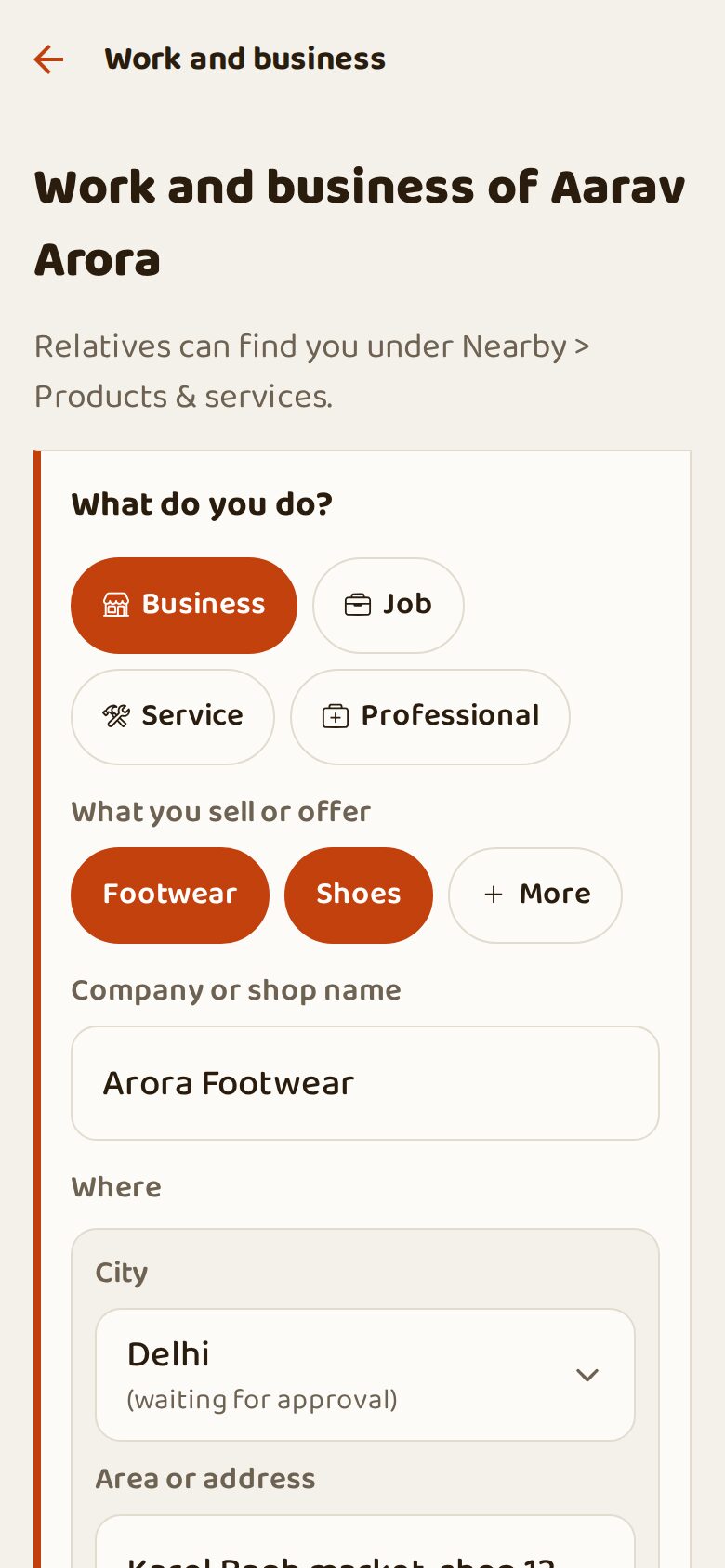
Tell the family what you do: Business, Job, Service or Professional. Choose categories (about 220, or add your own), the company or shop name, one or more places, and whether you also work online. Relatives then find you in Family nearby → Products & services. Each place shows a Google Maps tag; switch off Show location to relatives if you prefer.
Steps
- Choose what you do: Business, Job, Service or Professional.
- Tap Choose categories, tick yours (or + add a new one).
- Write the company or shop name. Under Where, type the area or address and pick it from the list: the map pin is set for you (or tap Use my current location).
- Tap Save.
Bond score
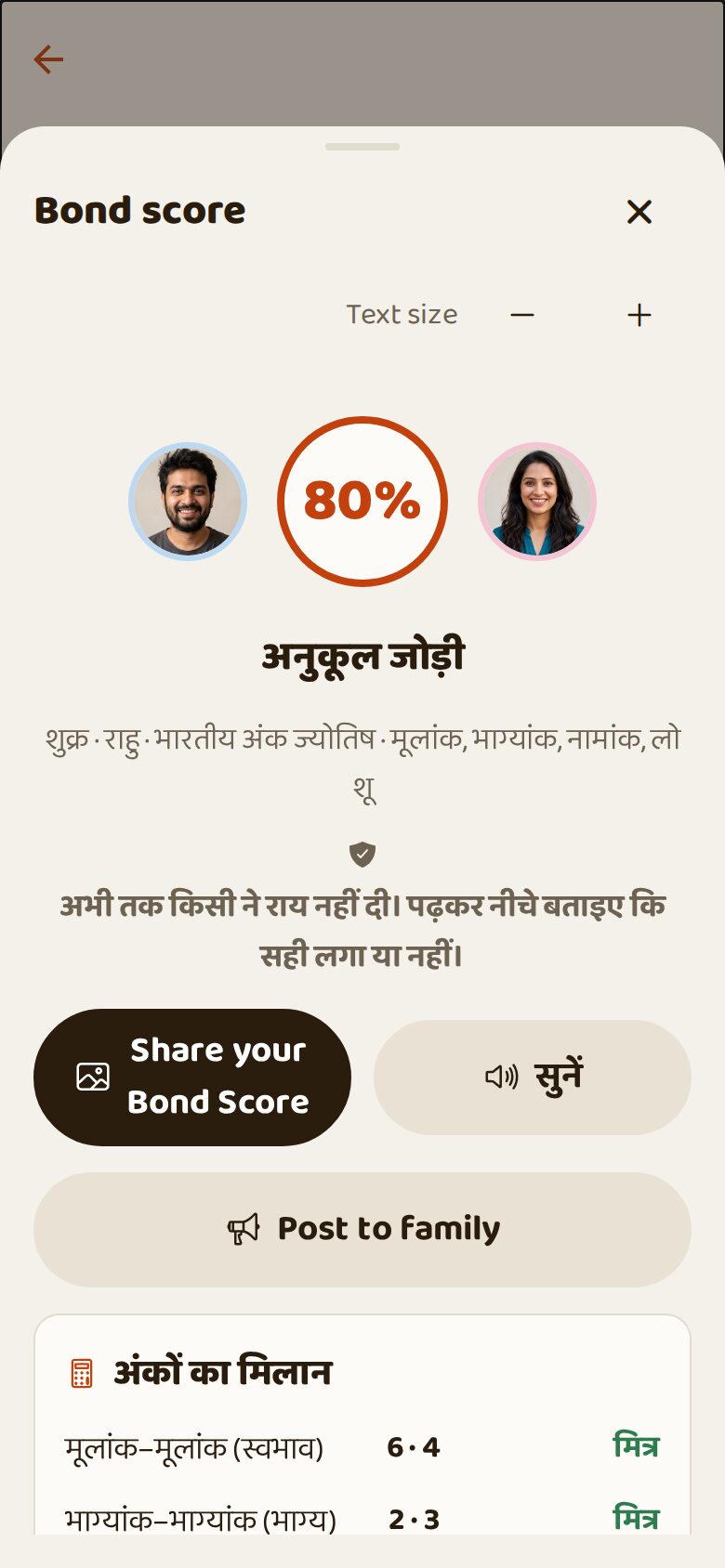
A fun numerology reading of the bond between you and a relative, with stars and a percentage. Share it with them on WhatsApp or post it for the family. It is just for fun, not a horoscope.
Steps
- Open a relative's profile and tap Bond score.
- Read the score and the meaning.
- Tap Share your Bond score or Post to family.
Legacy Message: your blessing, even after you
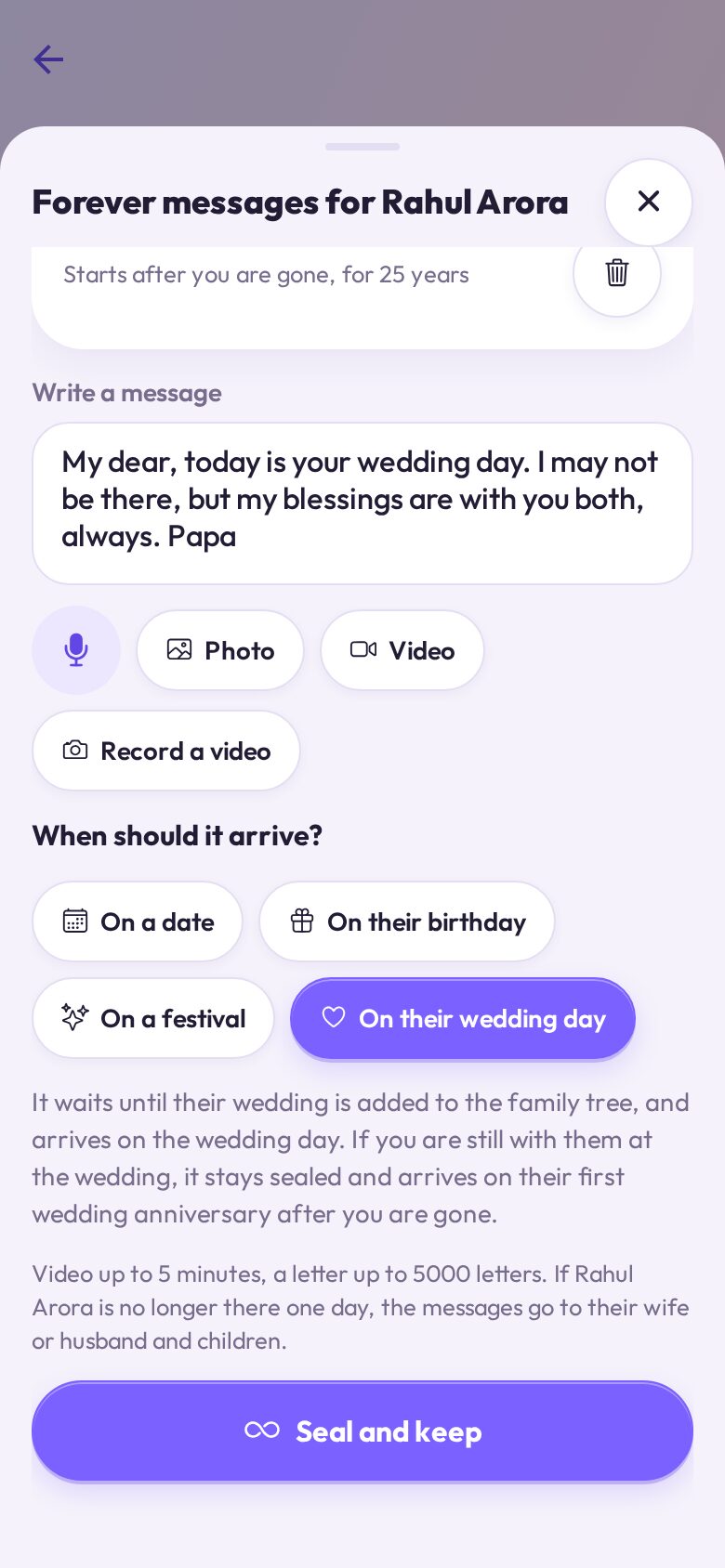
Insurance will look after the money; the blessings, you have to leave yourself. With a Legacy Message you record them today as a message, a voice note or a video, for a birthday, Diwali, or your child's wedding day. It stays closed: nobody can open it, not even you. It opens only when you are no longer there to say those words yourself, and then on each occasion, every year for up to 50 years. Even when you are not there, your children and grandchildren will keep receiving your blessings.
Steps
- Open the profile of your son, daughter or grandchild and tap Legacy Message.
- Write, speak or record a video.
- Choose when: their birthday (each message for one age), a festival, a date, or their wedding day.
- Choose for how many years, then tap Save the message.
My Legacy recordings
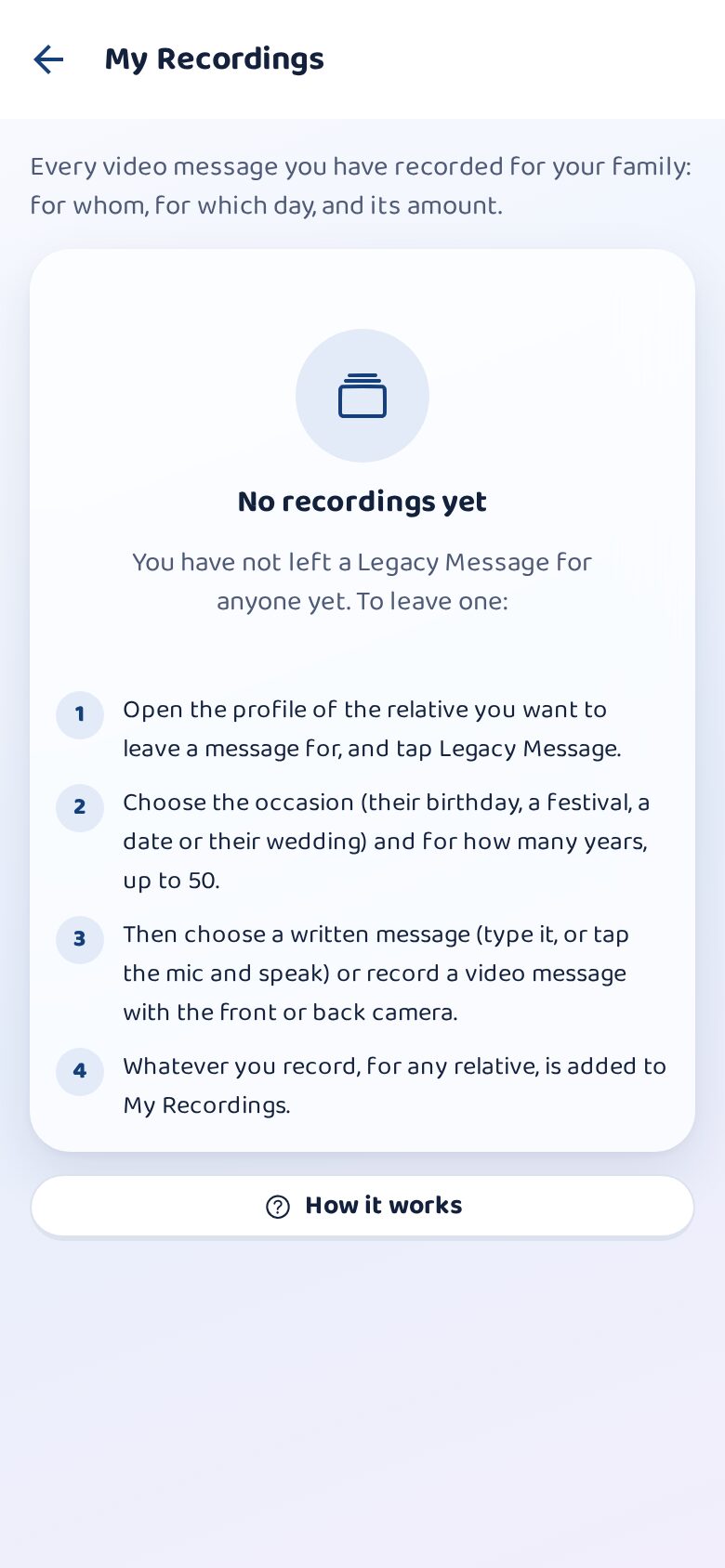
Every Legacy Message video you recorded, in one list: for whom and for which day ("for Rohan Sharma, 19th birthday 2031"). Written messages are free; the videos are kept safe and delivered on their day.
Steps
- Open Me → My recordings.
- See each video, for whom and when it will arrive.
The family feed
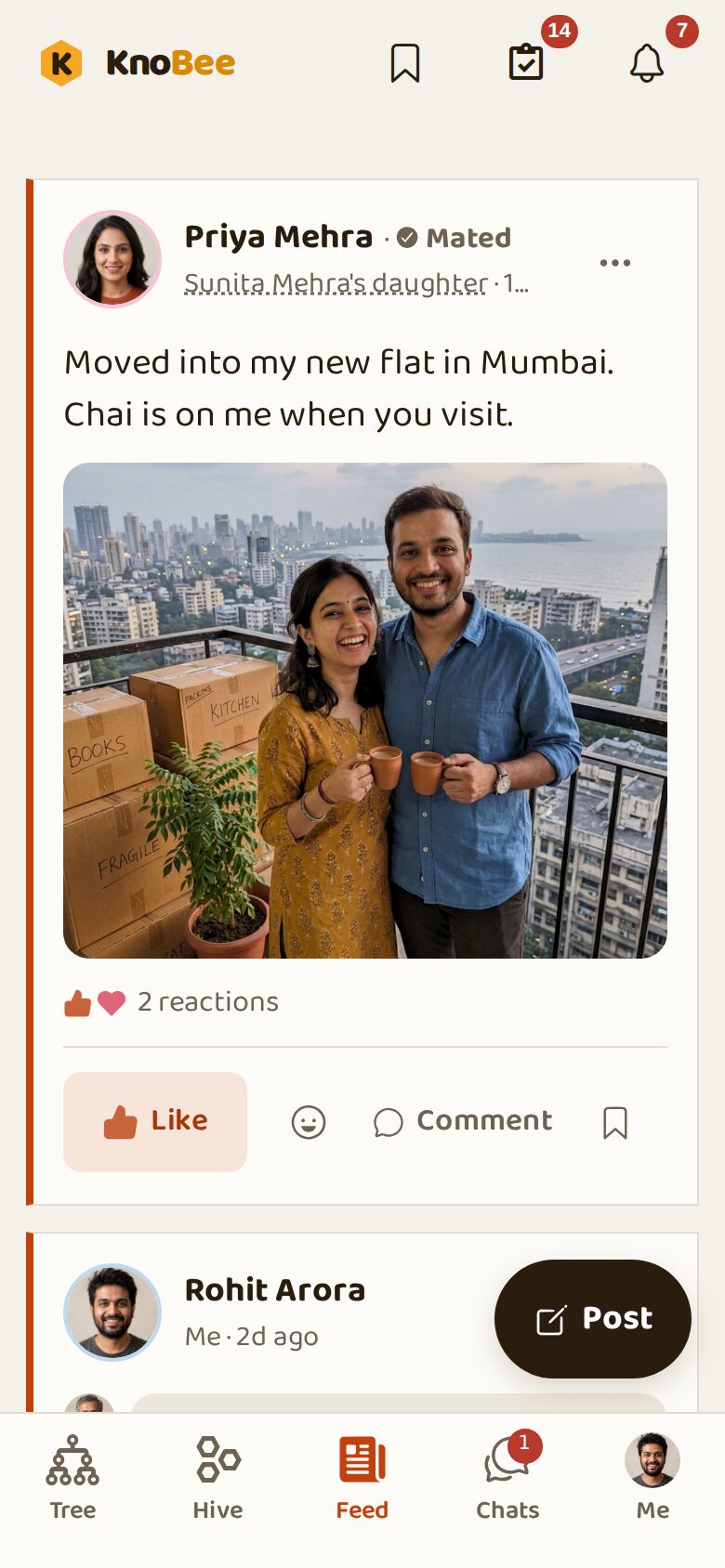
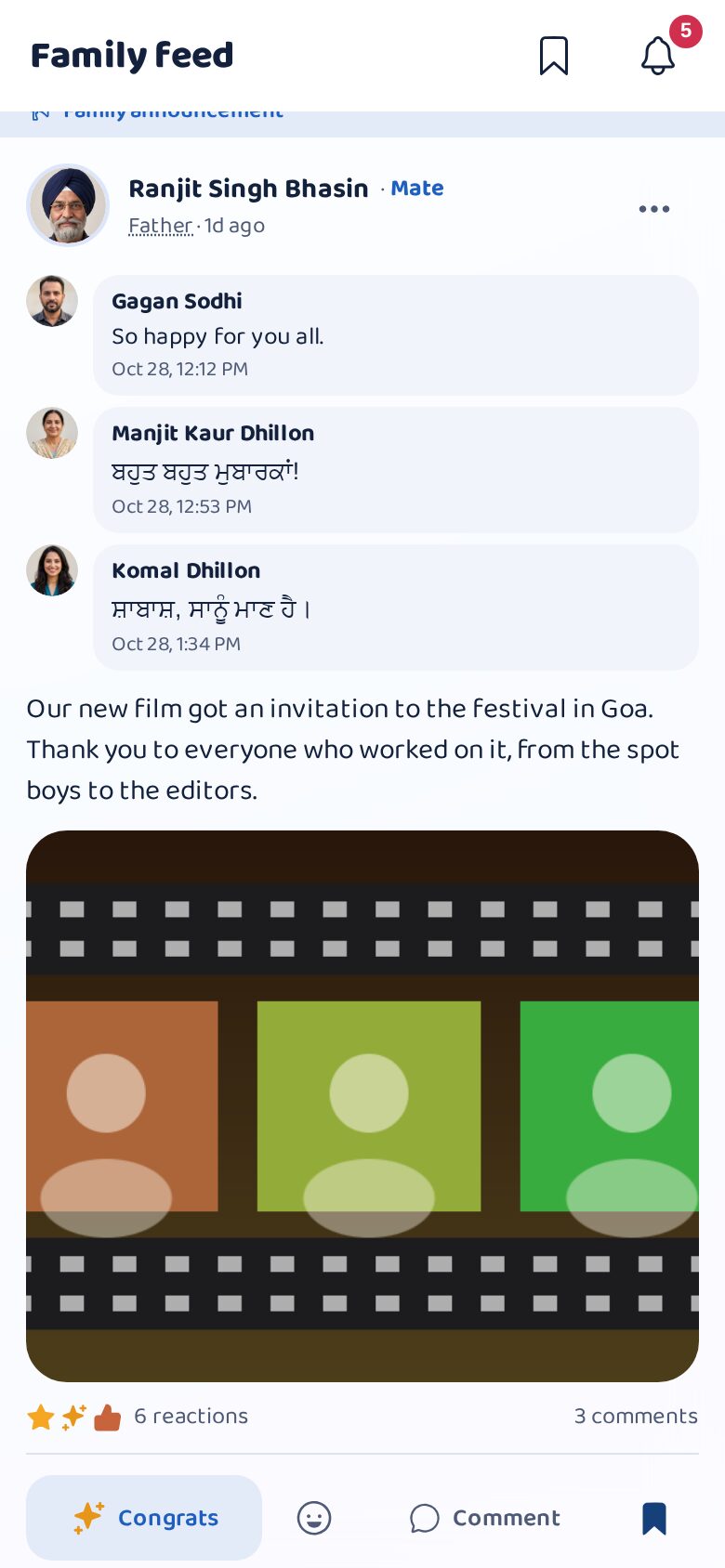
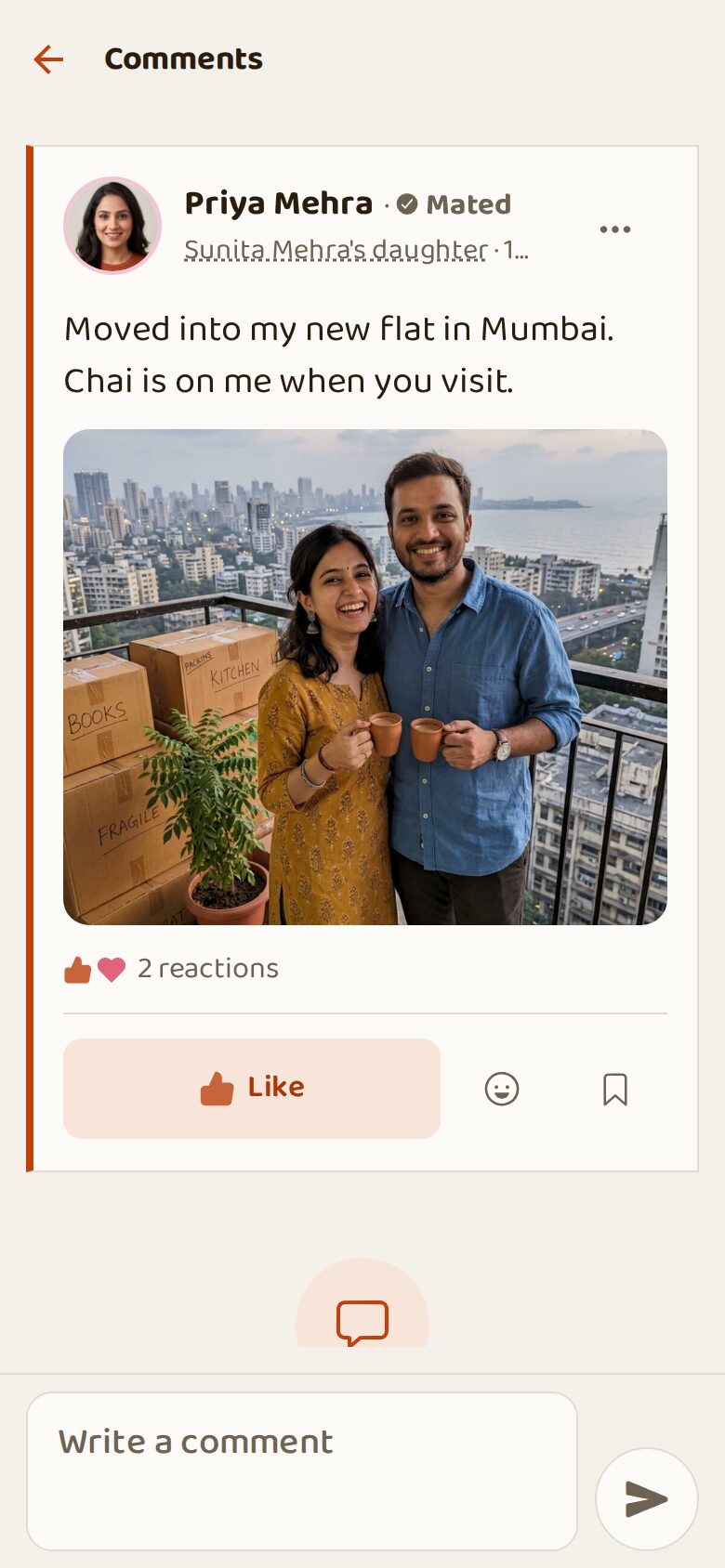
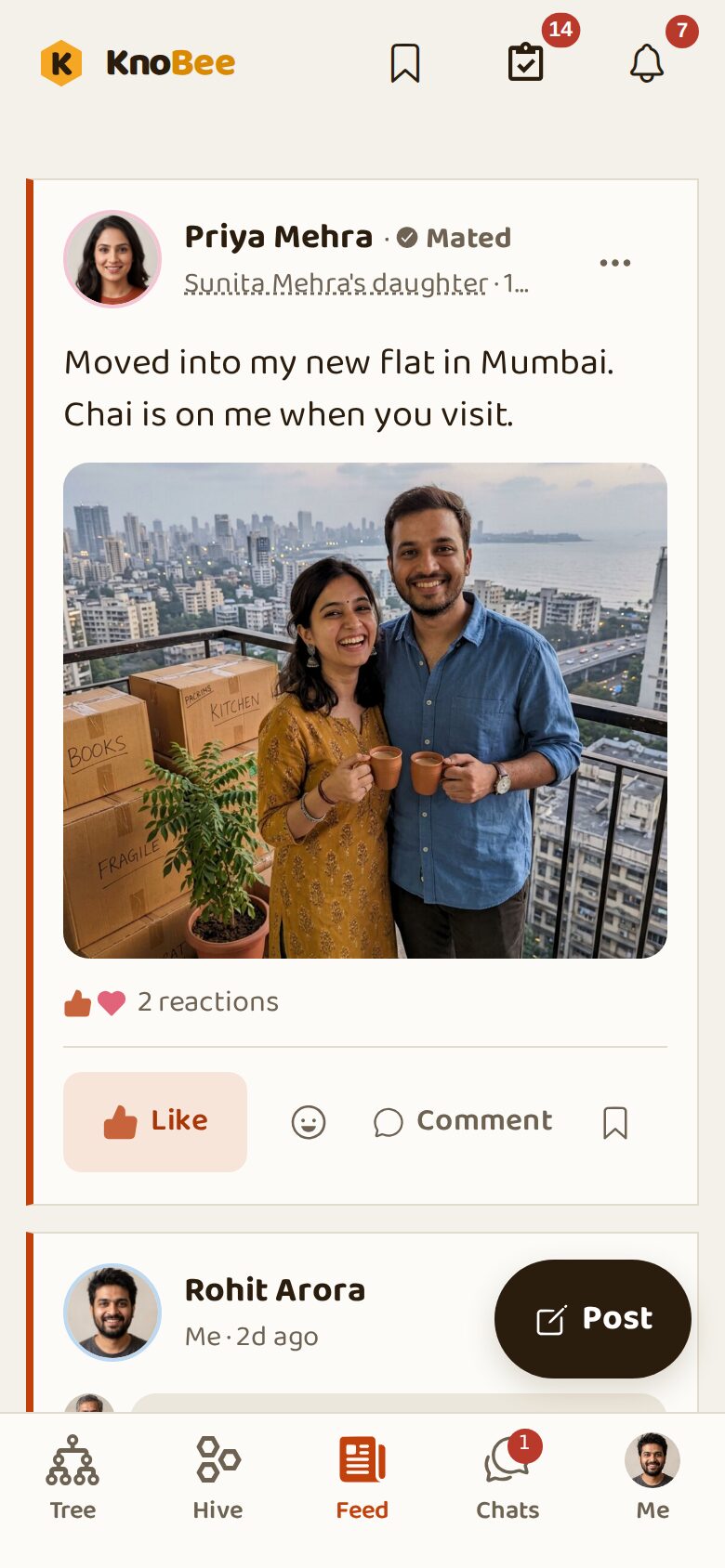
The feed shows what the family shares: news, photos, wishes. Each post shows who wrote it and how they are related to you, with the latest comments. Like it, add an emoji, comment or save it. The three dots open more: view profile, see the relation, start a chat, save, send in a chat or report.
Steps
- Tap Like or the smiley to react.
- Tap Comment to write a reply.
- Tap the bookmark to save the post for later.
Post something
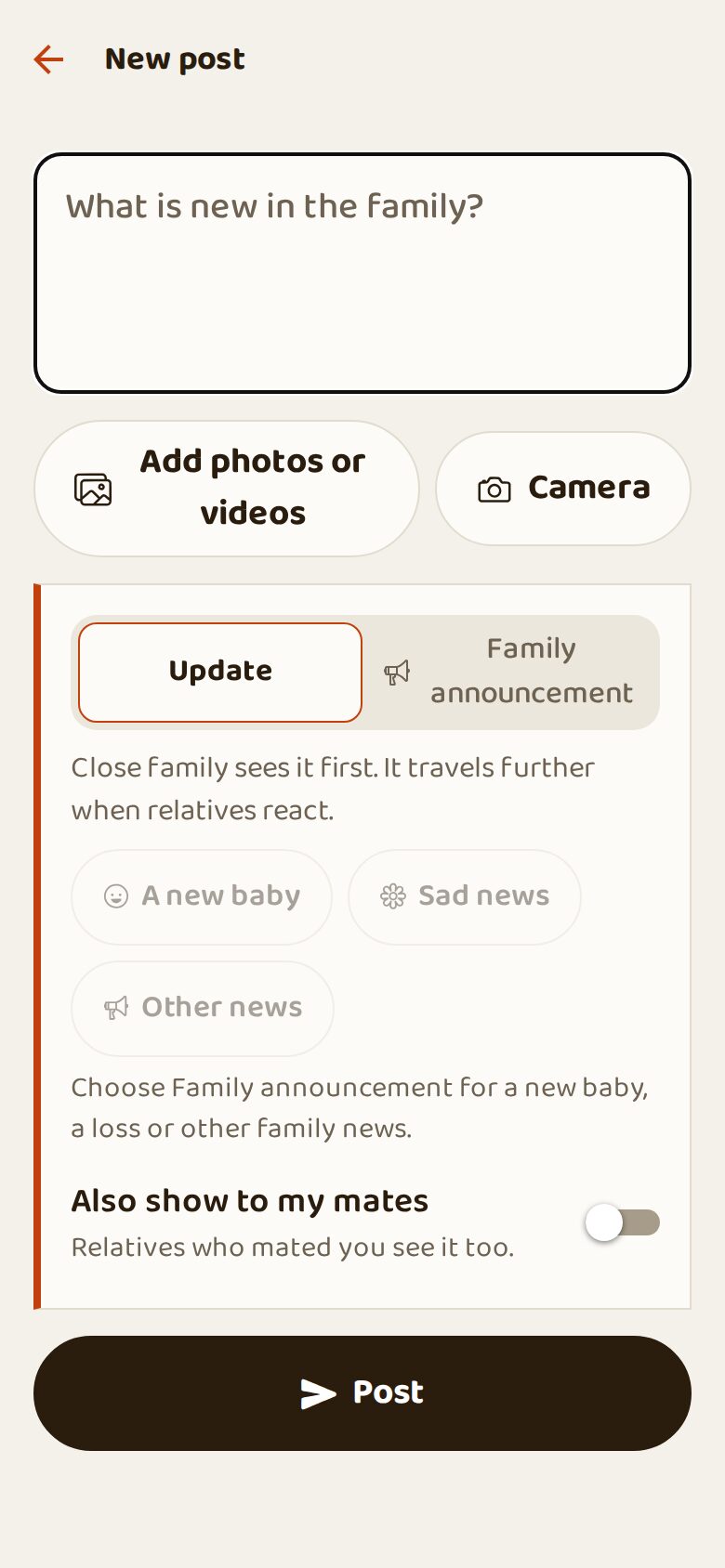
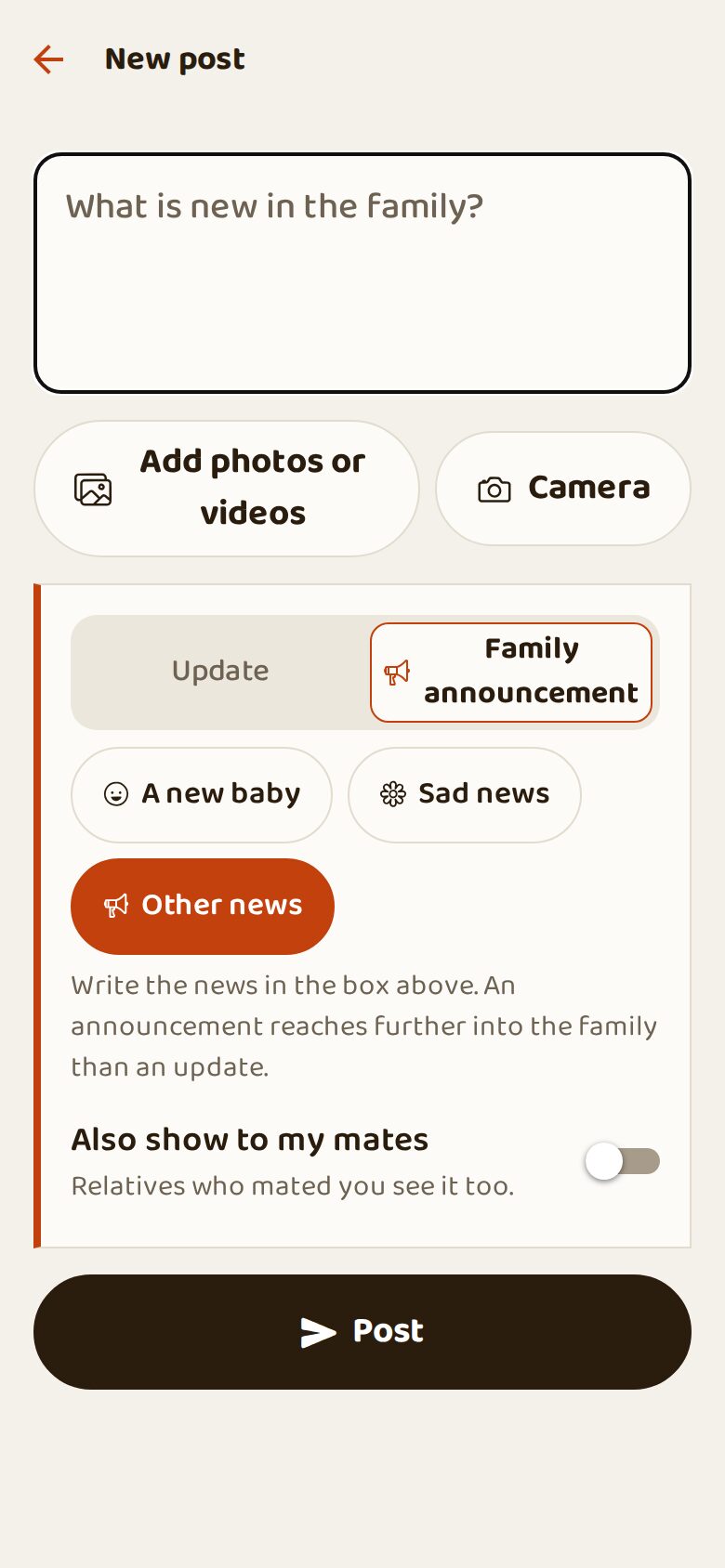
Write what is new, add photos or videos, or take one with the camera. Choose Update for daily news, or Family announcement for big news (a new baby, sad news, other news), which reaches more relatives. Photos can be edited with stickers and frames, or turned into a Boomerang.
Steps
- Tap the round Post button.
- Write, or tap Add photos or videos / Camera.
- Choose Update or Family announcement.
- Tap Post.
Family news: a new baby or sad news
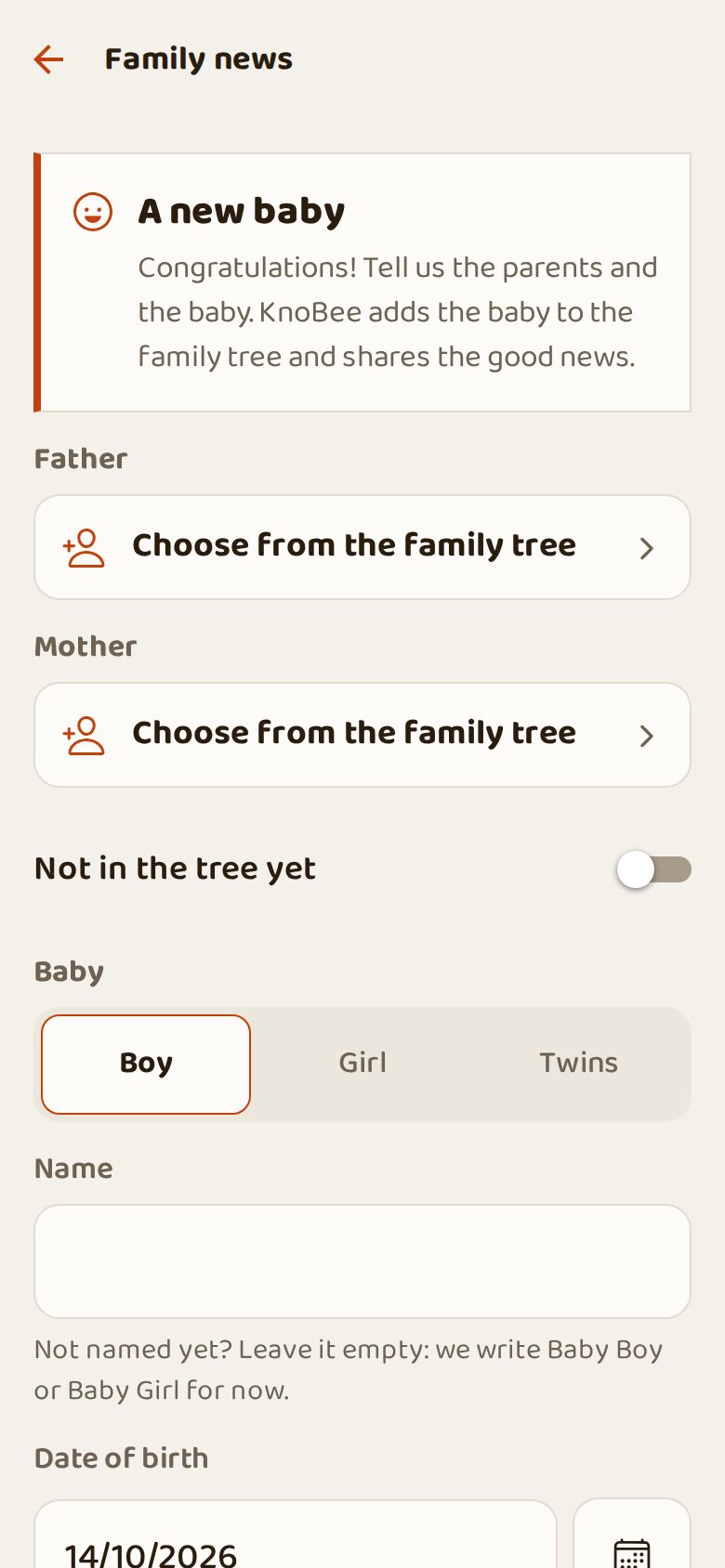
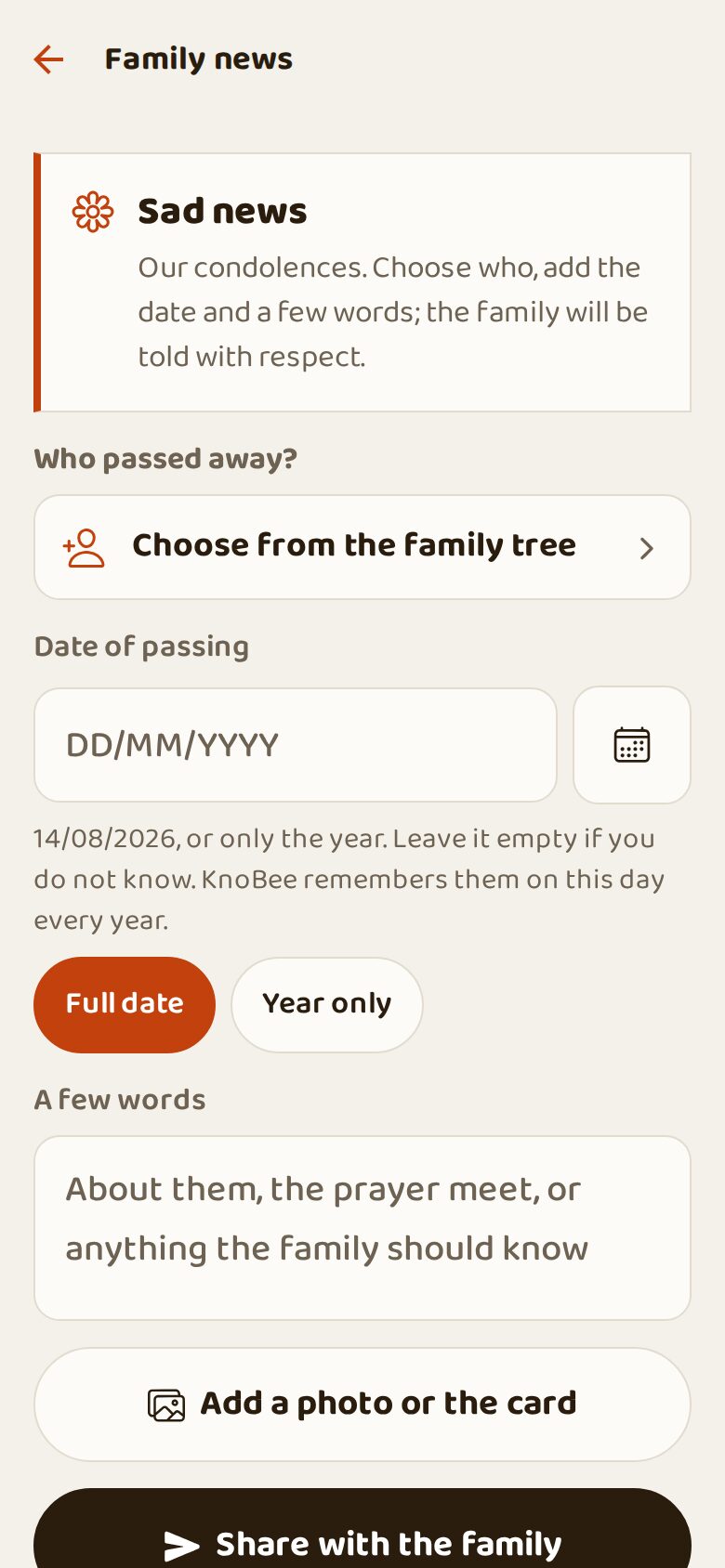
For a new baby, choose the father and mother from the tree, boy, girl or twins, the name and date of birth: KnoBee adds the baby to the tree and shares the good news. For sad news, choose who passed away and the date; the tree is updated and the family is told with respect.
Steps
- Post → Family announcement → A new baby or Sad news.
- Choose the people from the family tree.
- Add the date, a few words and a photo.
- Tap Share with the family.
Comments and saved posts

Comments open below the post; write and tap send. Posts you saved with the bookmark are kept in Saved posts (bookmark at the top of the feed).
Steps
- Tap Comment under a post, write, tap the arrow.
- Tap the bookmark at the top of the feed to see saved posts.
Share into KnoBee from any app
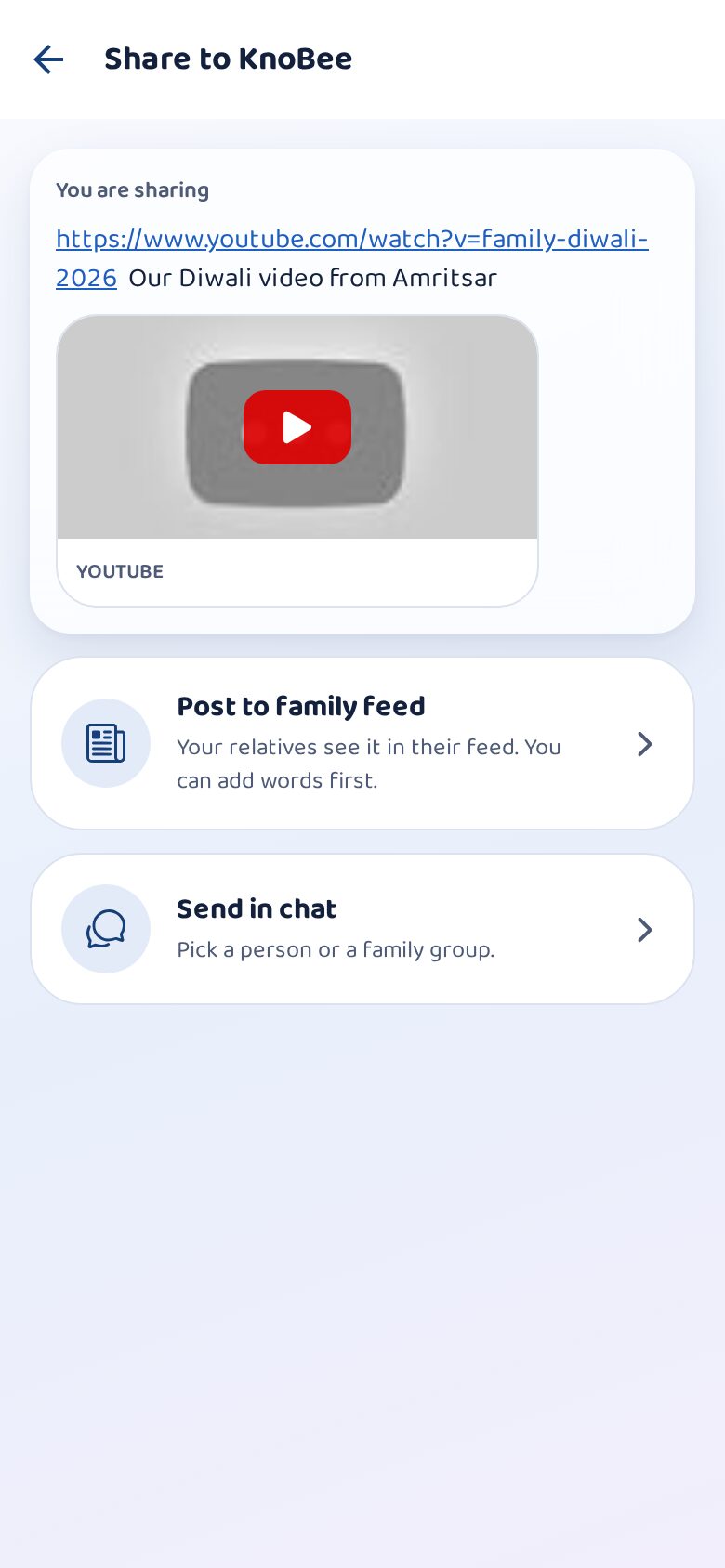
Saw a video, a photo or a link worth showing the family? In YouTube, the gallery or any app, tap Share and choose KnoBee. Post it to the family feed (the post opens ready) or send it straight into a chat.
Steps
- In the other app, tap Share and choose KnoBee.
- Choose Post to the family or Send in a chat.
Chats
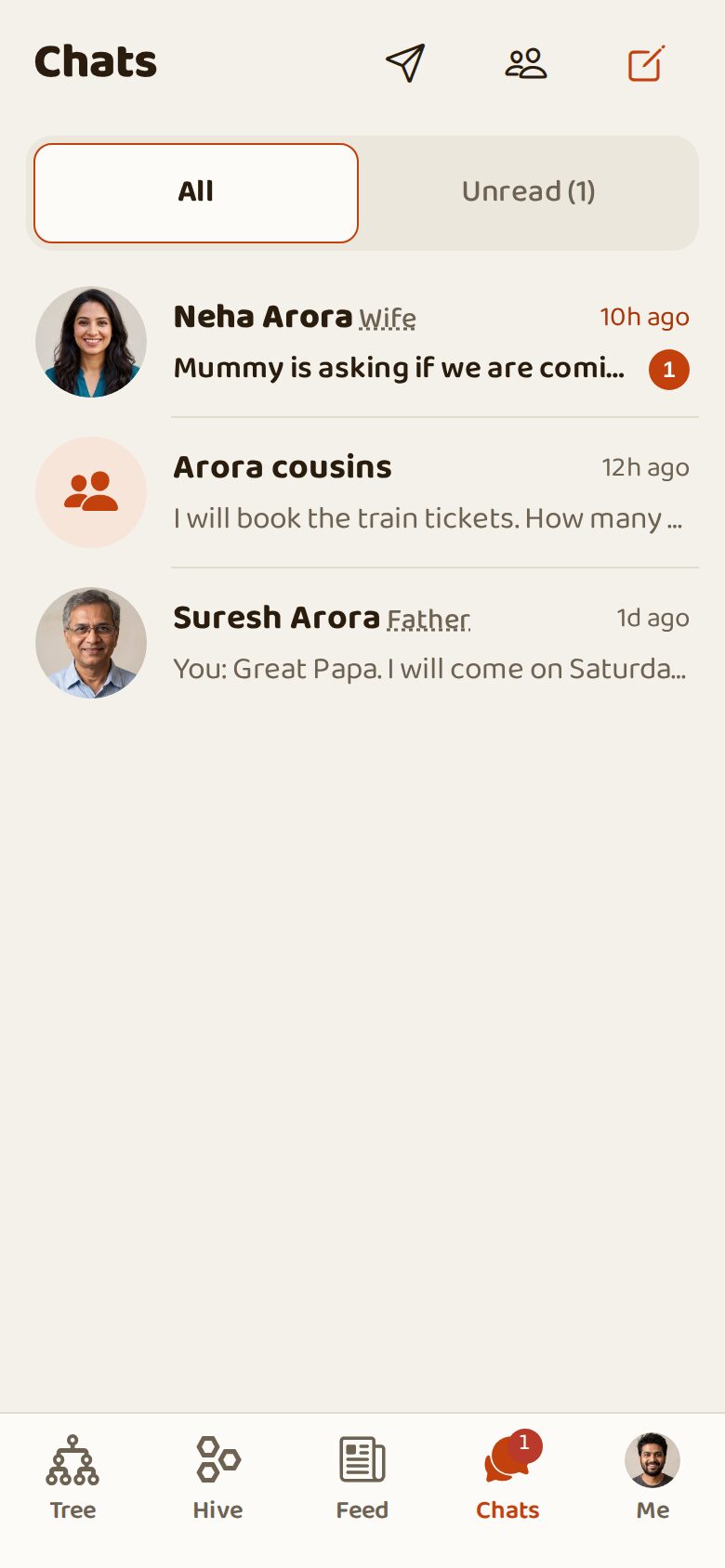
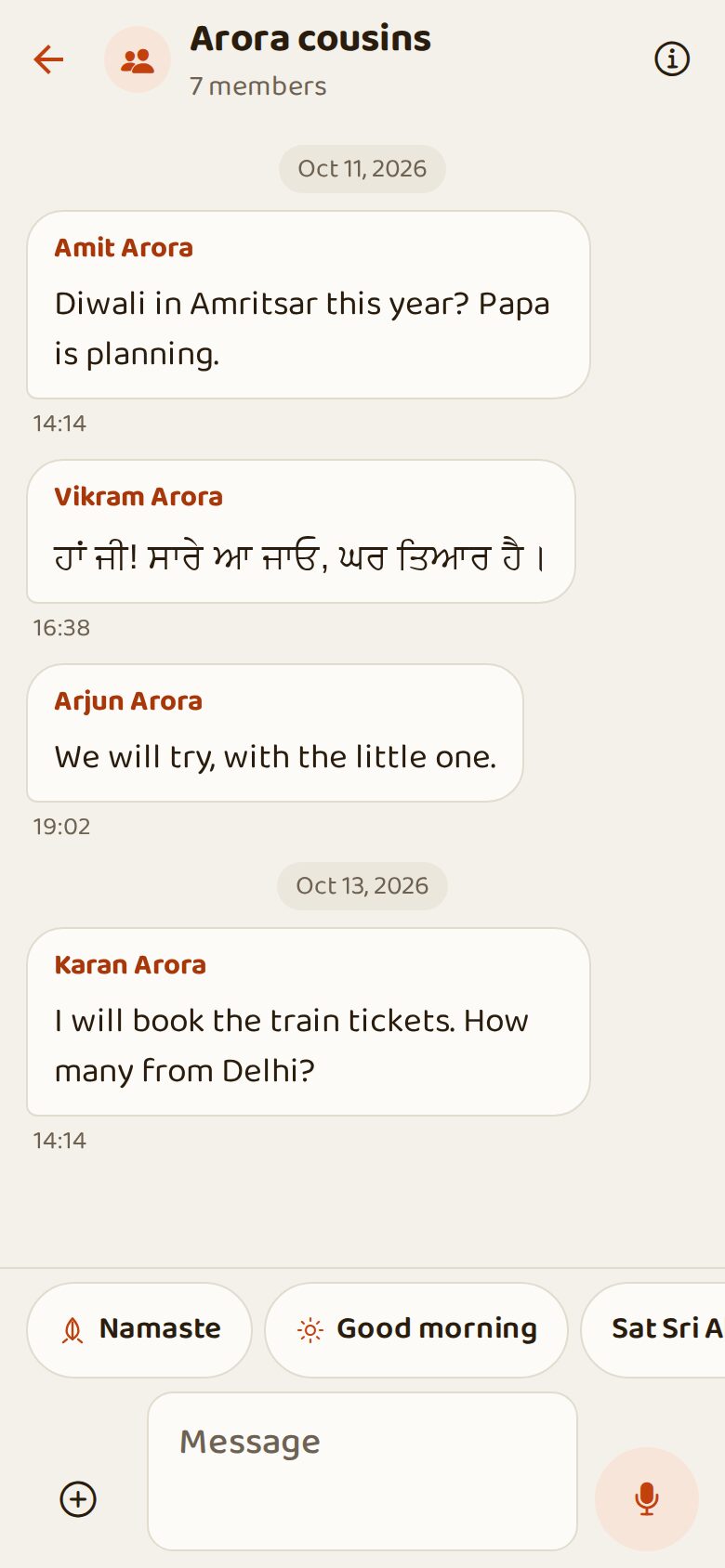
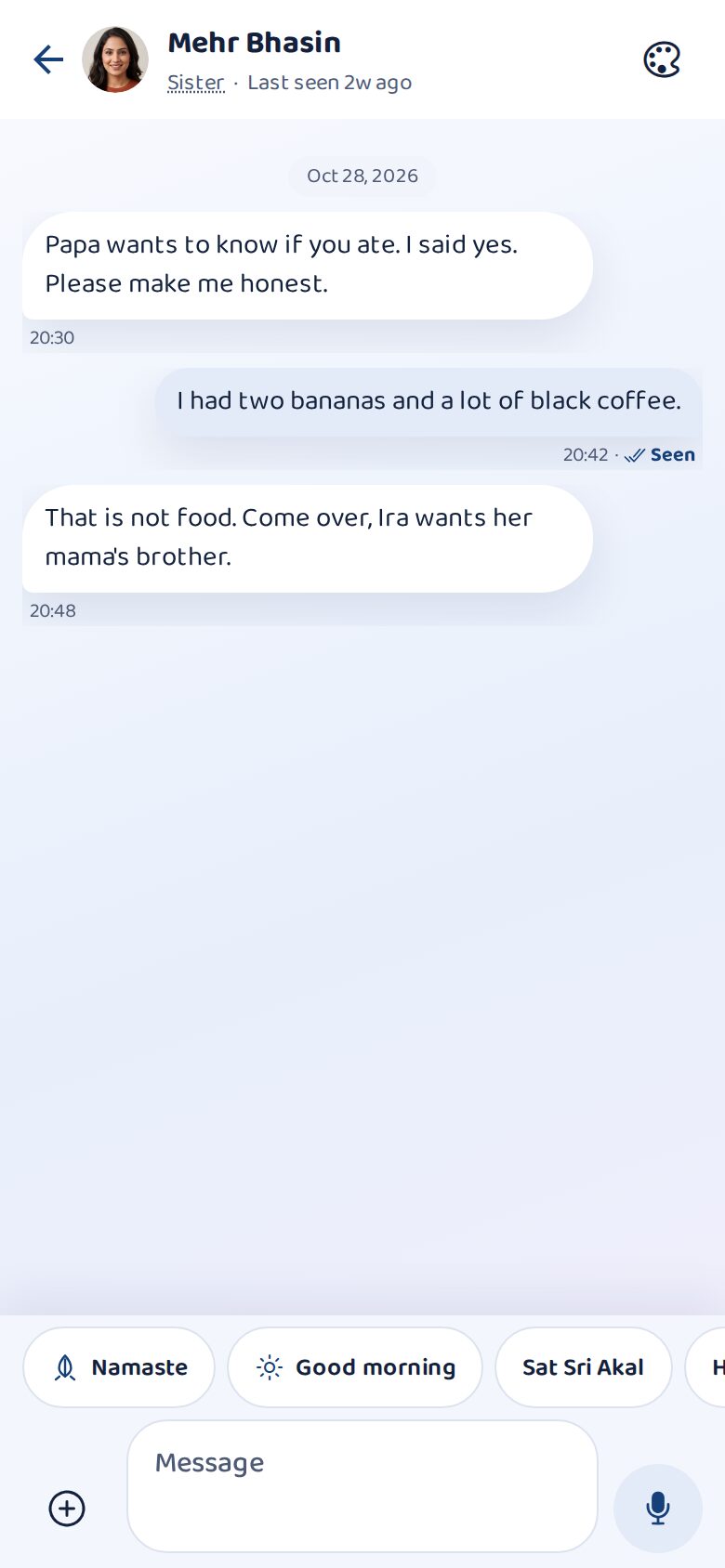
Private chats with relatives and family groups. Quick replies like Namaste and Good morning are one tap. Tap the mic to send a voice note, or use the + for photos, videos and your location. Unread shows only new messages.
Steps
- Open Chats and tap a name.
- Type your message, or hold the mic to speak.
- To chat with someone new, open their profile and tap Message.
Voice and video calls
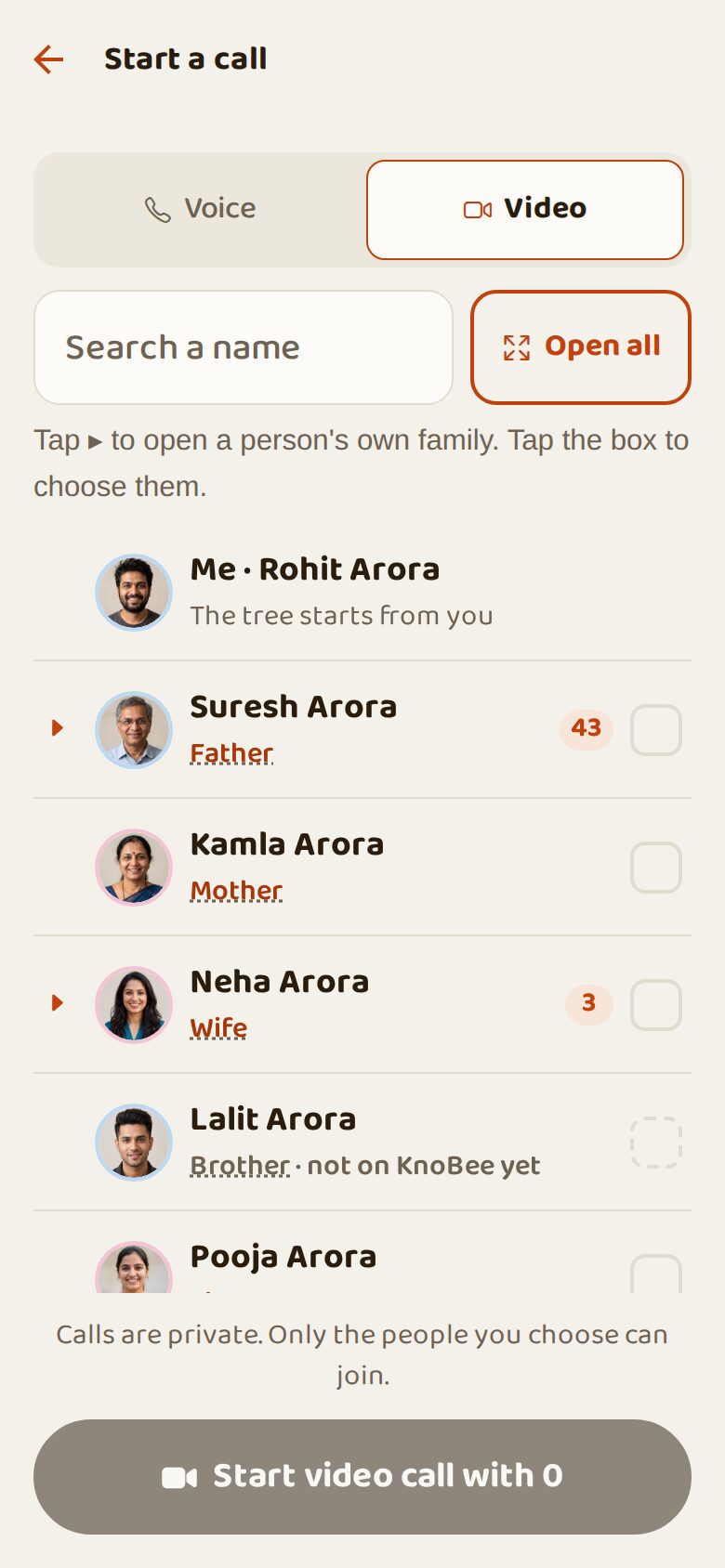
Call one relative or many at once, voice or video, free over the internet. Choose people from the tree or open a whole branch. When someone calls you, the phone rings with the KnoBee ringtone: tap Join.
Steps
- Open Chats and tap the phone icon at the top.
- Choose Voice or Video.
- Tick the relatives and tap Start call.
Family groups
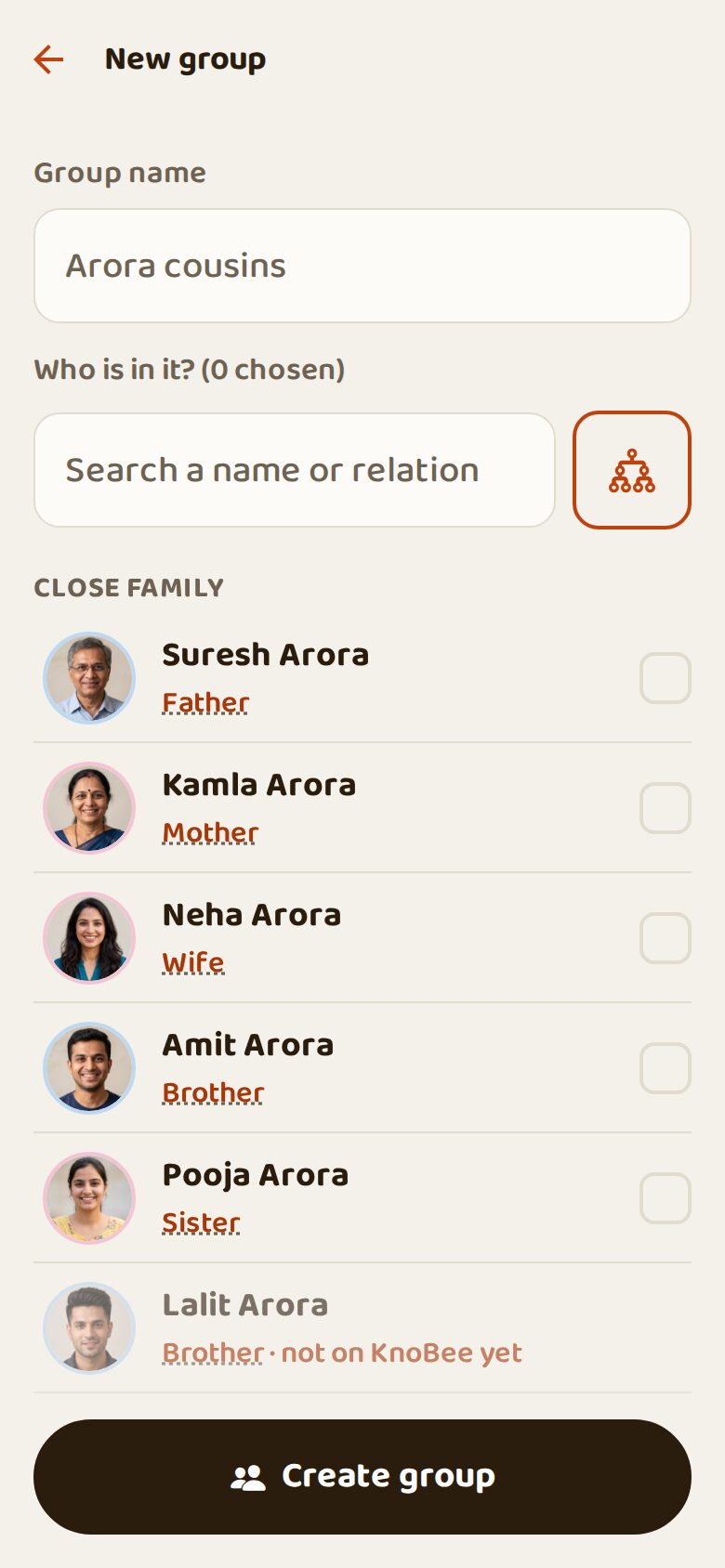
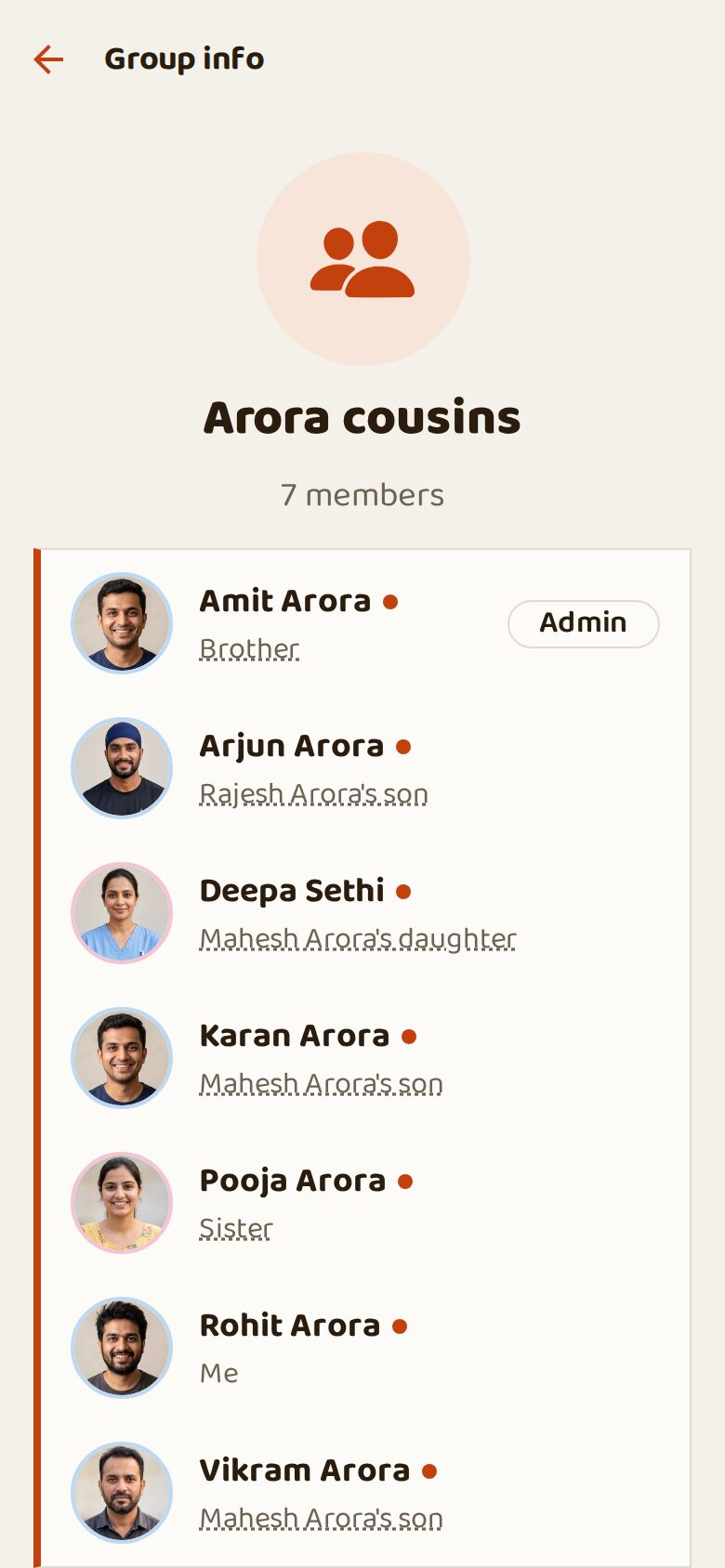
Make a group for cousins, a wedding or a trip. Pick members from the tree. In Group info you can change the name and photo, make admins, mute or leave.
Steps
- Chats → New group.
- Write a group name and tick the members.
- Tap Create group.
Message to many and My lists
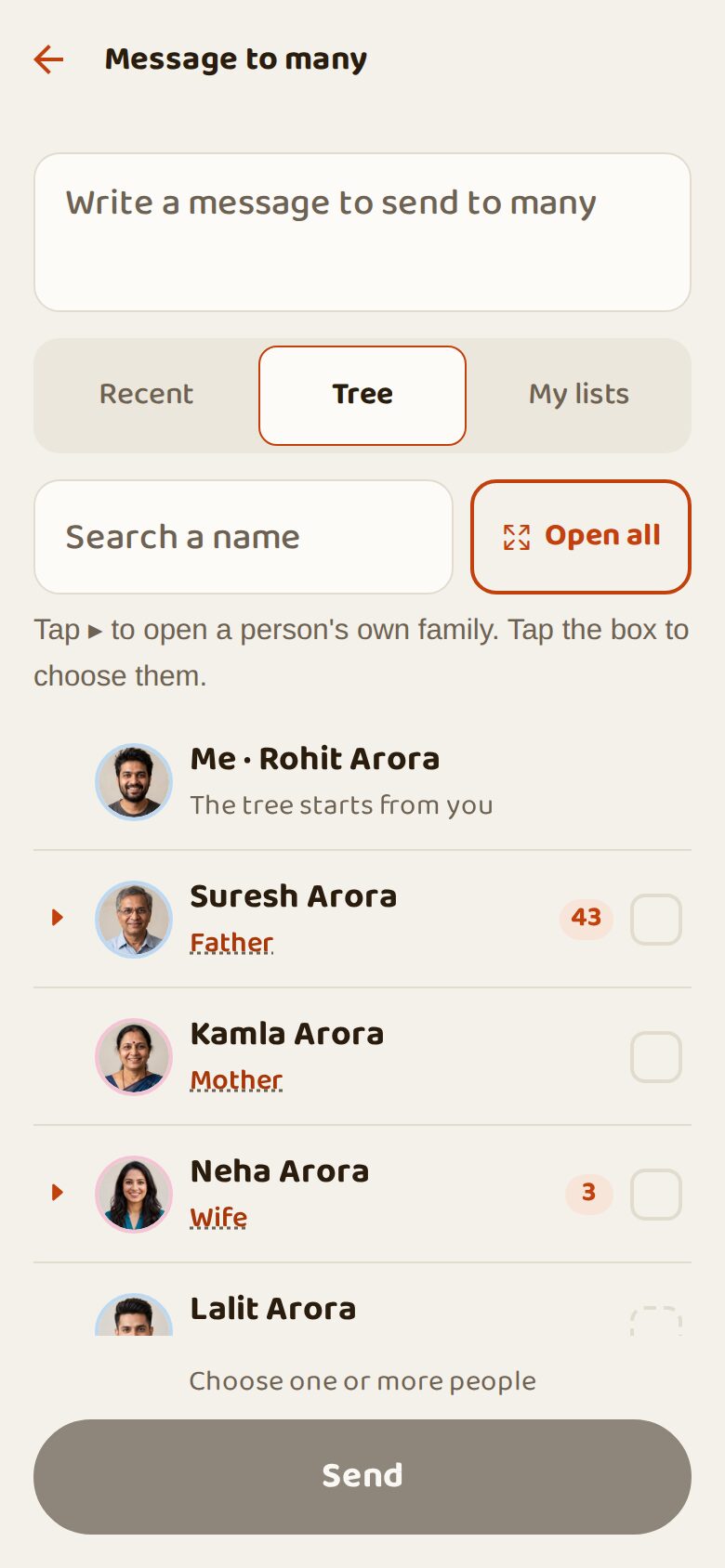
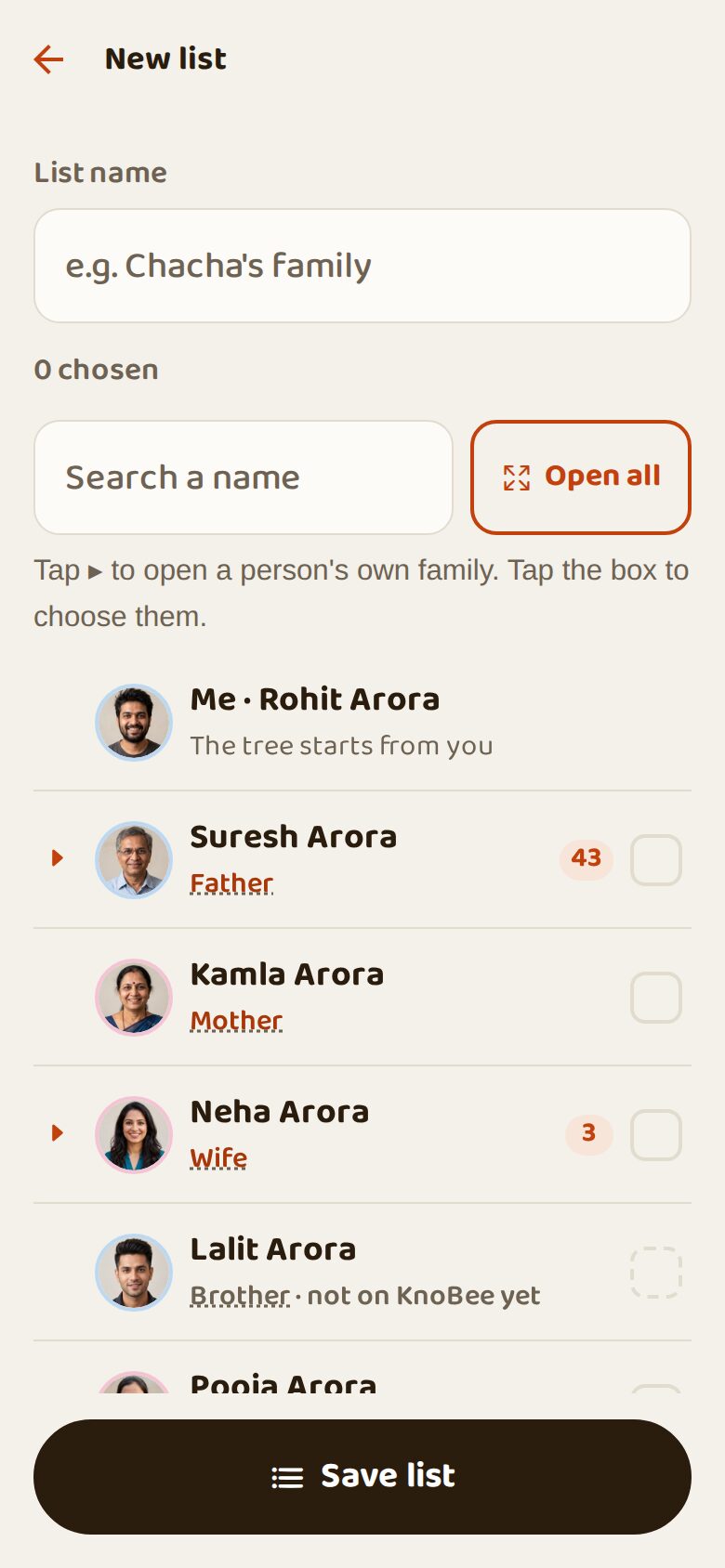
Send one message to many relatives, each in their own chat: a wedding invitation, a festival wish. Save the people you message often as a list ("Chacha's family") and reuse it, or make a group from it.
Steps
- Chats → send icon at the top.
- Write the message, choose people (Recent, Tree or My lists).
- Tap Send.
Hive and Friends chats, and chat wallpapers
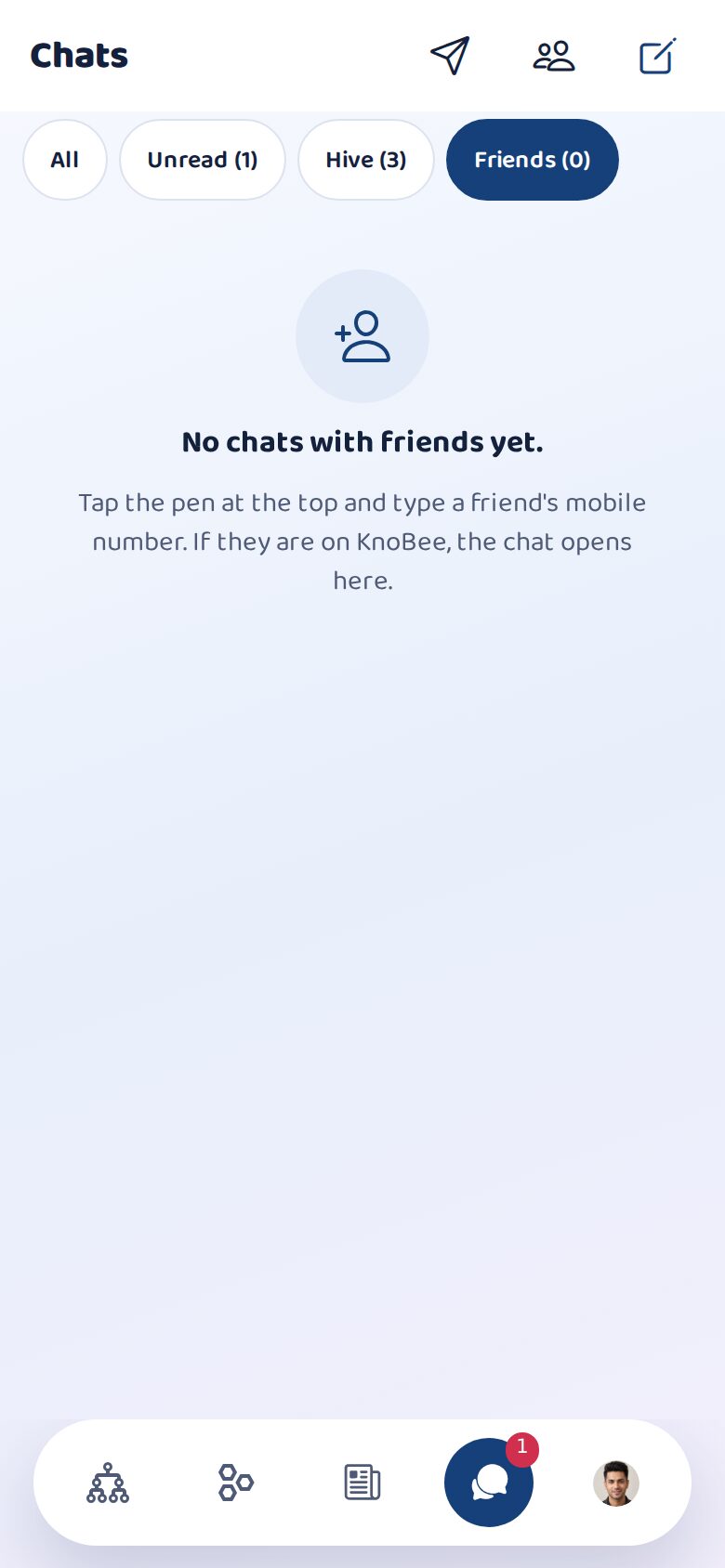
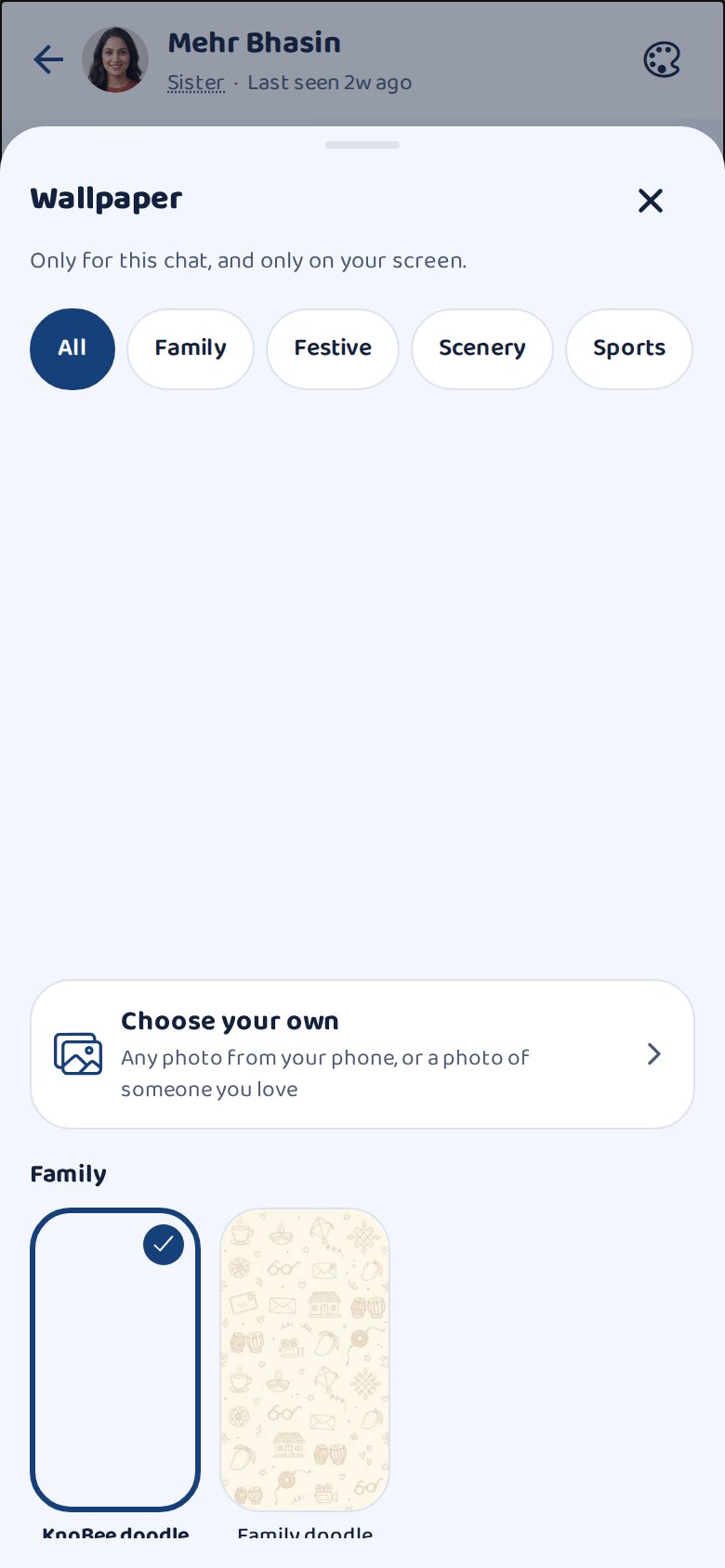
Chats are sorted for you: Hive has your relatives and family groups; Friends has people outside your family tree, whom you reached by their mobile number. To chat with a friend, tap the pen at the top and type their number; if they are on KnoBee, the chat opens. Each chat can have its own wallpaper: festive, scenery, sports, art, buildings, business, or your own photo. Only you see it.
Steps
- Chats → tap Hive or Friends at the top.
- New friend: pen at the top → type the mobile number.
- In a chat, tap the palette at the top → choose a wallpaper or Choose your own.
Your Hive
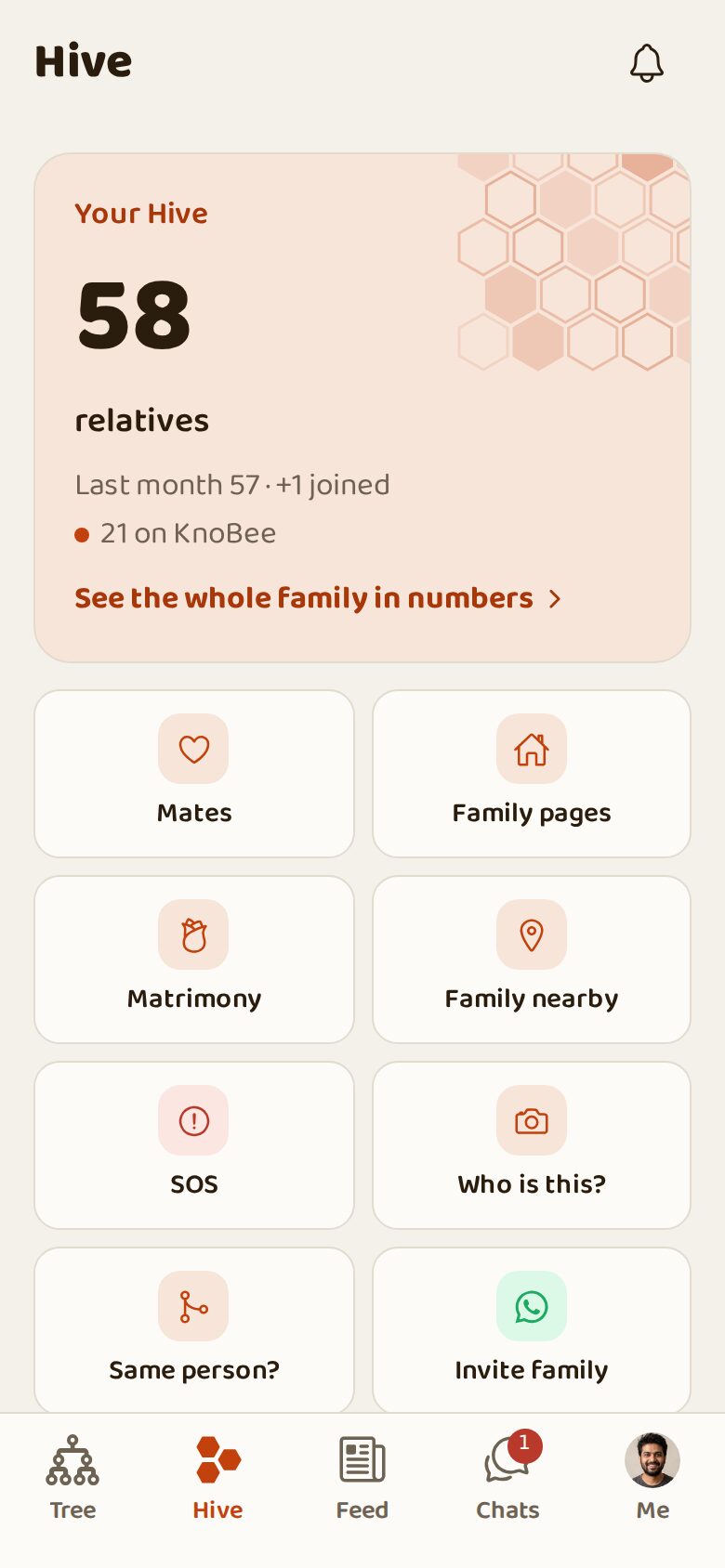
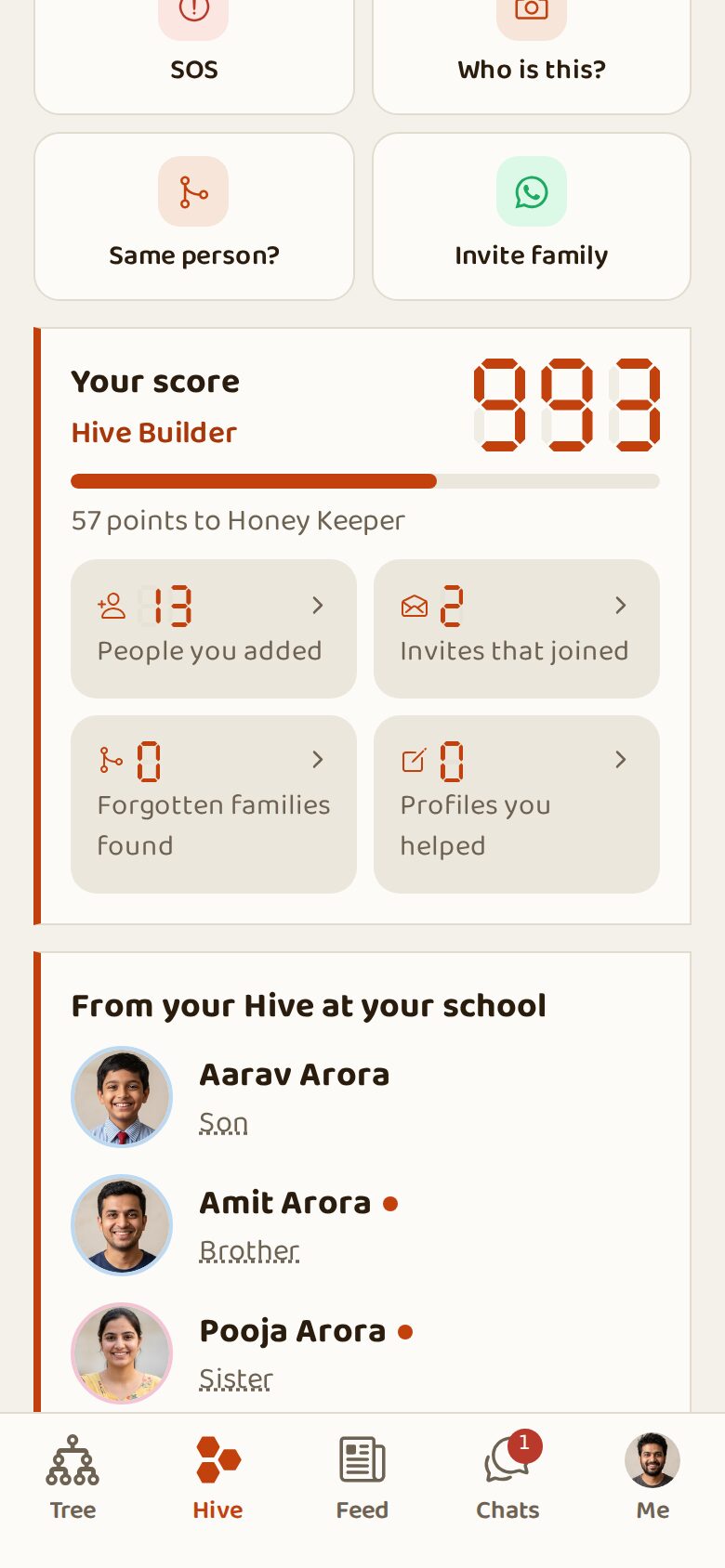
Your Hive is everyone connected to you through any relation. See how many relatives you have, how many are on KnoBee, your score and the family tools: Mates, Family pages, Matrimony, Family nearby, SOS, Who is this?, Same person? and Invite family.
Steps
- Tap Hive (second button).
- Scroll down for the tools.
- Tap Invite family to send the KnoBee link on WhatsApp.
Your Hive at a glance
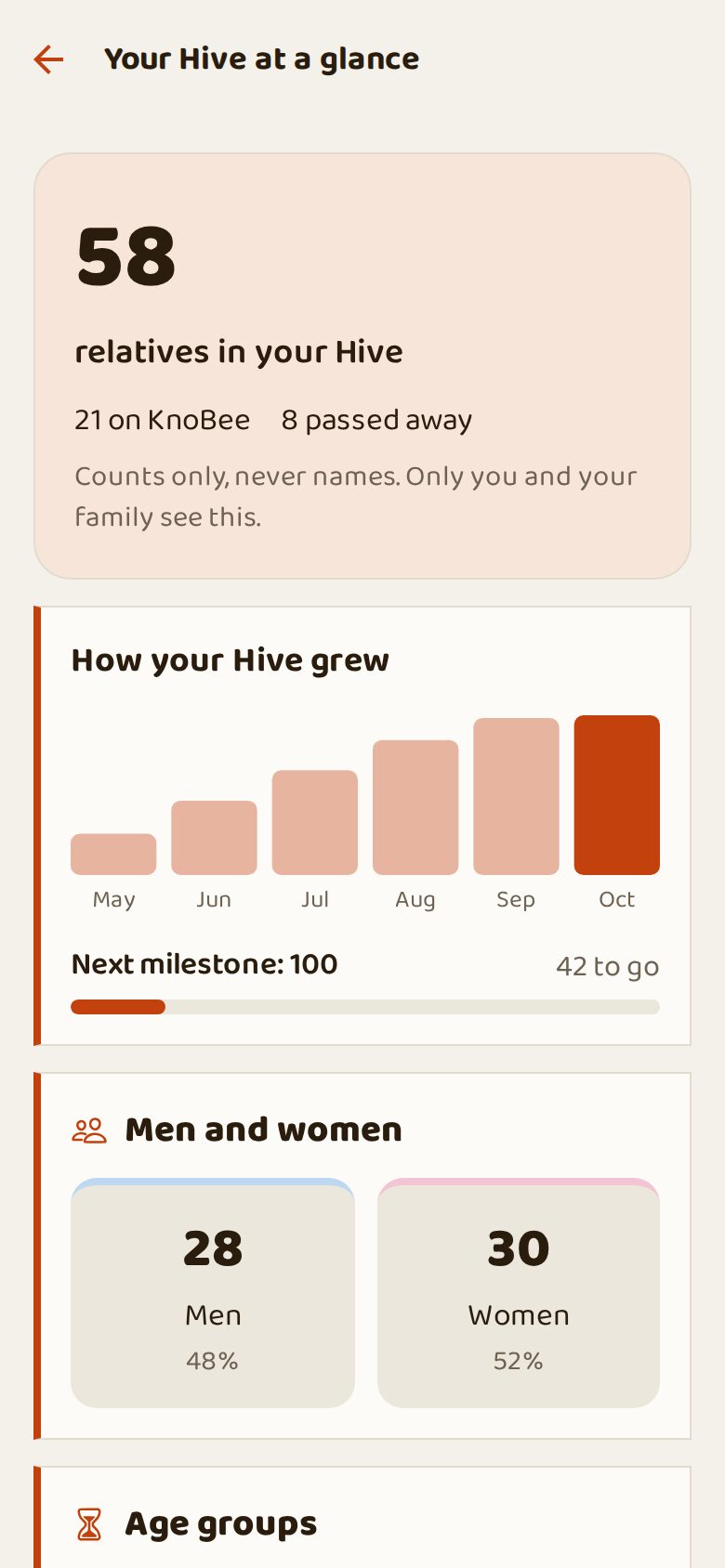
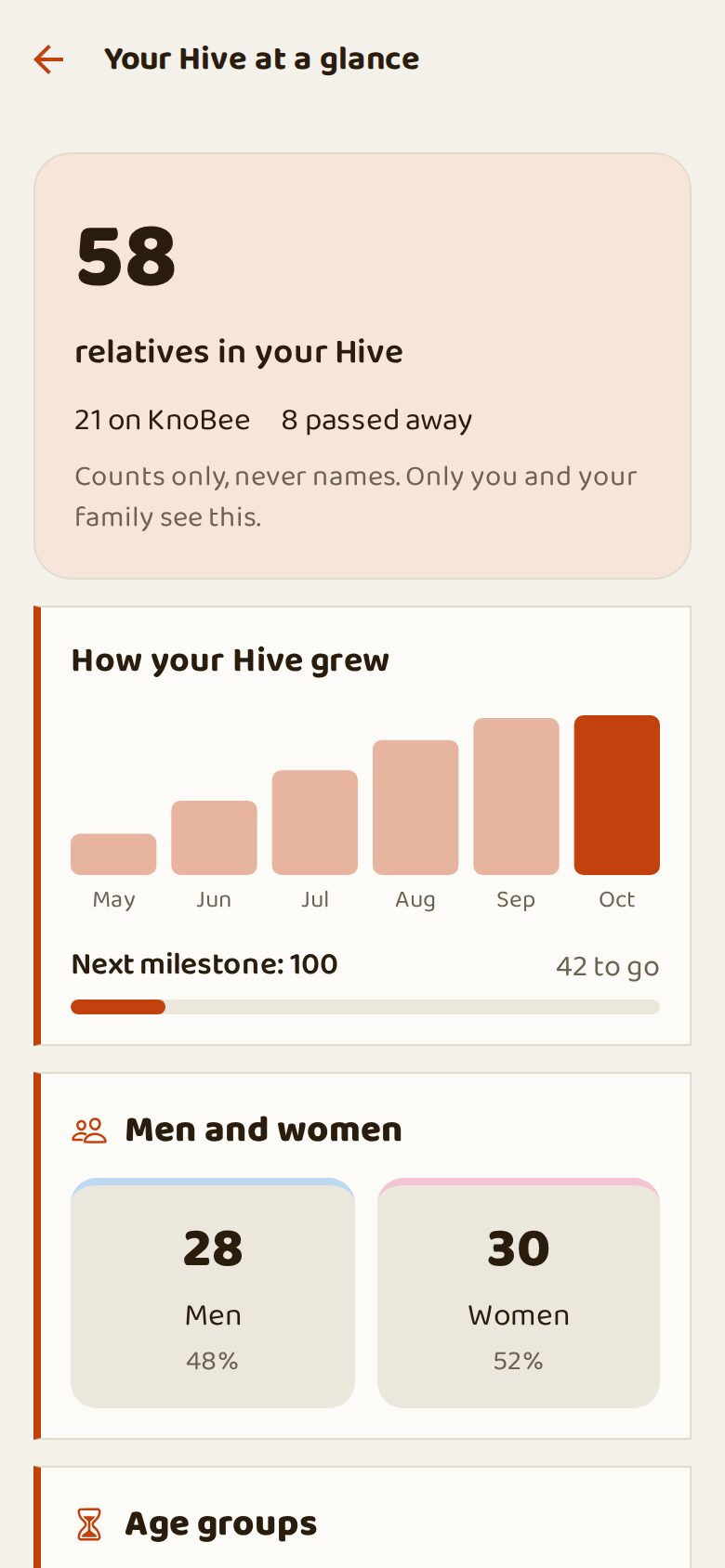
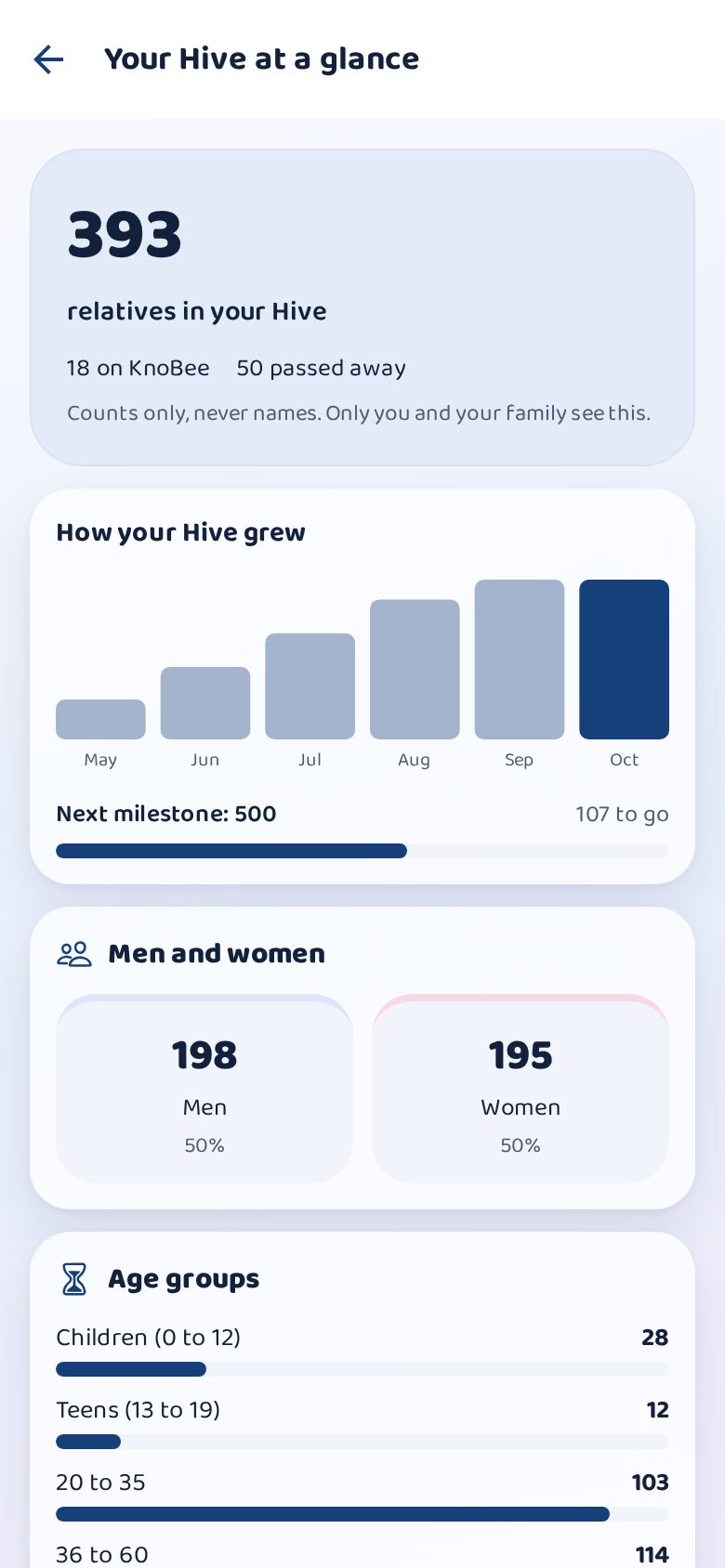
Counts only, never names: how your family grew month by month, men and women, age groups, cities and countries, religions, surnames, and business and services. A map shows where the family lives.
Steps
- Hive → See the whole family in numbers.
- Scroll to see each part.
Your score and the KnoBee Challenge
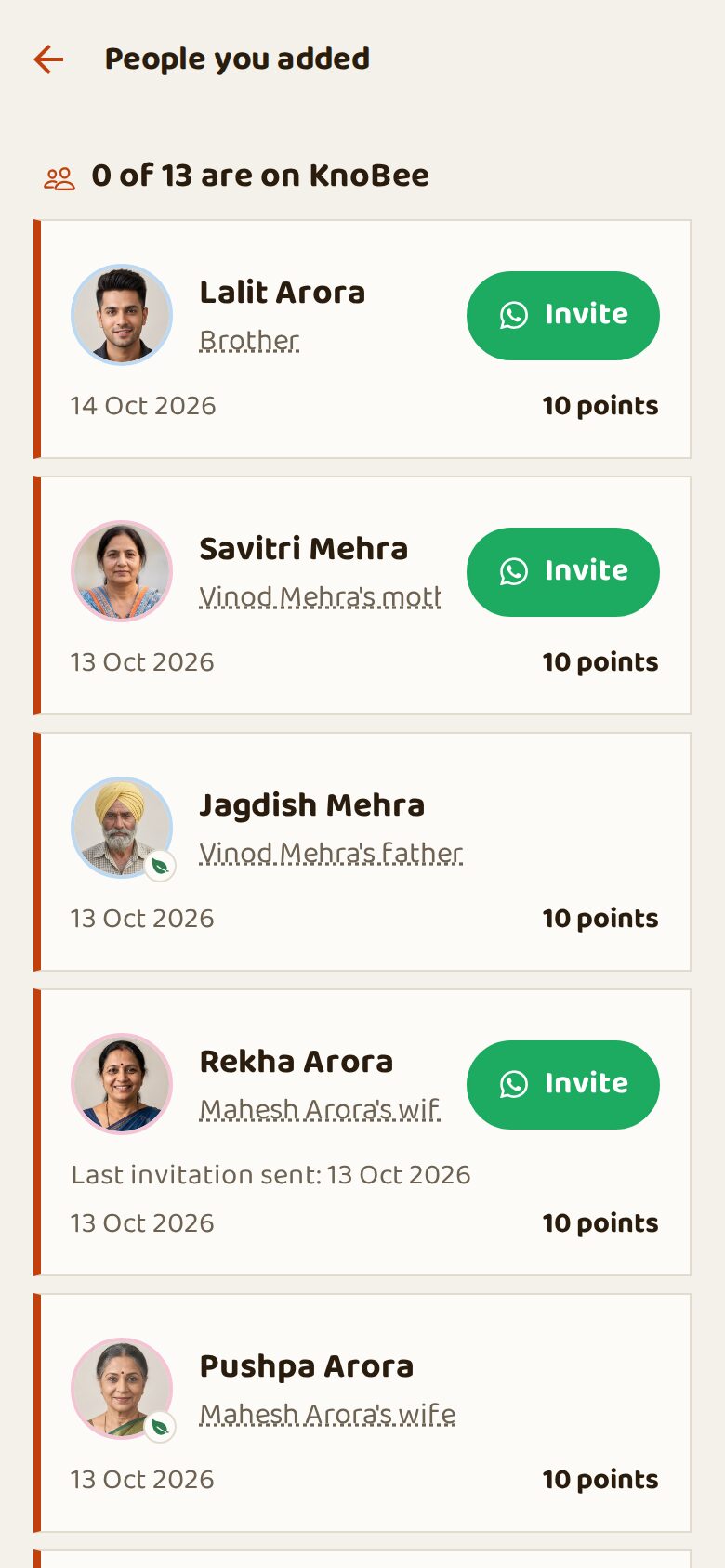

You earn points for adding relatives, inviting them (more when they join), finding forgotten families and helping complete profiles. Tap a number to see the list. The KnoBee Challenge "How Live is Your Hive" runs from time to time with rewards.
Steps
- Hive → tap a number under Your score.
- Invite the relatives shown with Invite.
Mates
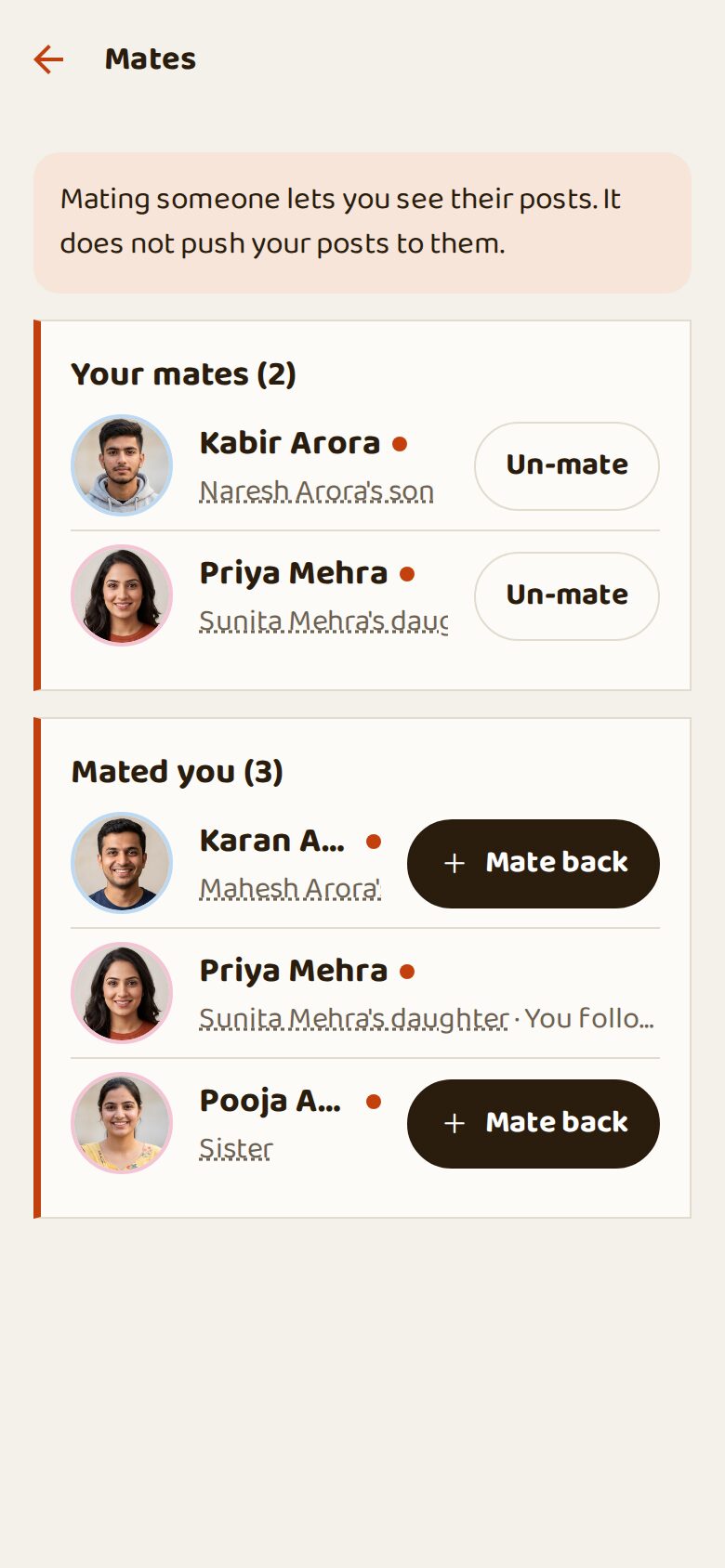
Mate a relative to see their posts first, like following. It does not push your posts to them. Mates who mated you back appear with Mate back.
Steps
- Open a profile and tap Mate.
- See all in Hive → Mates.
Family pages and heritage
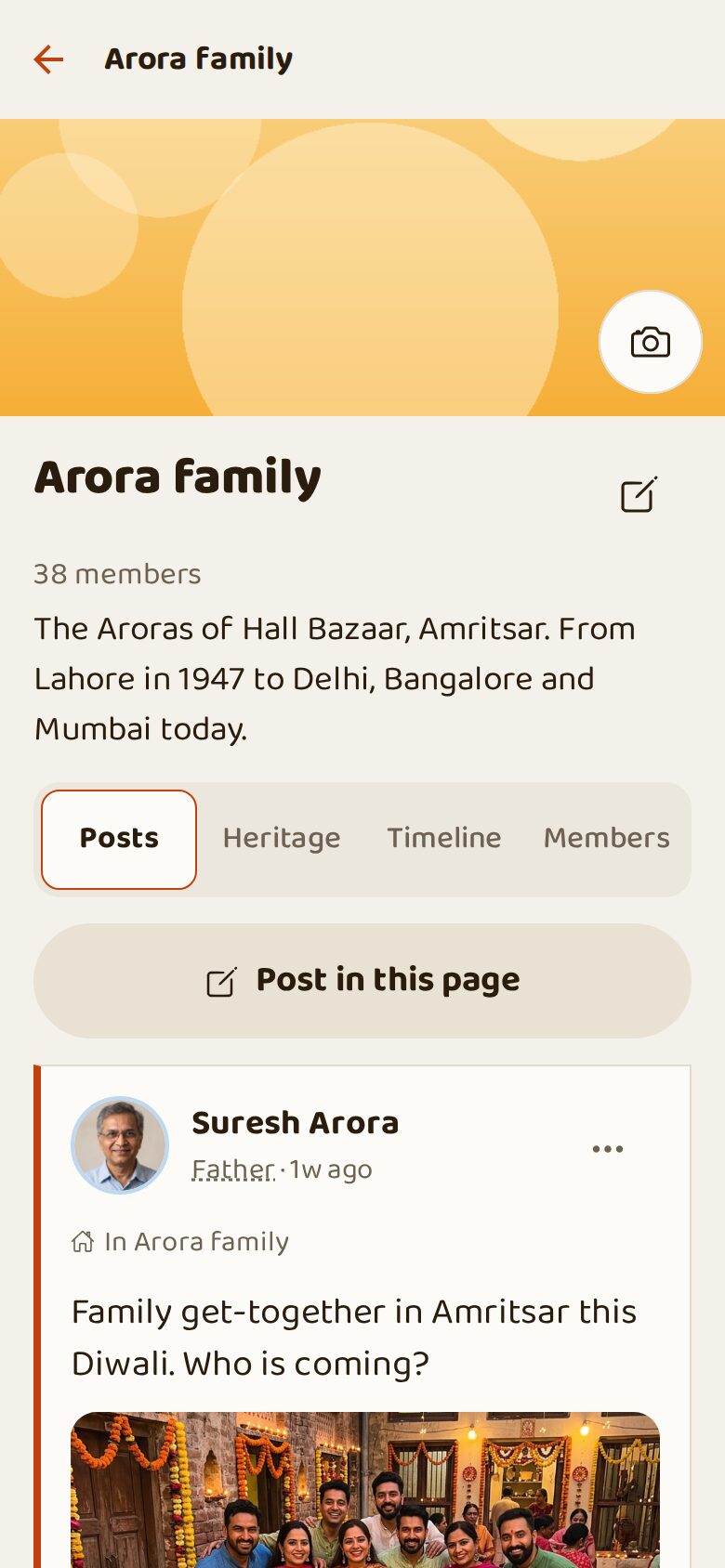
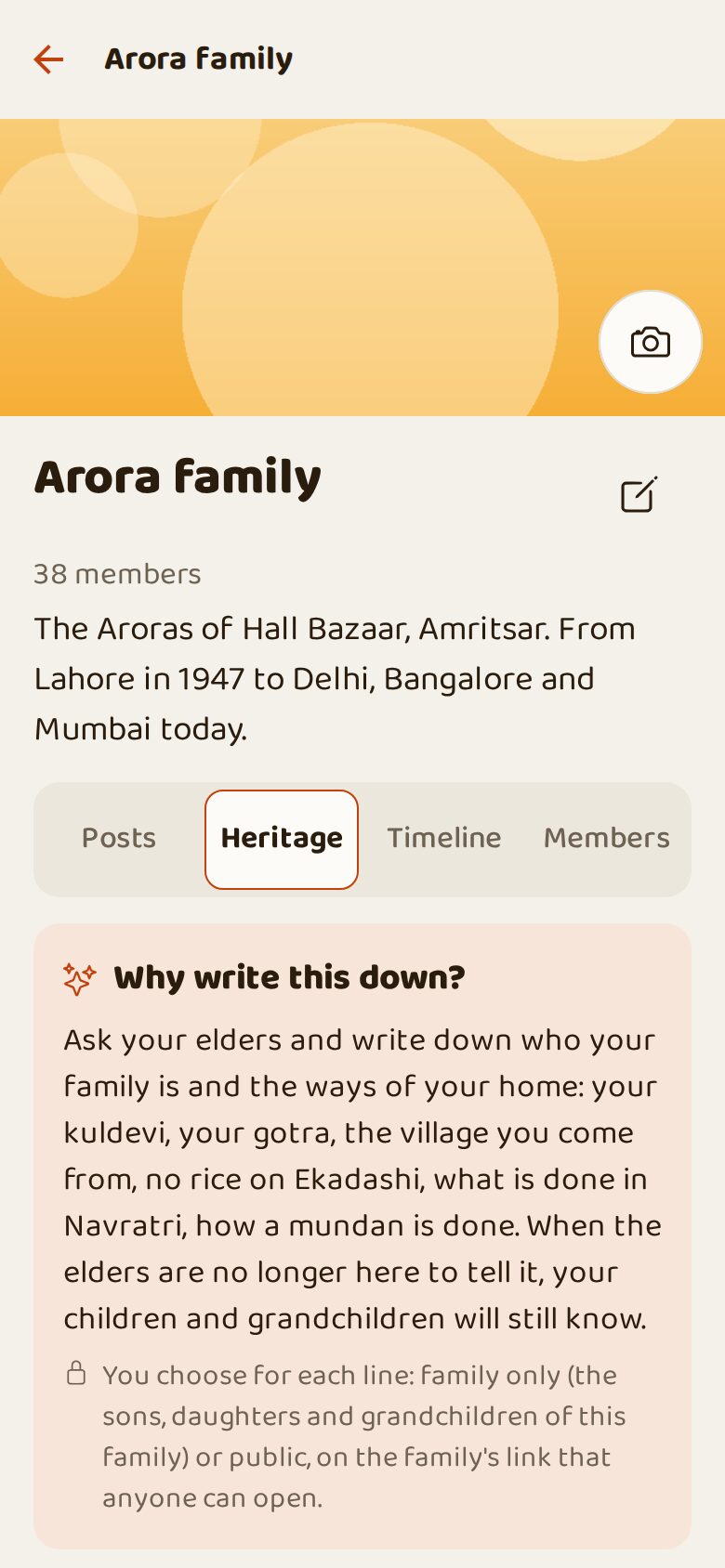
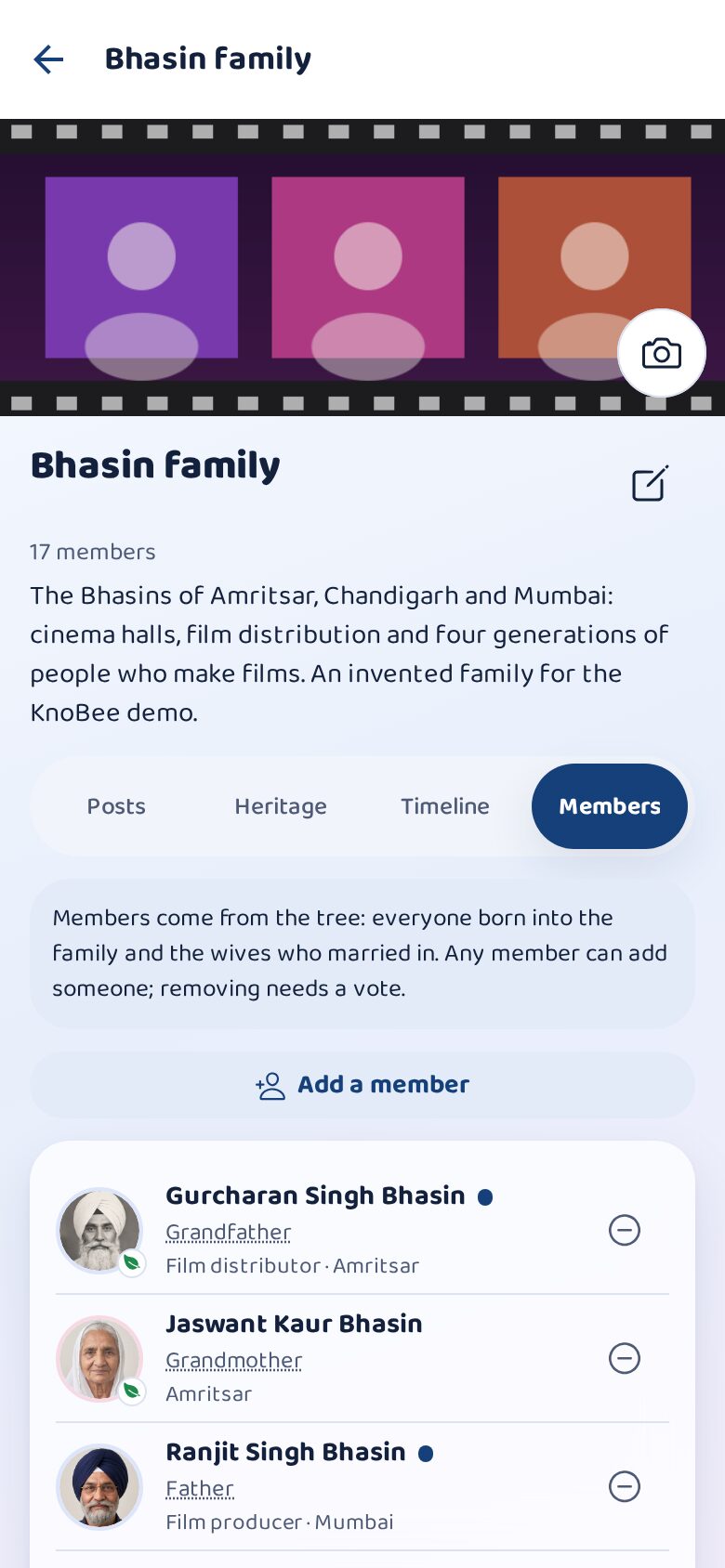
A family page is the home of a whole family ("Arora family"): posts, a timeline, members with their relation, work and city, and Heritage: the kuldevi, gotra, native village and customs, written down for the next generation. Each line can be family-only or public.
Steps
- Hive → Family pages → open your family.
- Tabs: Posts, Heritage, Timeline, Members.
- In Heritage tap + to write down a custom.
Your family on KnoBee: invite and add numbers
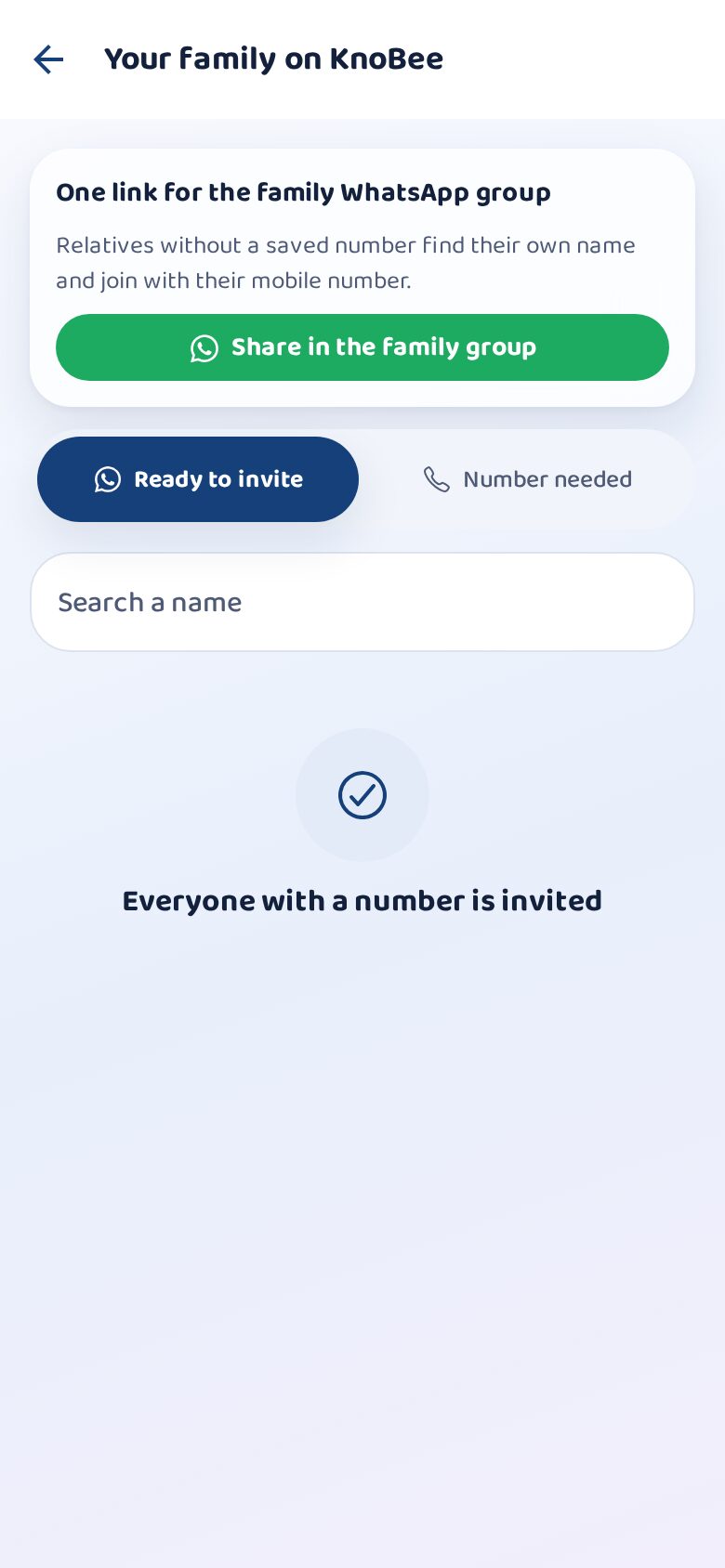
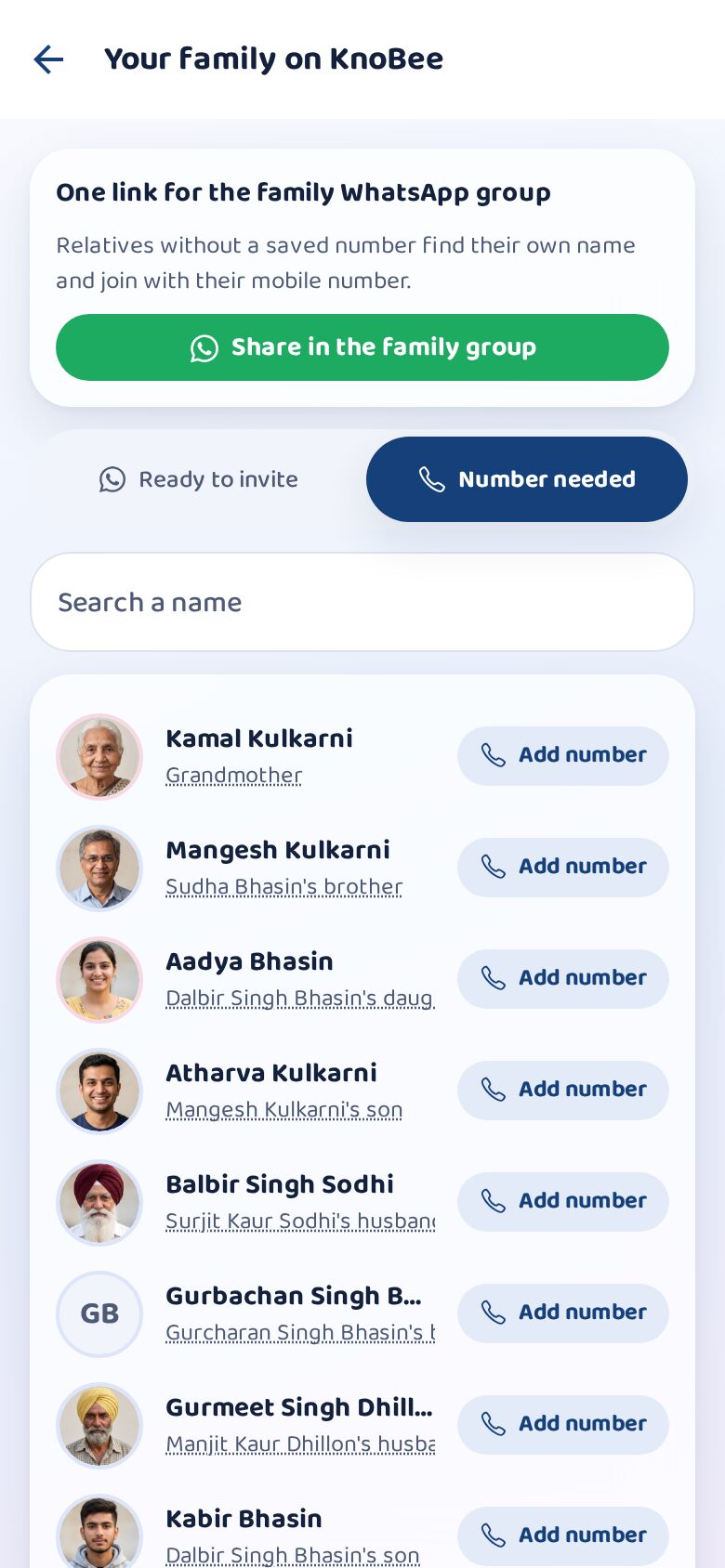
See your family person by person. Ready to invite: relatives with a number, nearest first, and those invited who have not come yet (send a reminder). Add numbers: living relatives without a number, so nobody can invite them yet; pick the number from your address book or type it.
Steps
- Hive → Invite family.
- Ready to invite: tap Invite on WhatsApp next to a name.
- Add numbers: add the missing numbers one by one.
Family nearby: products and services
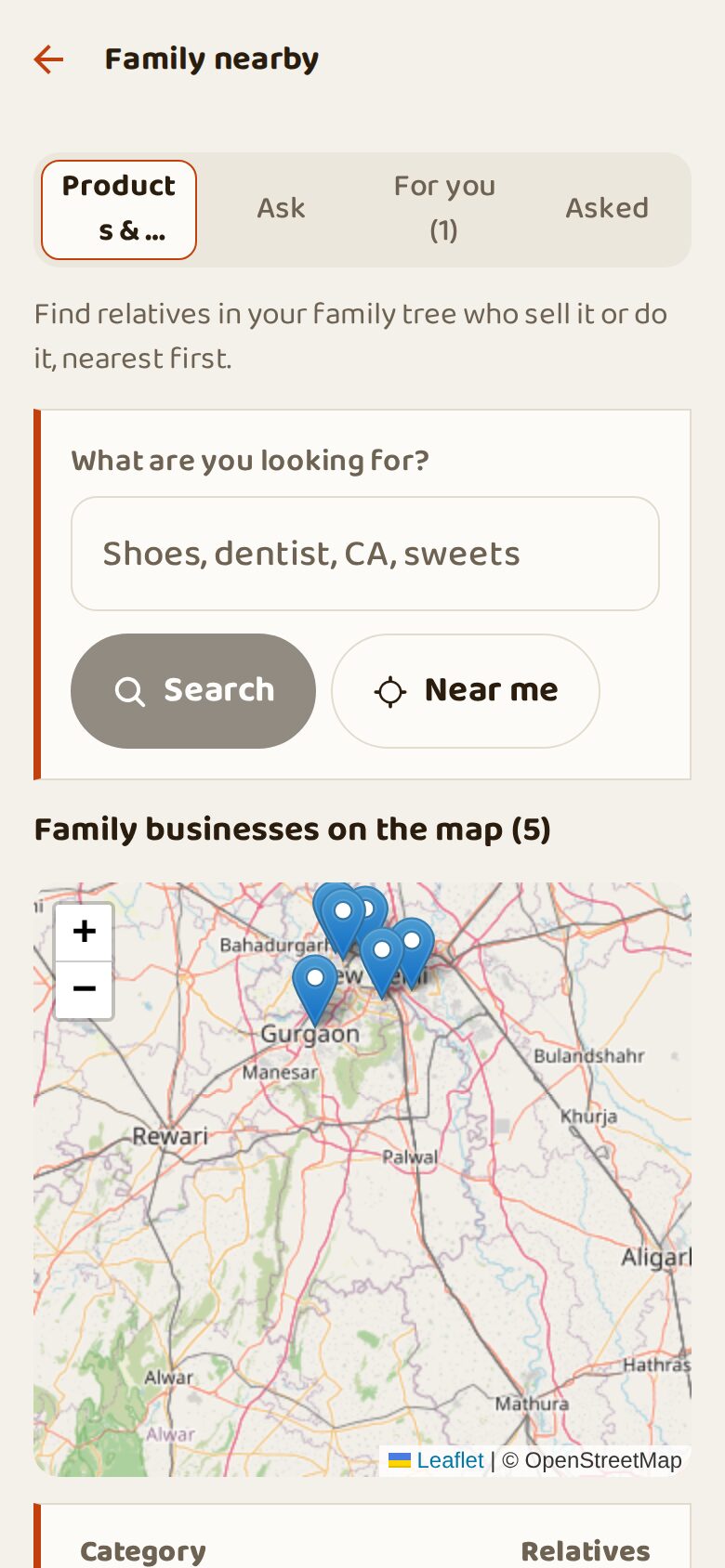
Need shoes, a dentist or a CA? Buy from family. The map shows every family business. Type what you need, or tick one or more categories in the list (the number shows how many relatives offer it). Results come nearest first; tap a pin to open the profile or chat.
Steps
- Hive → Family nearby.
- Type (e.g. shoes) and tap Search, or tick categories and tap Show relatives.
- Tap Near me to sort by your location.
- Tap a pin: Open profile or Chat.
Ask the family
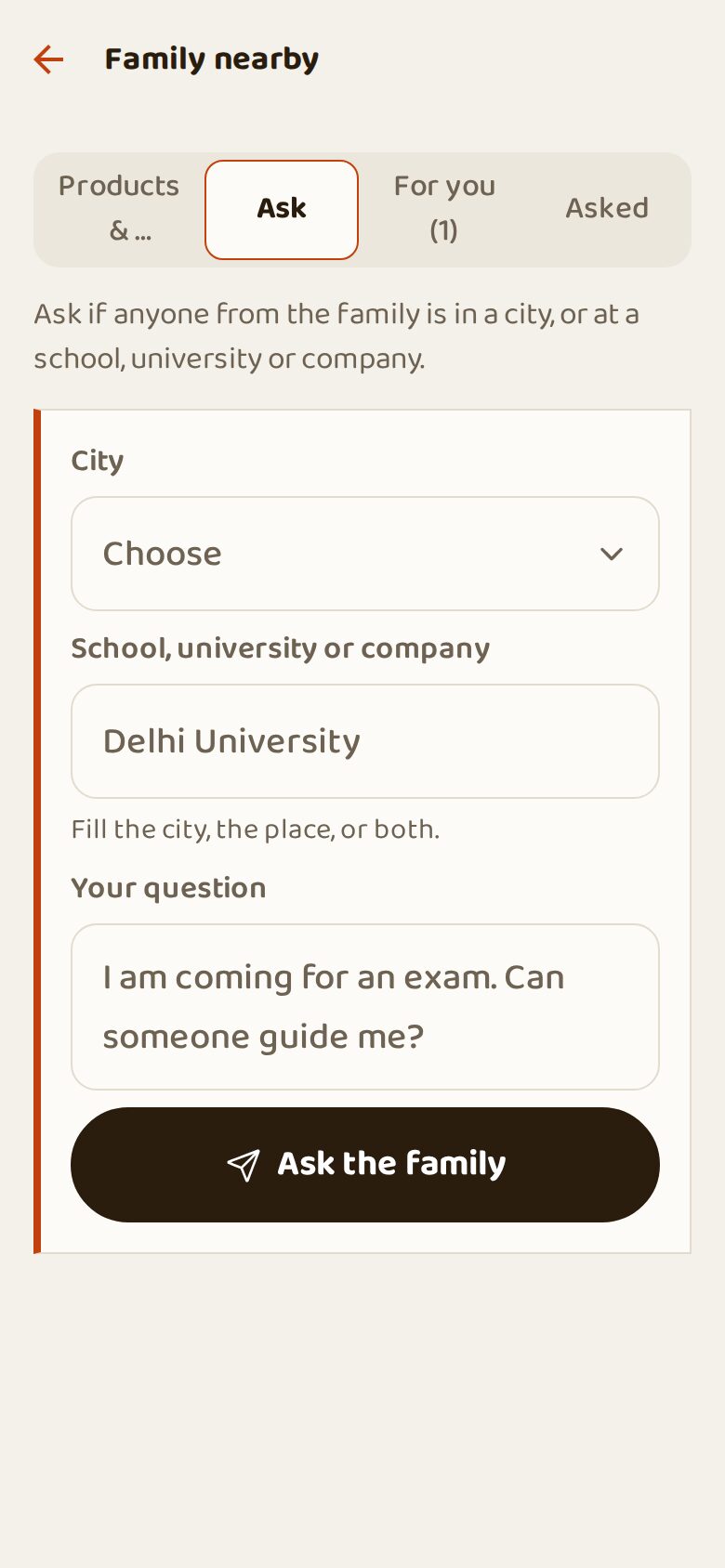
Going to a new city, college or company? Ask if anyone from the family is there. Relatives there receive your question; you only see those who choose to answer.
Steps
- Family nearby → Ask.
- Choose the city and/or the place, write your question.
- Tap Ask the family. Answers come in For you / Asked.
Matrimony
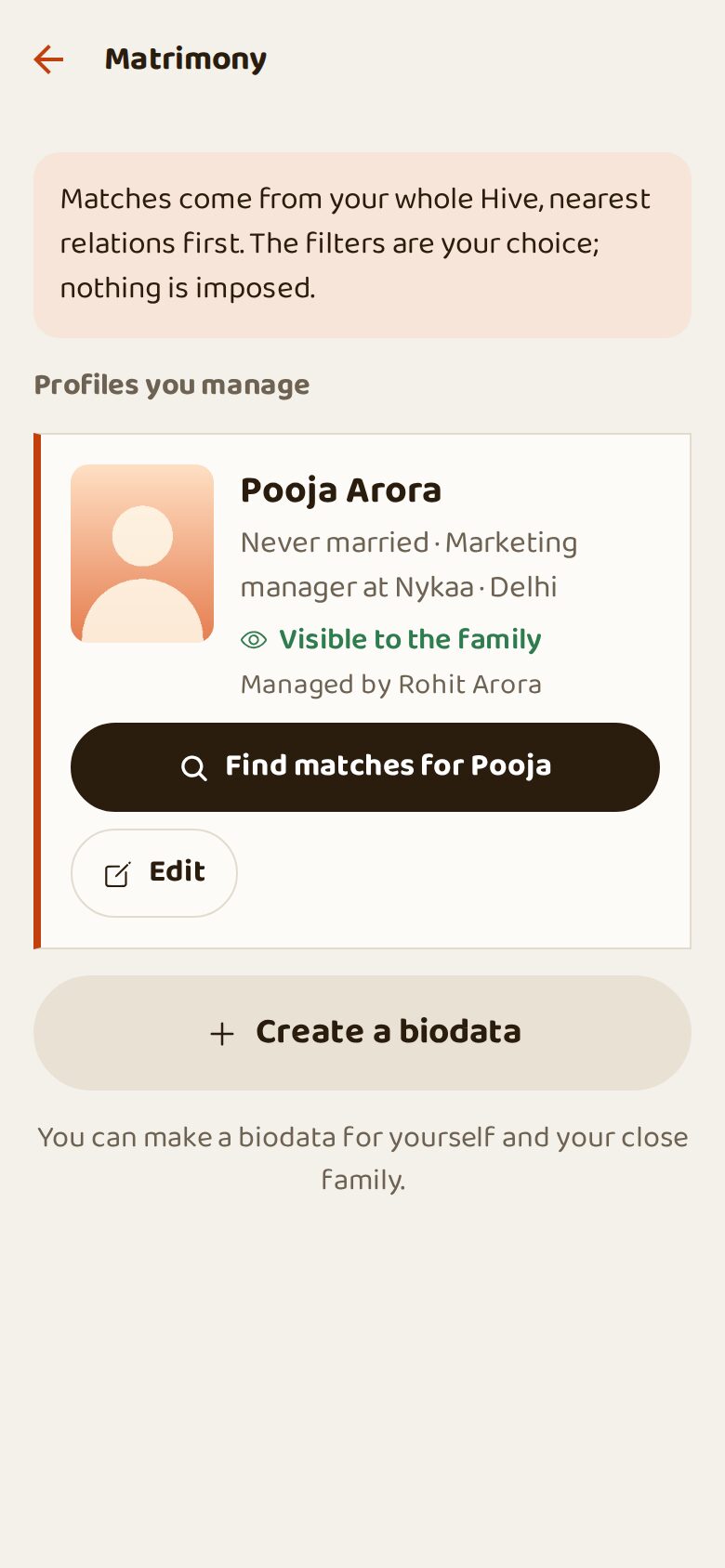
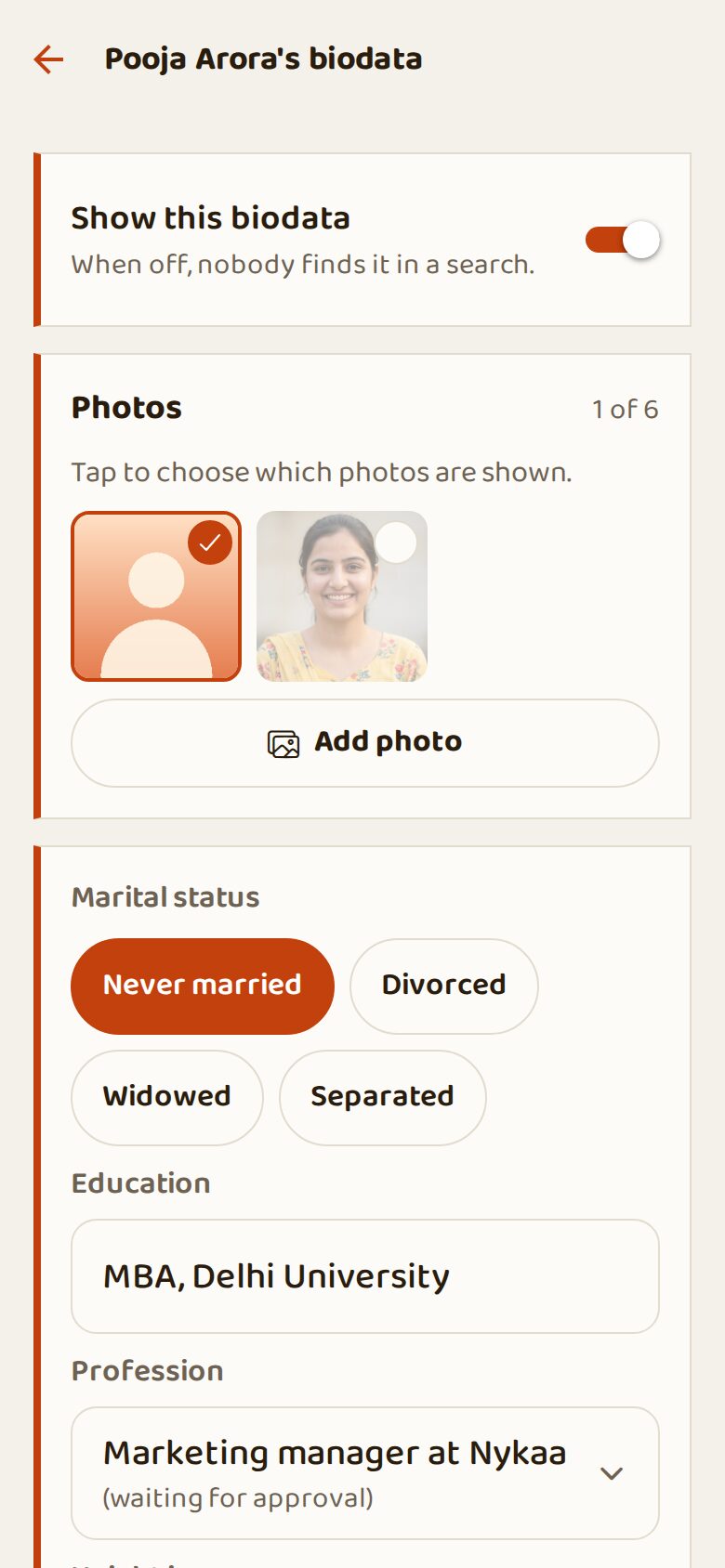
Make a biodata for yourself or close family. Matches come from your whole extended family, nearest relations first, with how they are connected. Filters are your choice; nothing is imposed. Show interest opens a chat with whoever manages that biodata.
Steps
- Hive → Matrimony → Create a biodata.
- Choose photos and fill the details: type the degree, then pick your college or academy from the list. Keep Show this biodata on.
- Tap Find matches, use Filters if you like.
- Tap Show interest to start a chat.
Emergency SOS
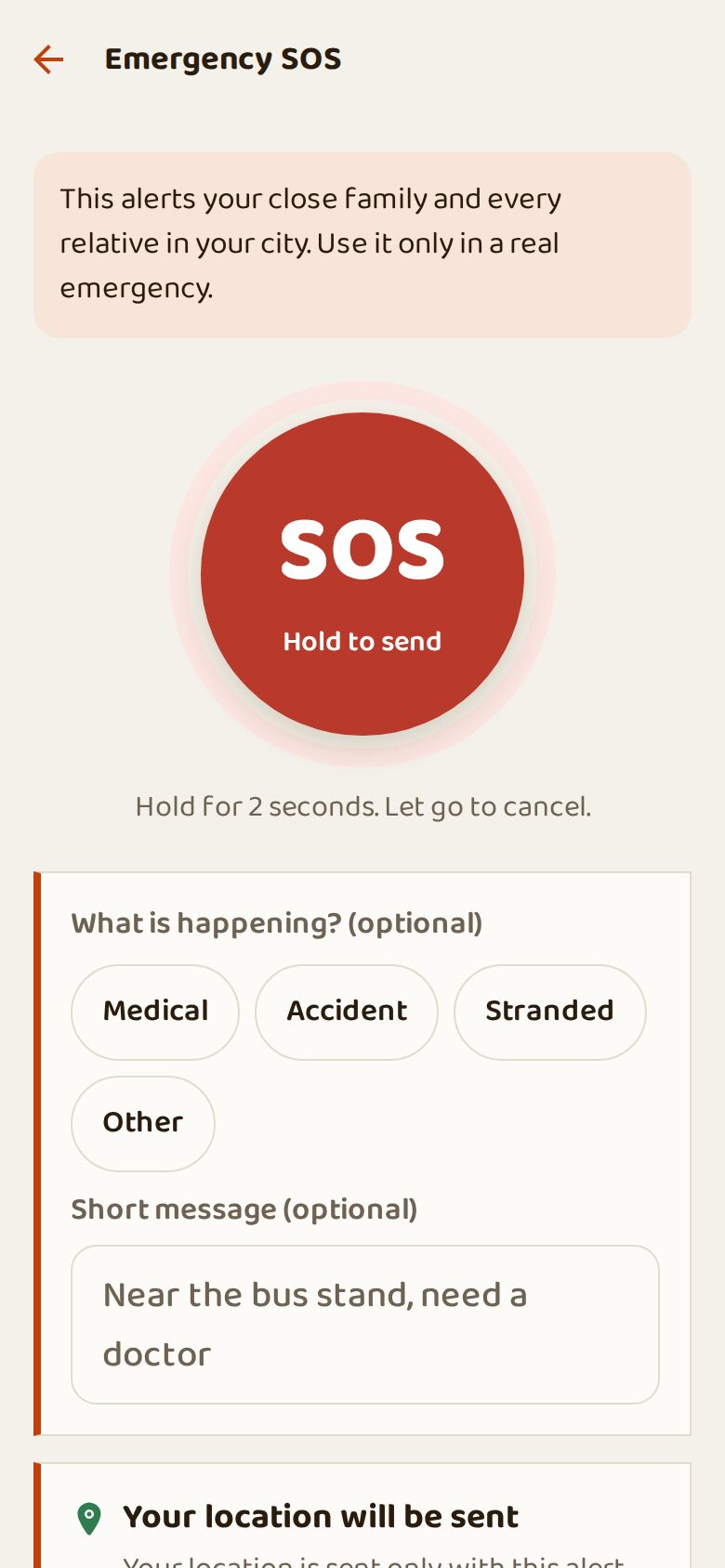
In a real emergency, hold the big SOS button for 2 seconds. Your close family and every relative in your city get an alert, with your location if you allow it. Choose what is happening (medical, accident, stranded) and add a short message. Blood group on profiles helps relatives donate.
Steps
- Hive → SOS (red).
- Choose what is happening, add a message (optional).
- Hold SOS for 2 seconds. Let go to cancel.
Advertise with KnoBee

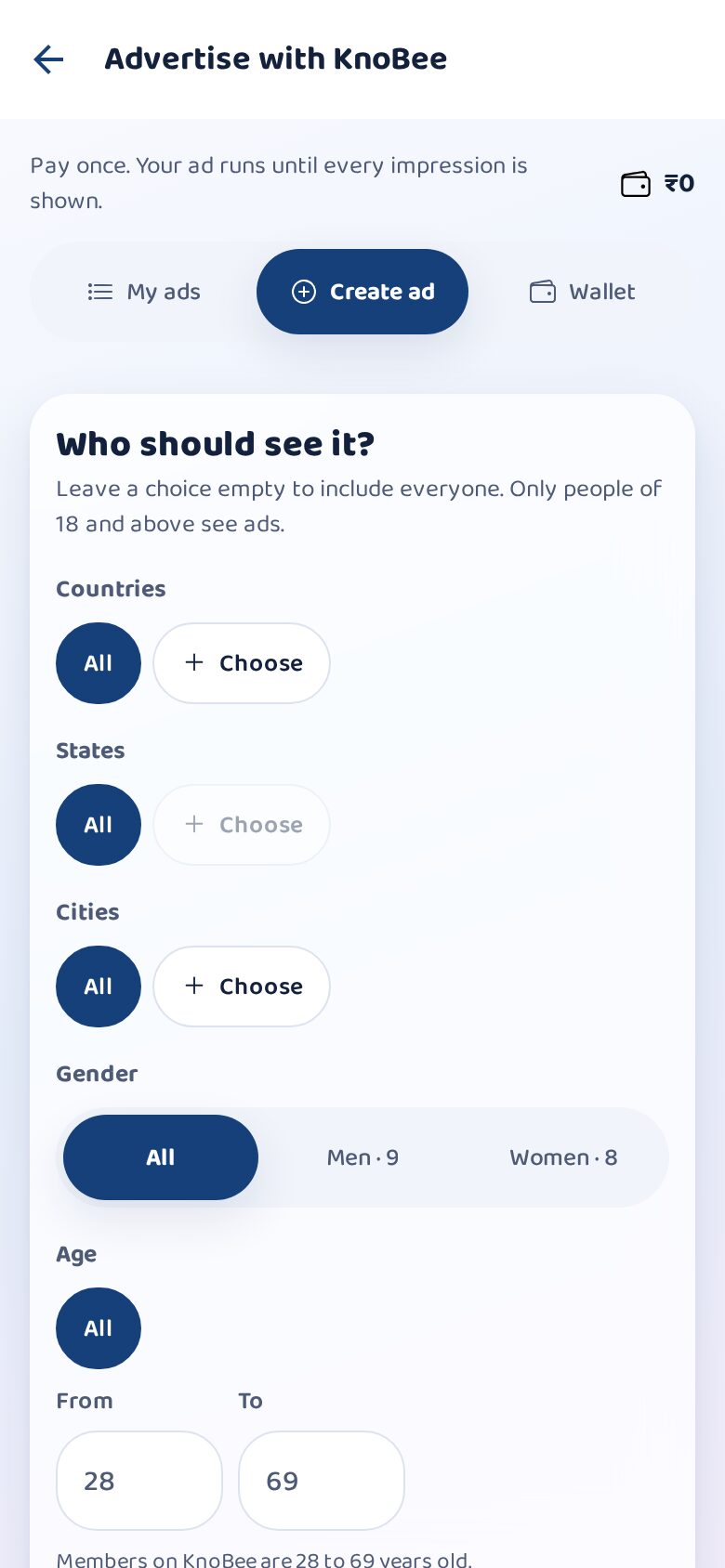
Have a shop, a clinic or a service? Show it to families on KnoBee. Choose who should see it (places, age, gender, interests: only from members who are really there), write a short ad, add a photo and fit it in the frame, pick the button (Chat, Call, WhatsApp, Website, Directions). Pay once; the ad runs until every view you bought is shown. See it in a feed with Preview ad, compare your ads by clicks per 100 views, duplicate one to try a change.
Steps
- Settings → Advertise with KnoBee (it opens on the website).
- Create ad: audience, text, photo, button, number of views.
- Tap Pay: from the ad wallet, or online.
- My ads: preview, edit, pause, duplicate and compare.
KnoBee plans
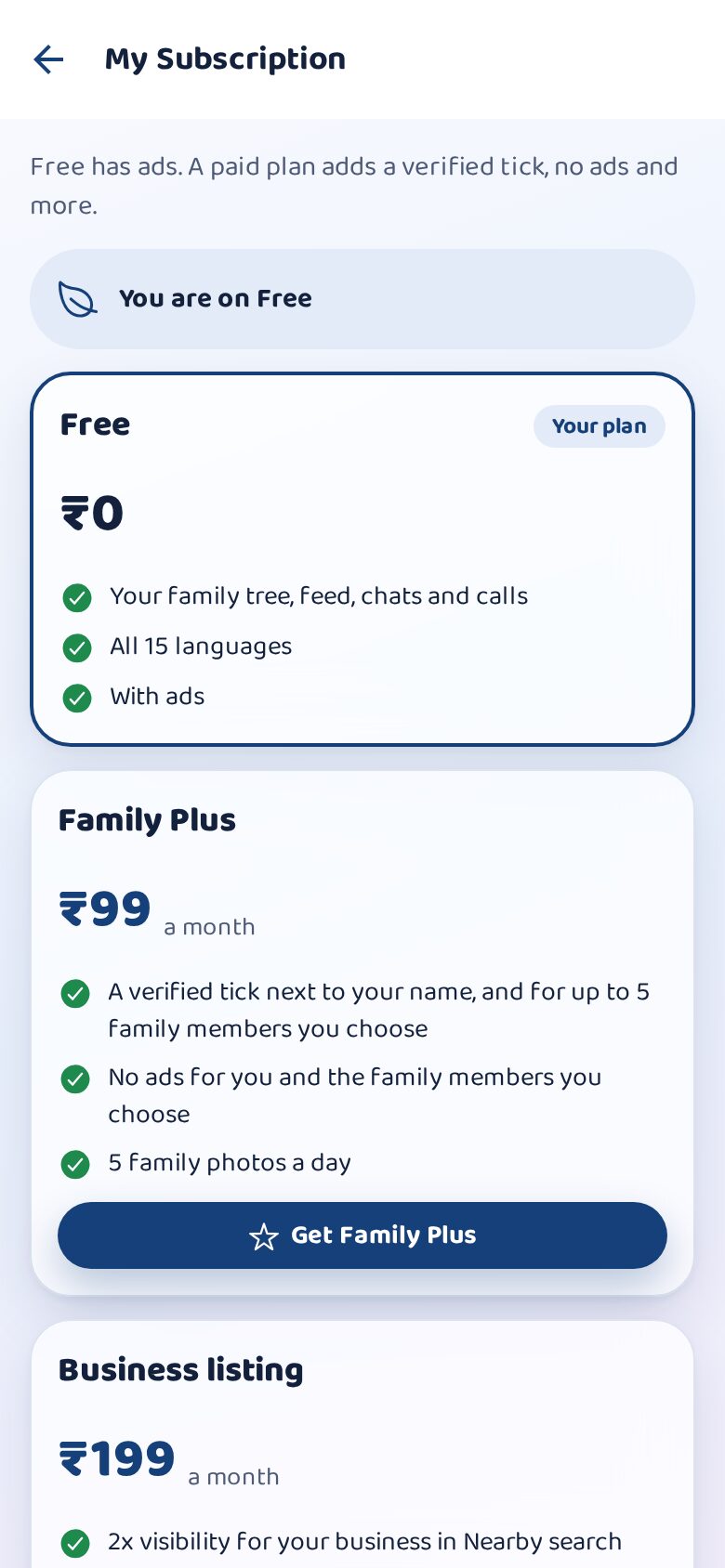
KnoBee is free. Family Plus adds a verified tick for you and up to five family members you choose, no ads for you, and more family photos. A Business listing shows your work twice as often in Family nearby, with a Featured mark and a verified tick.
Steps
- Open Me → Plans.
- Choose a plan and pay online.
Me
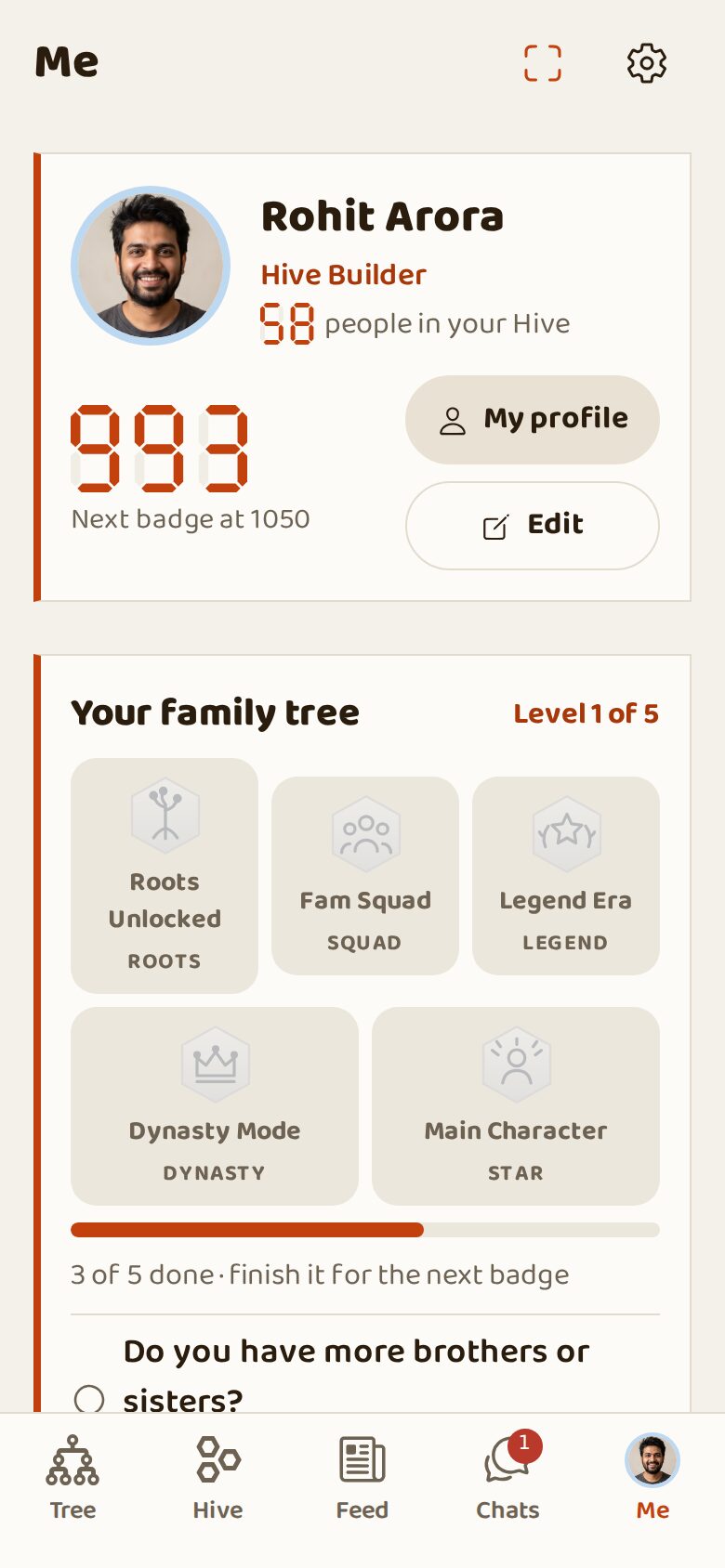
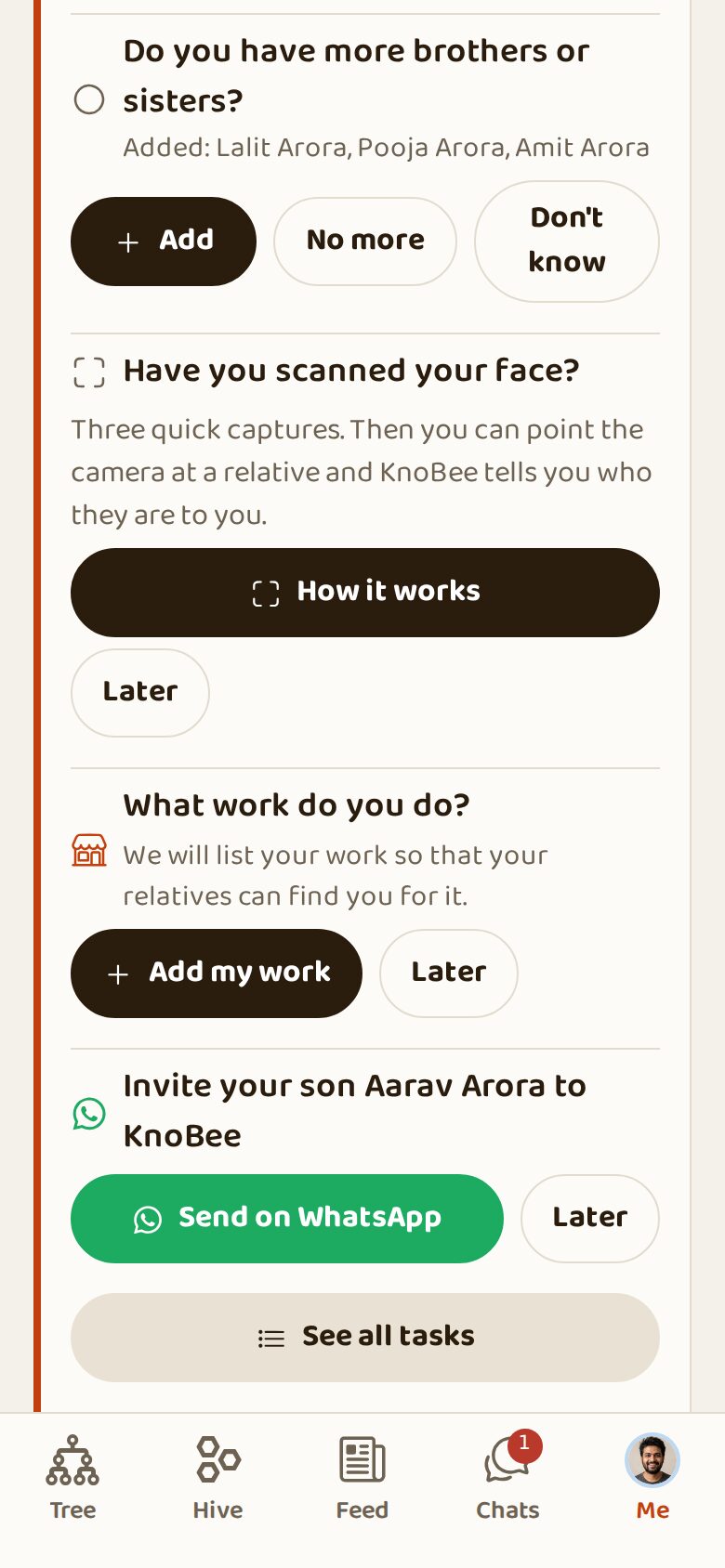
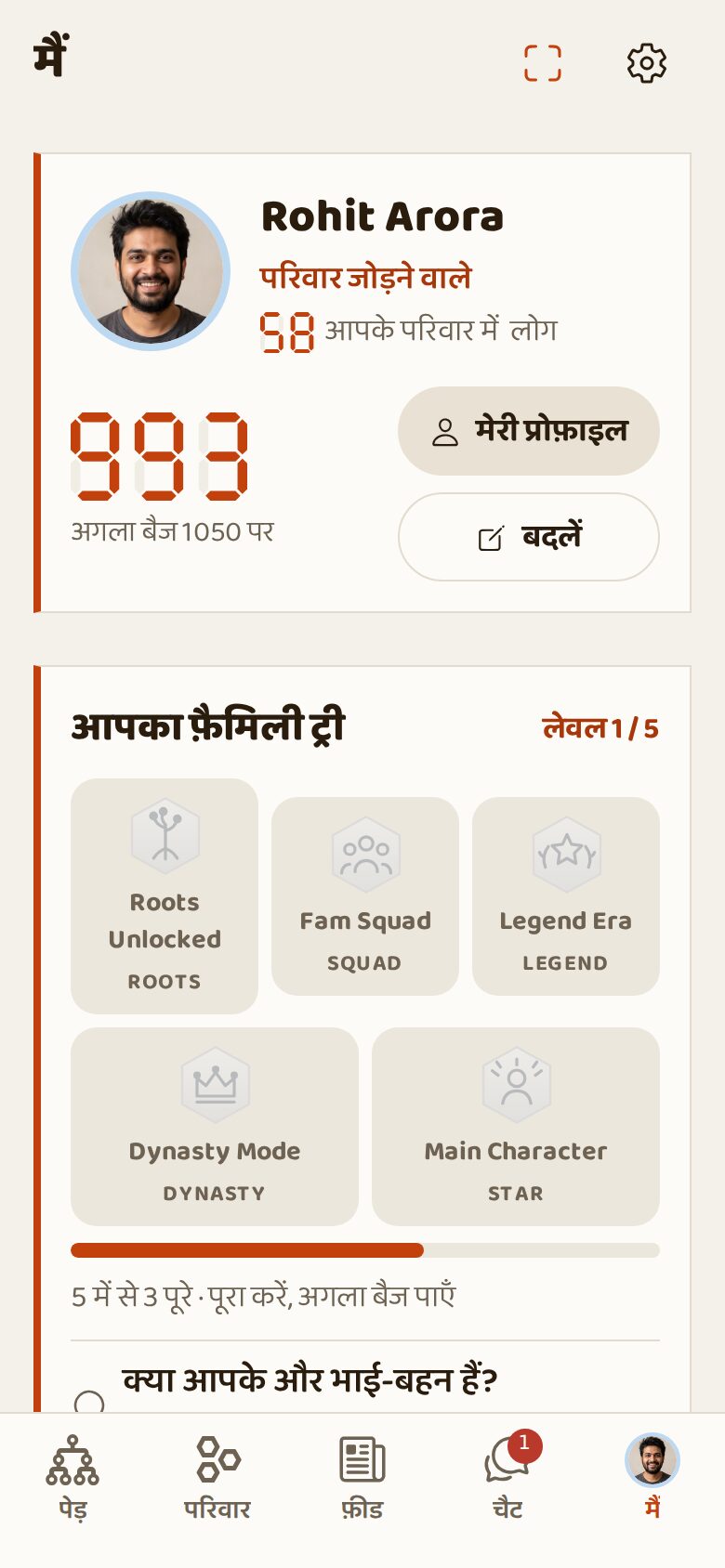
Your own page: your photo and score, your family badges level by level, easy tasks, invites, and everything else: Confirm relations, Mates, Family pages, Matrimony, Family nearby, Who is this?, Same person?, SOS and Settings.
Steps
- Tap Me (last button).
- My profile shows your profile as relatives see it.
Tasks and family badges
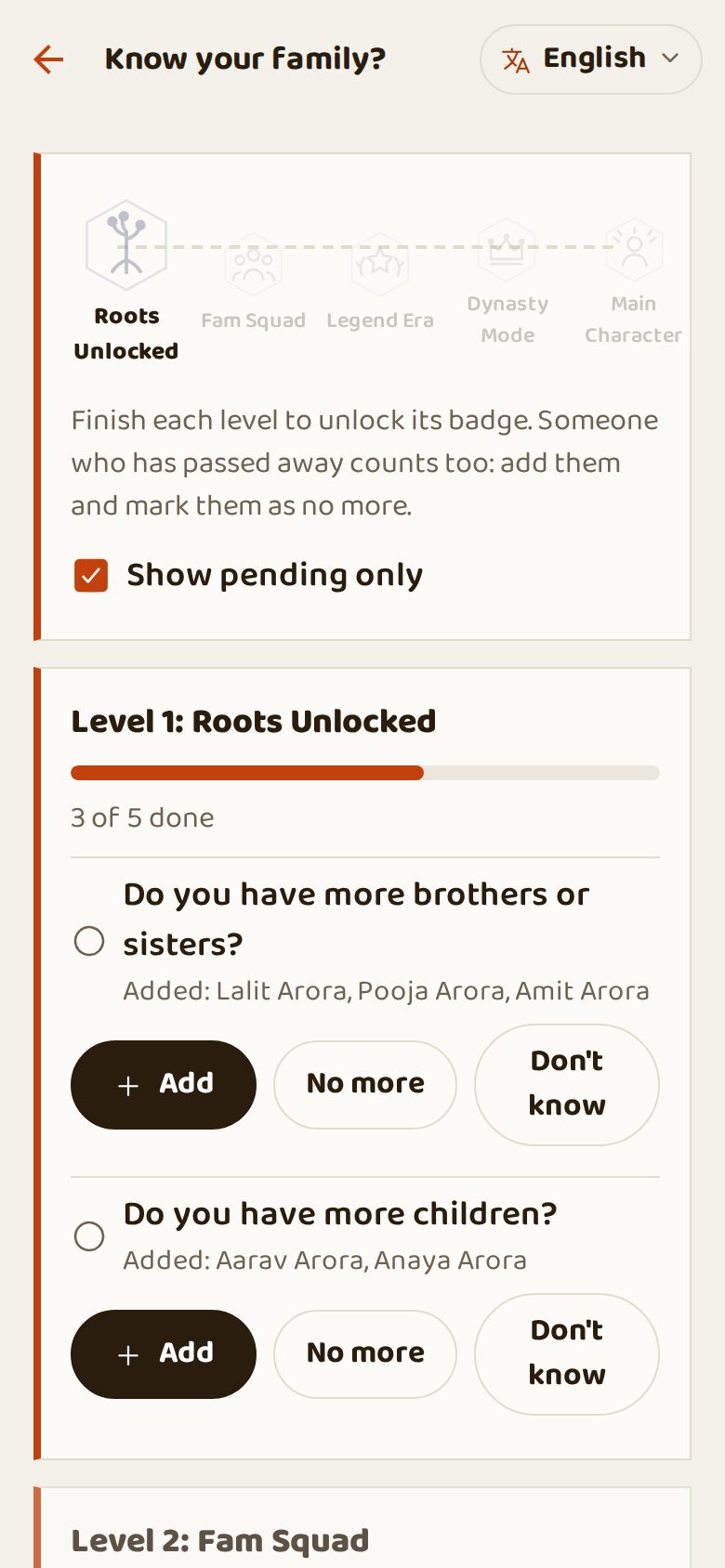
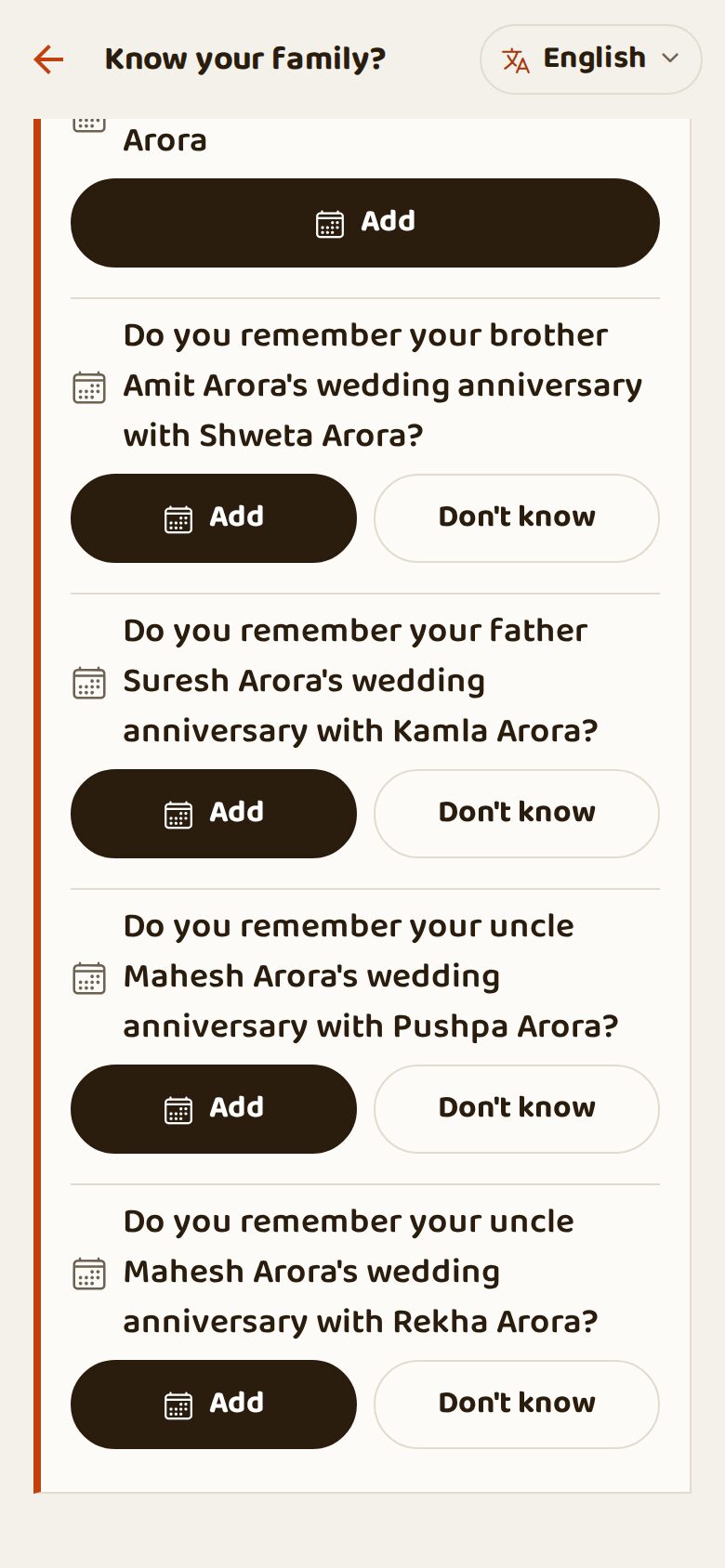
Easy questions help the tree grow: "Do you have more brothers or sisters?", "What work do you do?", "What does your brother do: the same as his father's business?", wedding dates, invites. Each level you finish earns a family badge. After all five badges, a sixth level, More family, asks about your cousins', nieces' and nephews' families and your grandparents' brothers and sisters; it has no badge. Later rests a question; Don't know is fine too.
Steps
- Tap the clipboard at the top (red number = tasks waiting).
- Answer with Add, No more, Don't know or Later.
Notifications
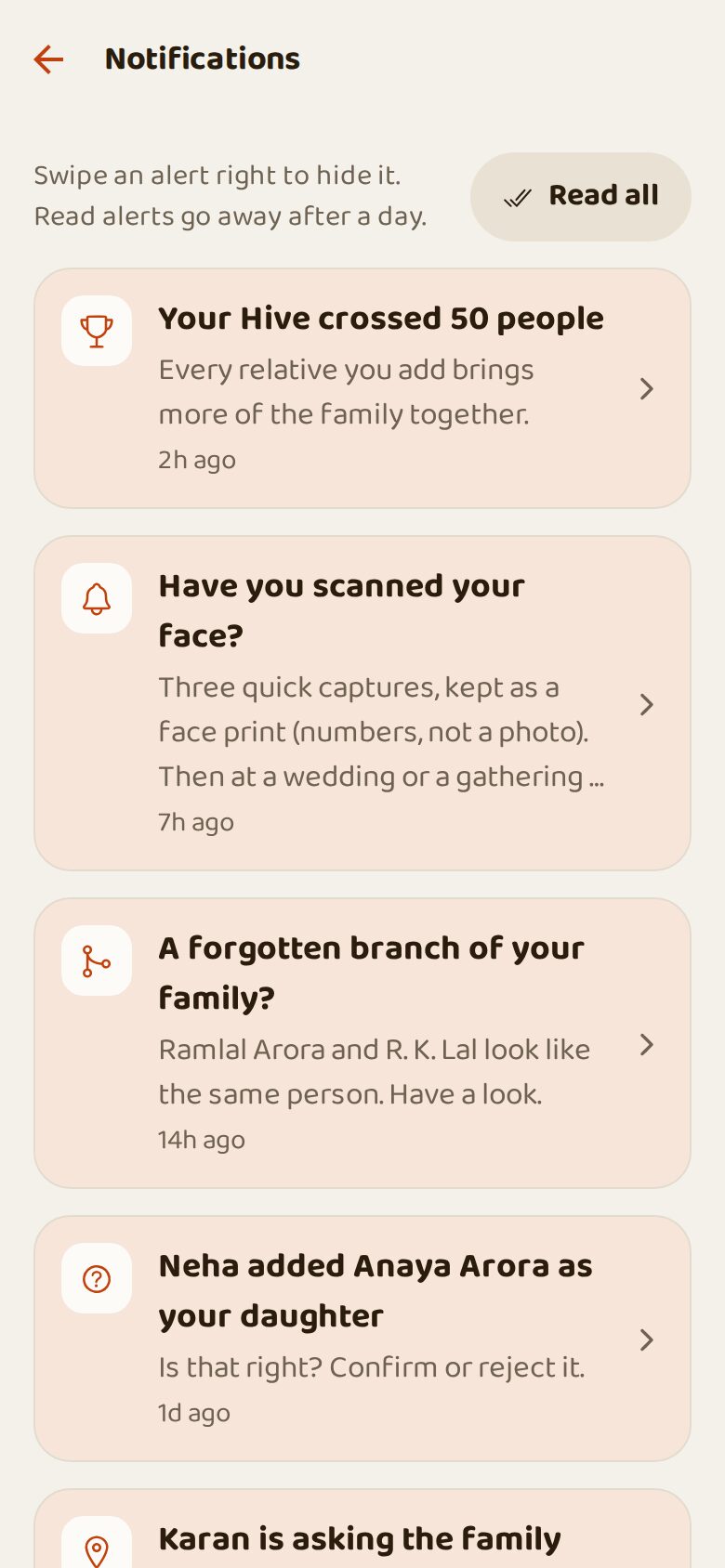
Everything new in one place: relatives added, someone asking the family, a forgotten branch found, birthdays and Shraddh reminders. Tap one to open it; Read all clears the list.
Steps
- Tap the bell at the top.
- Tap a notification to open it.
Settings
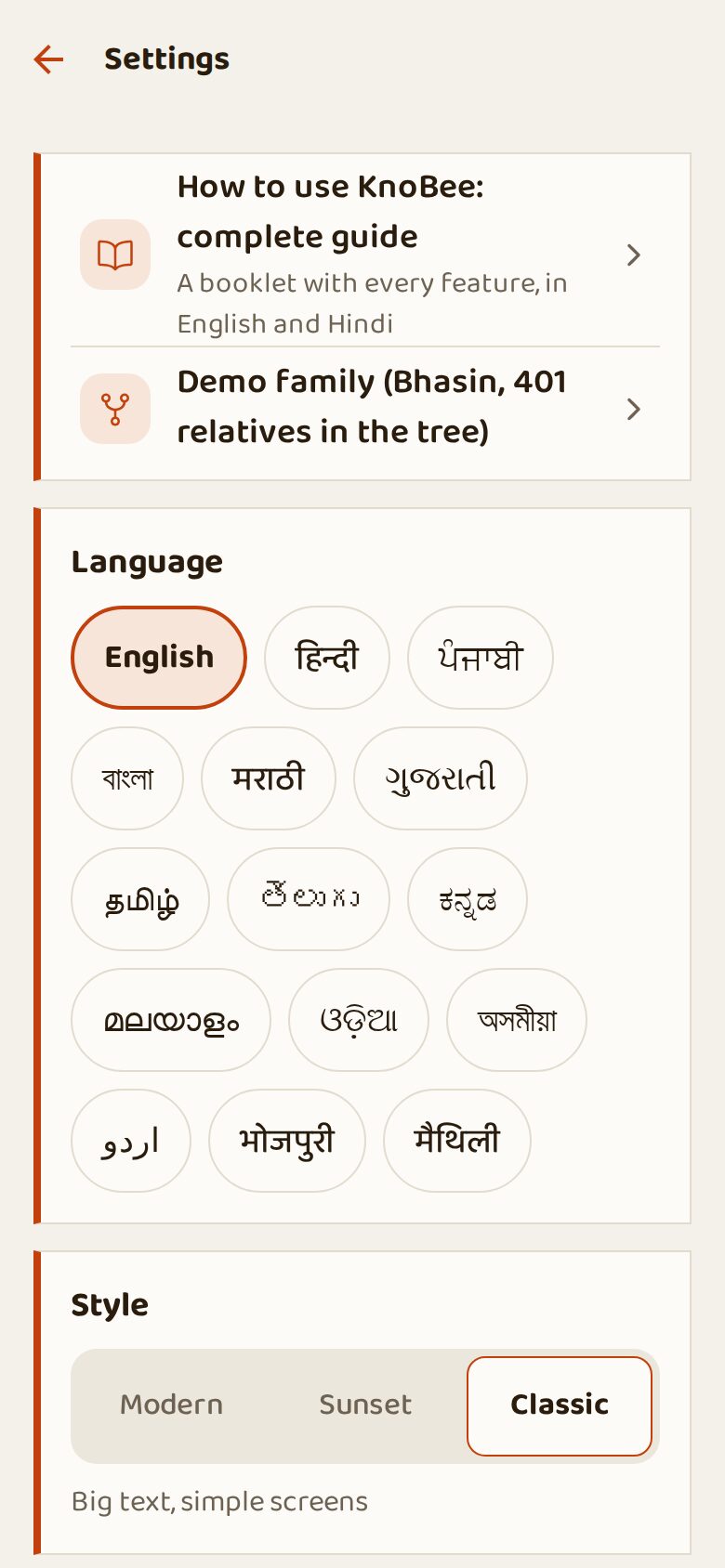
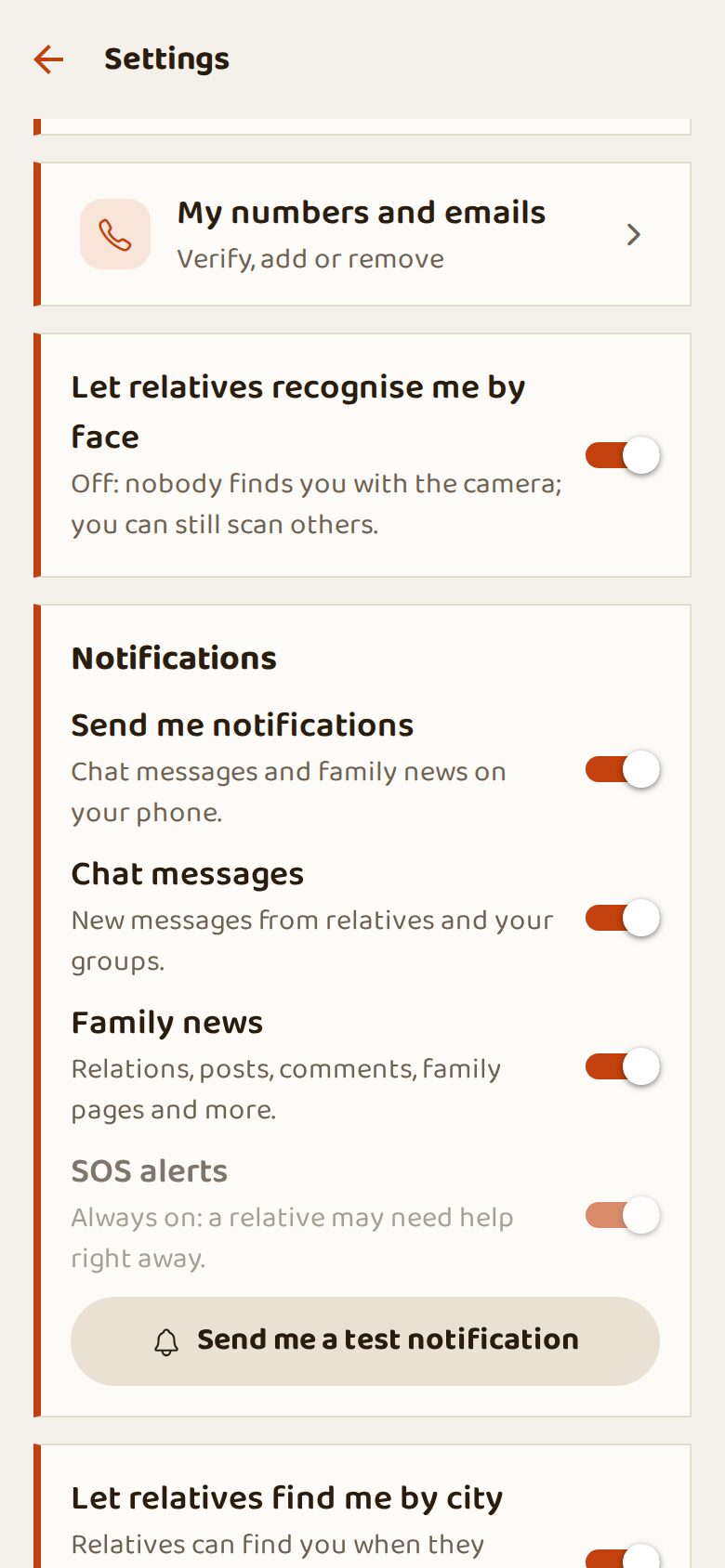
Demo family, language, style, theme and view, which notifications you get (chats, family news, SOS), whether relatives can find you by city, The KnoBee Challenge, invite family or a friend, privacy policy and terms, and This is not my family.
Steps
- Me → Settings (gear).
- Switch each item on or off.
My numbers and emails
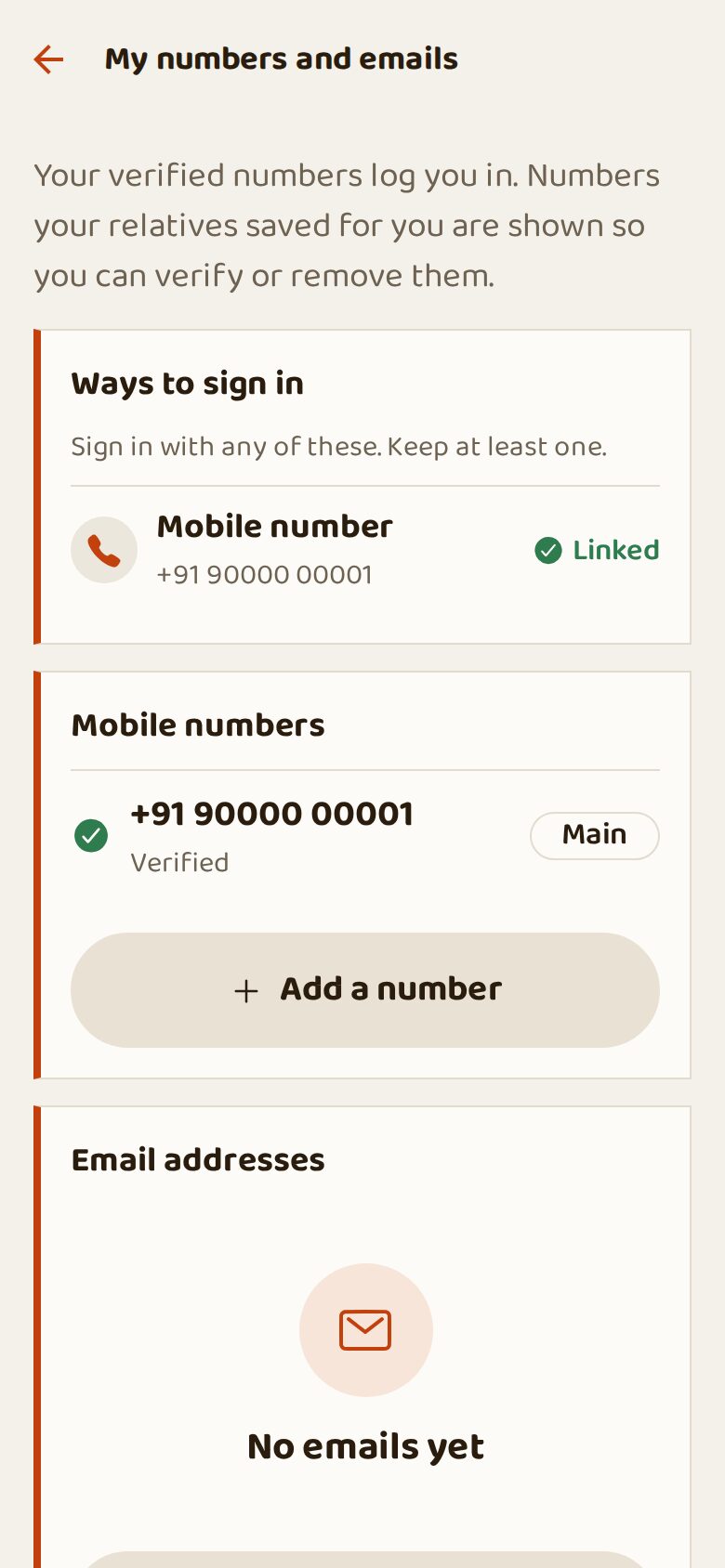
The numbers and emails you sign in with. Add a second number so you can still sign in if you change phones. Relatives' saved numbers are shown here for you to verify or remove.
Steps
- Settings → My numbers and emails.
- Tap Add a number or Add an email.
The demo family
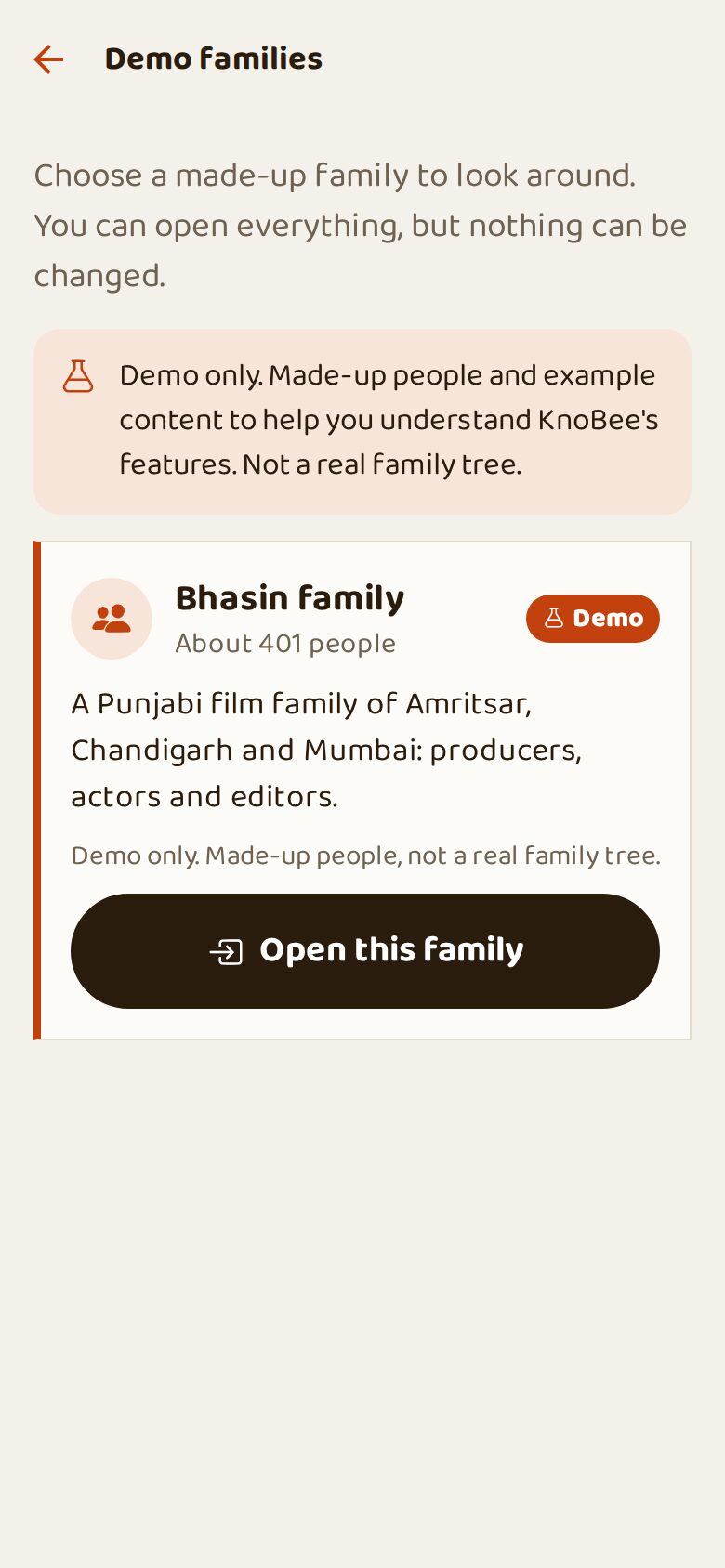
Practise on a made-up family of 401 relatives: open every feature, nothing can be changed or broken. Your own account stays safe; tap End demo to come back.
Steps
- Settings → Demo family (Bhasin).
- Explore freely, then tap End demo.